User Analytics
This page consists of two sections, first is the initial page of the User analytics list, the second is a more in-depth view of a specific users analytics, accessed through clicking the More menu option on a user account.
User Analytics List
This list provides a general overview of the usage for each user registered in the application over the selected period.
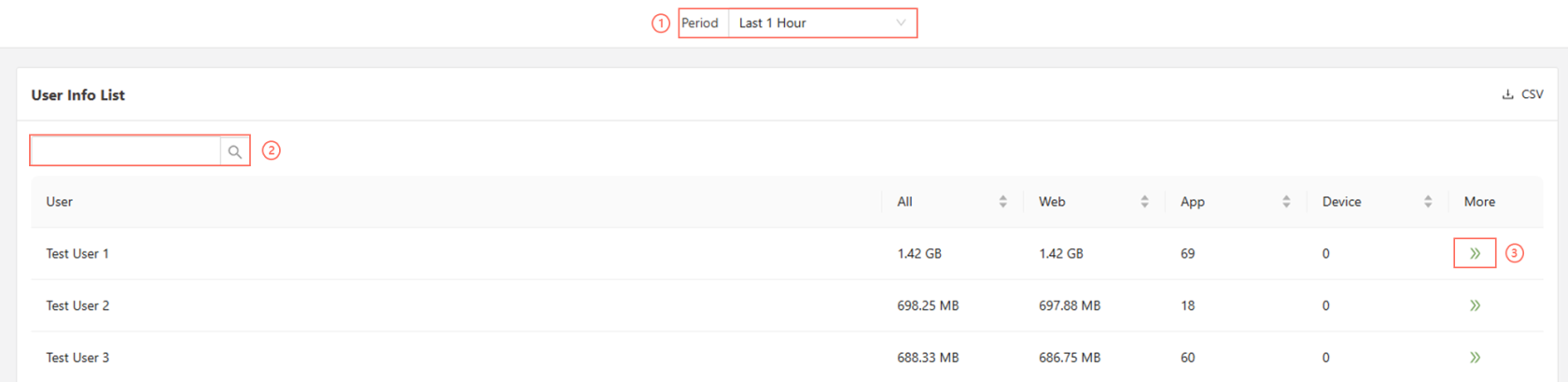
- Period: Filter the display based on the selected period of time or date.
- Search: Filter the list by searching for the specific user account name.
>>Button: Links to a detailed view of the user’s analytics.
User Analytics
User Analytics > User Info
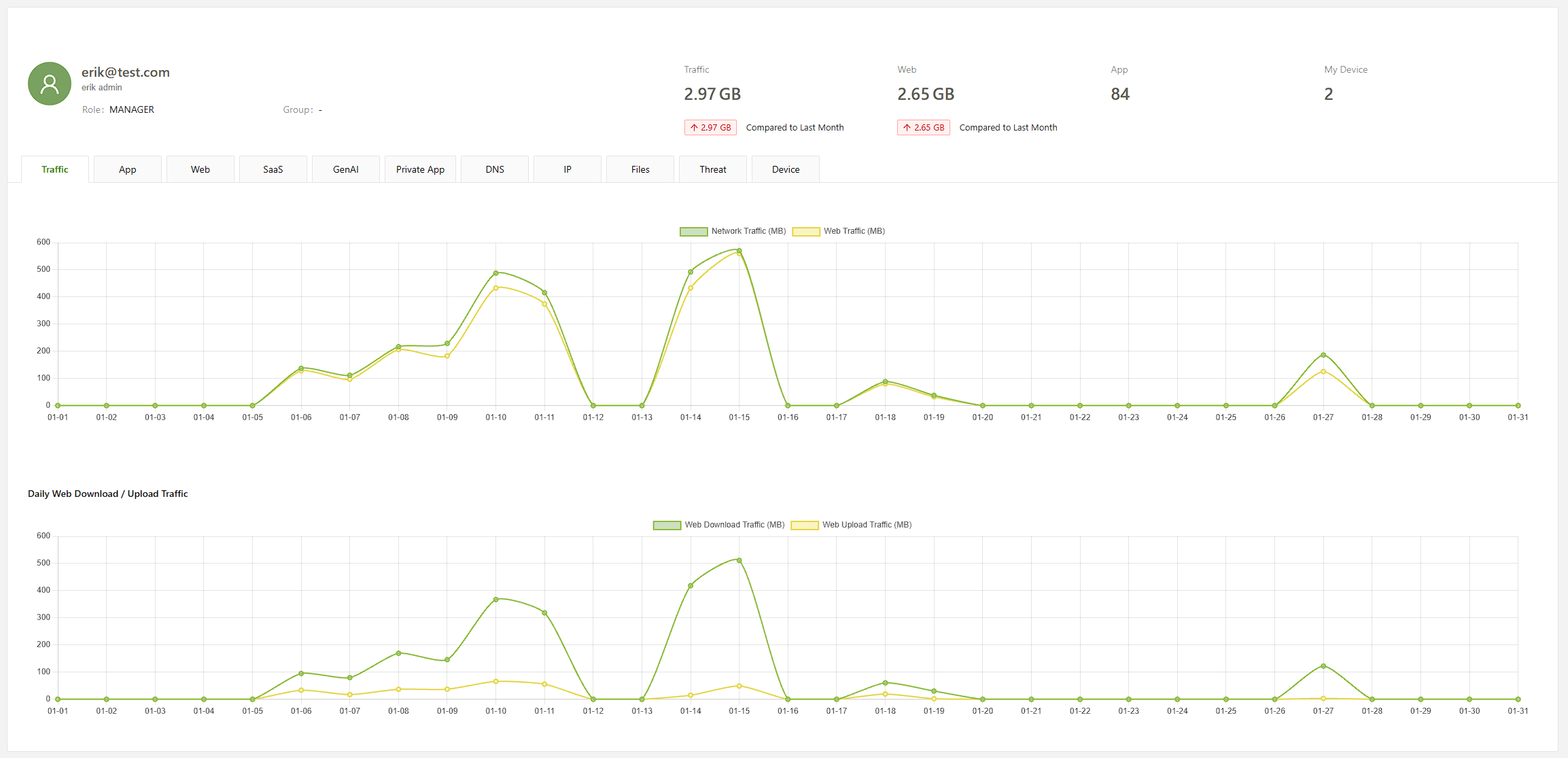
This section displays basic user information, including their username, name, role, and any user groups they are enrolled in. It also provides an overview of the user’s service usage metrics for the current and previous month.
User Analytics > Traffic
The Traffic tab provides a day-to-day breakdown of the user’s traffic usage, separated into two graphs:
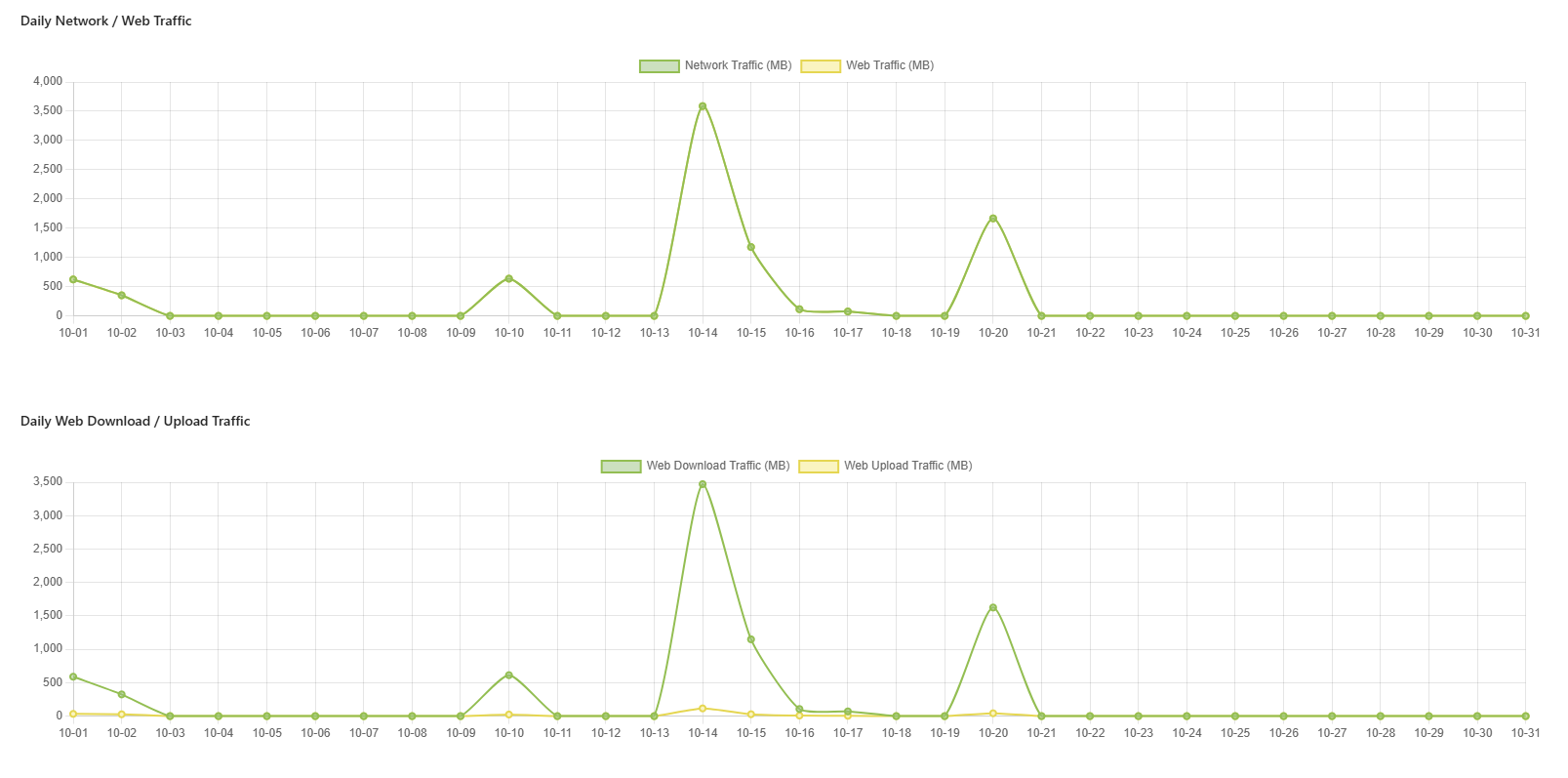
- Showing the user’s network and web traffic usage for any day during the current month.
- Shows a breakdown of web traffic based on download and upload for the current month.
User Analytics > App
The App tab shows a breakdown of all application traffic by specified categories, enabling detailed analysis of data usage per application.
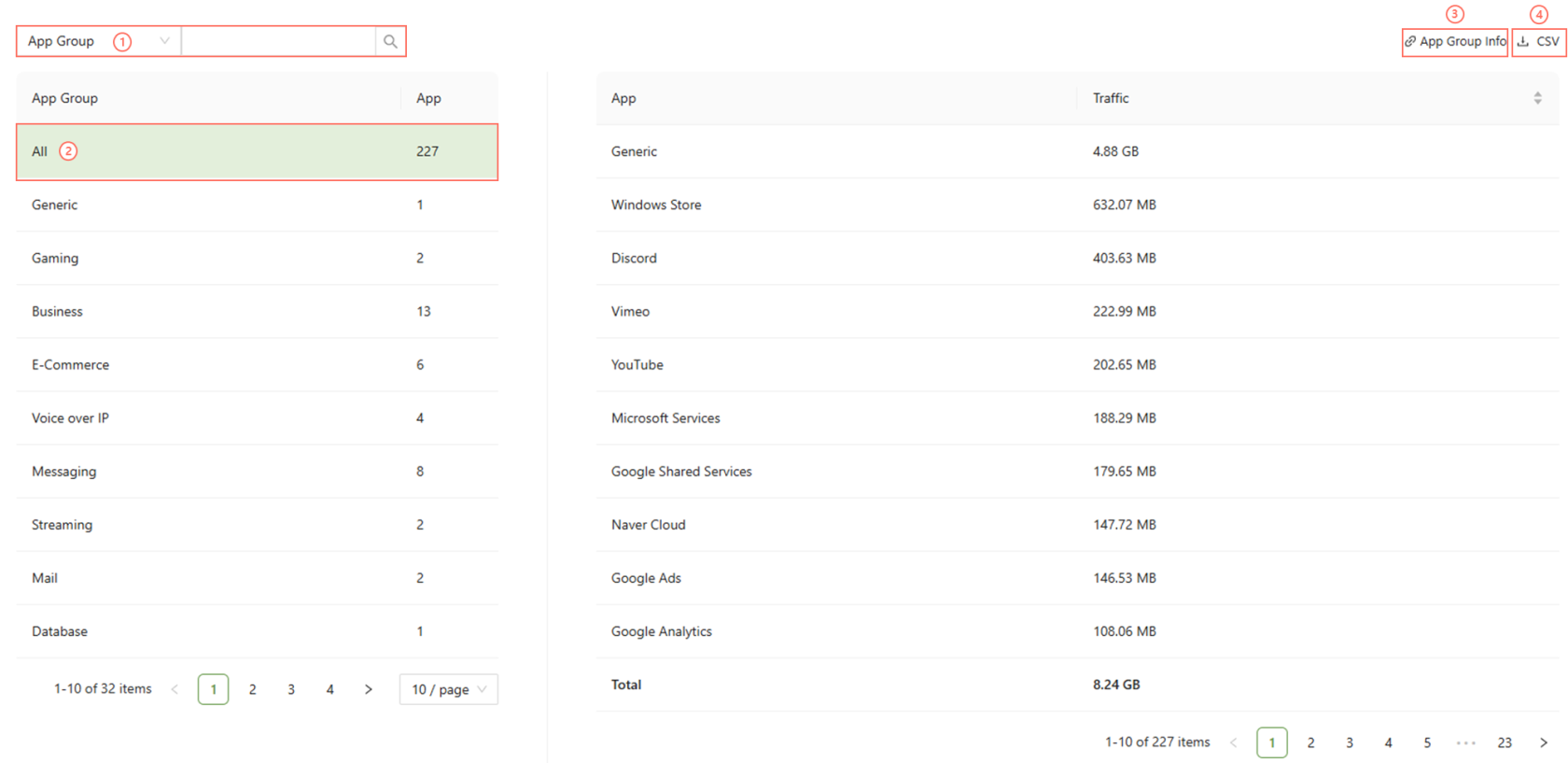
- Search: Can be used to filter the App group or App section accordingly
- Categories: Can be selected to show only applications within that group
- App Group Info: Links to the Application Group information page
- CSV: The information can be downloaded as a CSV file by clicking the CSV Button.
User Analytics > Web
All web traffic is filtered into various HTTP categories defined in the HTTP Category Management menu. This record displays the amount of traffic used by the user for each HTTP category.
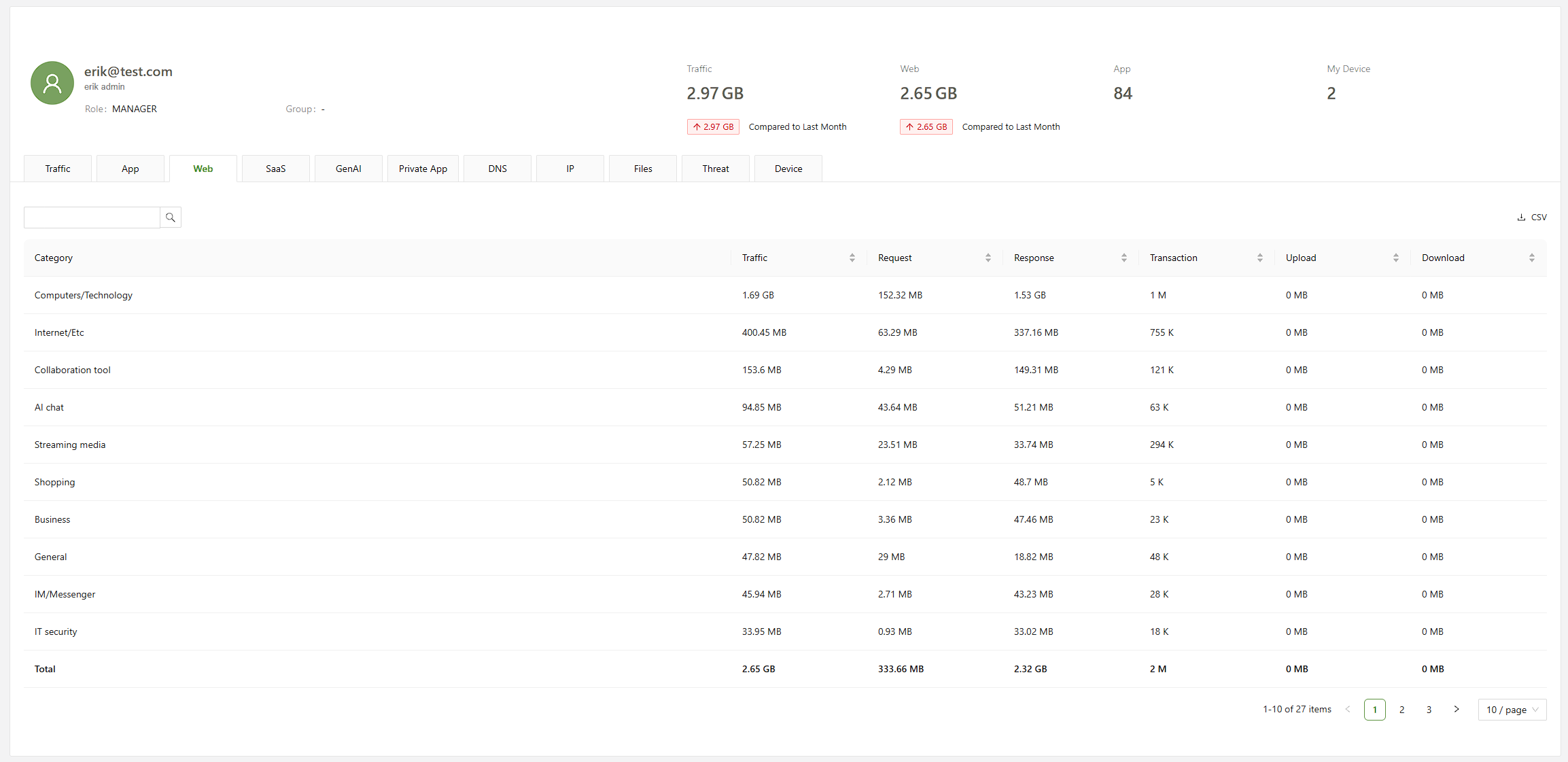
- Search: Categories can be filtered using the input field.
- CSV: Information can be downloaded as a CSV.
User Analytics > SaaS
The SAAS tab combines insights from both application and web traffic, analyzing and identifying the user’s activity across over 2,400 services and applications. It provides an in-depth breakdown of the user’s network usage.
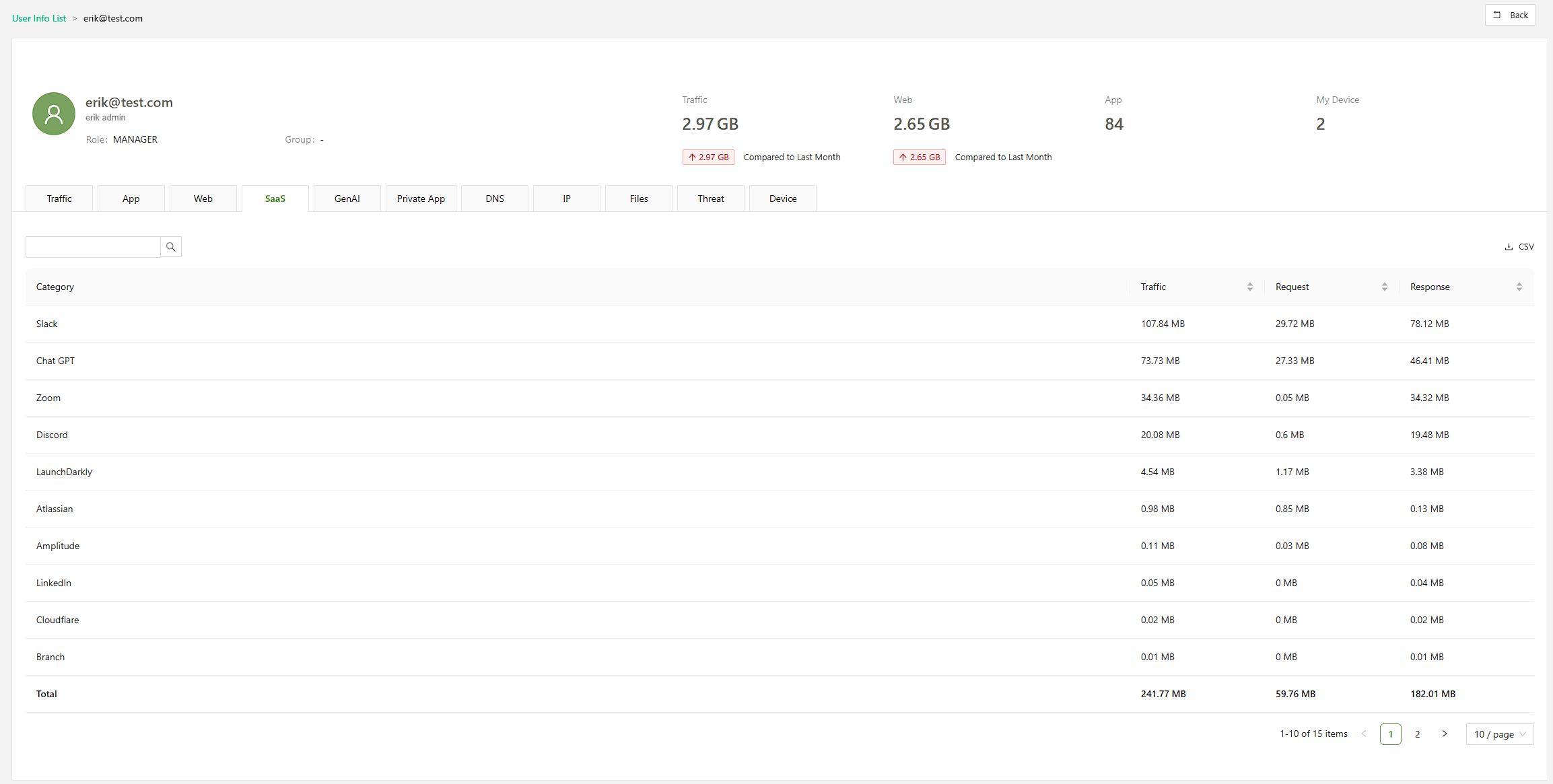
- Search: Categories can be filtered using the input field.
- CSV: Information can be downloaded as a CSV.
User Analytics > Gen AI
The GenAI tab combines insights from the GenAI rules.
image.png
- CSV: Information can be downloaded as a CSV.
User Analytics > Private App
The Private App tab logs the Access Control policies that the user has sent traffic through, and to which IP and port the specified rule accessed. This information helps identify which internal private application a user currently has access to and the amount of traffic directly to that application.
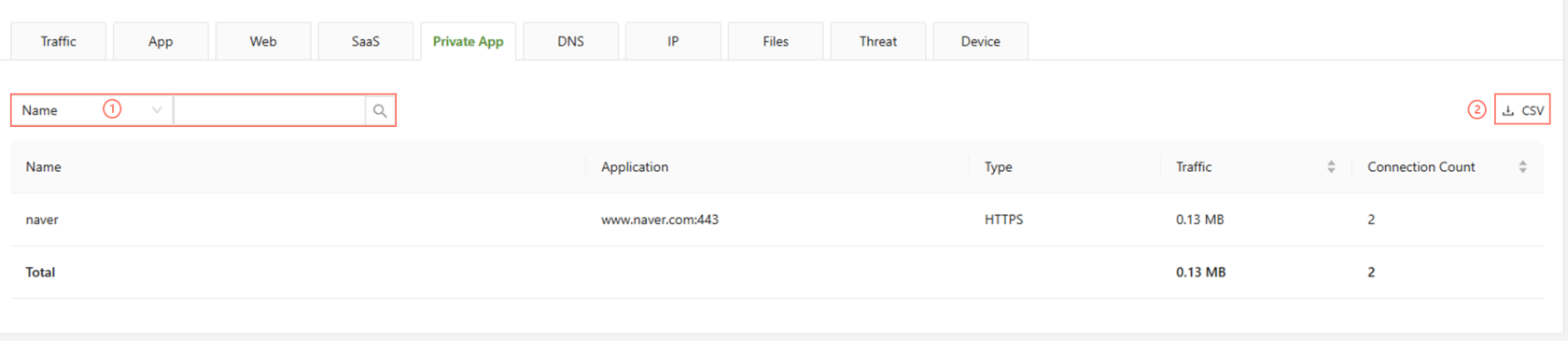
- Search: Categories can be filtered using the input field.
- CSV: Information can be downloaded as a CSV.
User Analytics > DNS
The DNS tab logs the traffic through the DNS firewall for applications that have their access controlled through the DNS Firewall in the Network tab.
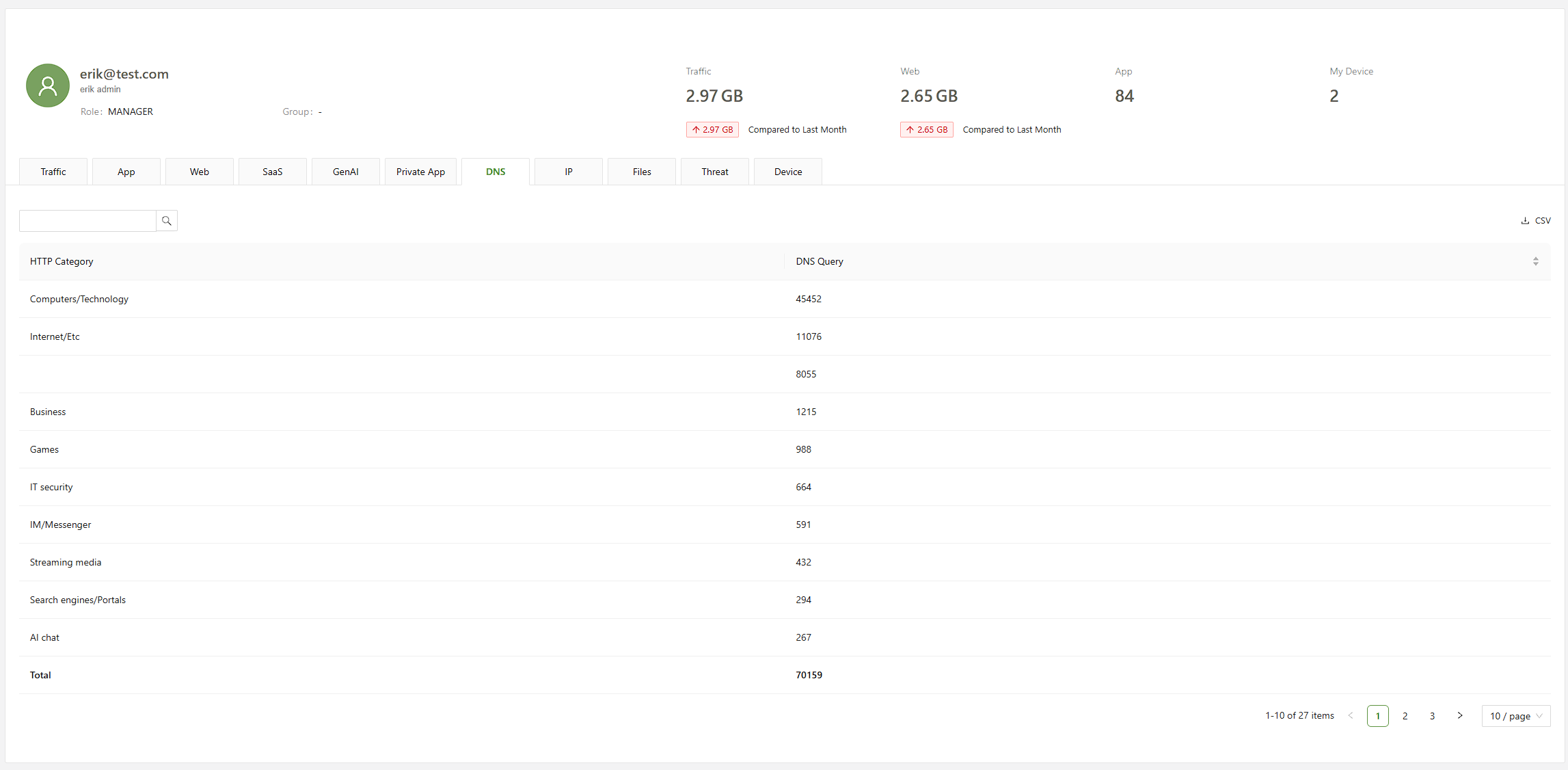
- Search: Categories can be filtered using the input field.
- CSV: Information can be downloaded as a CSV.
User Analytics > IP
The IP tab logs the external IP addresses used by the user when accessing the service on any device. This information helps identify logins that occur outside normal behavior.
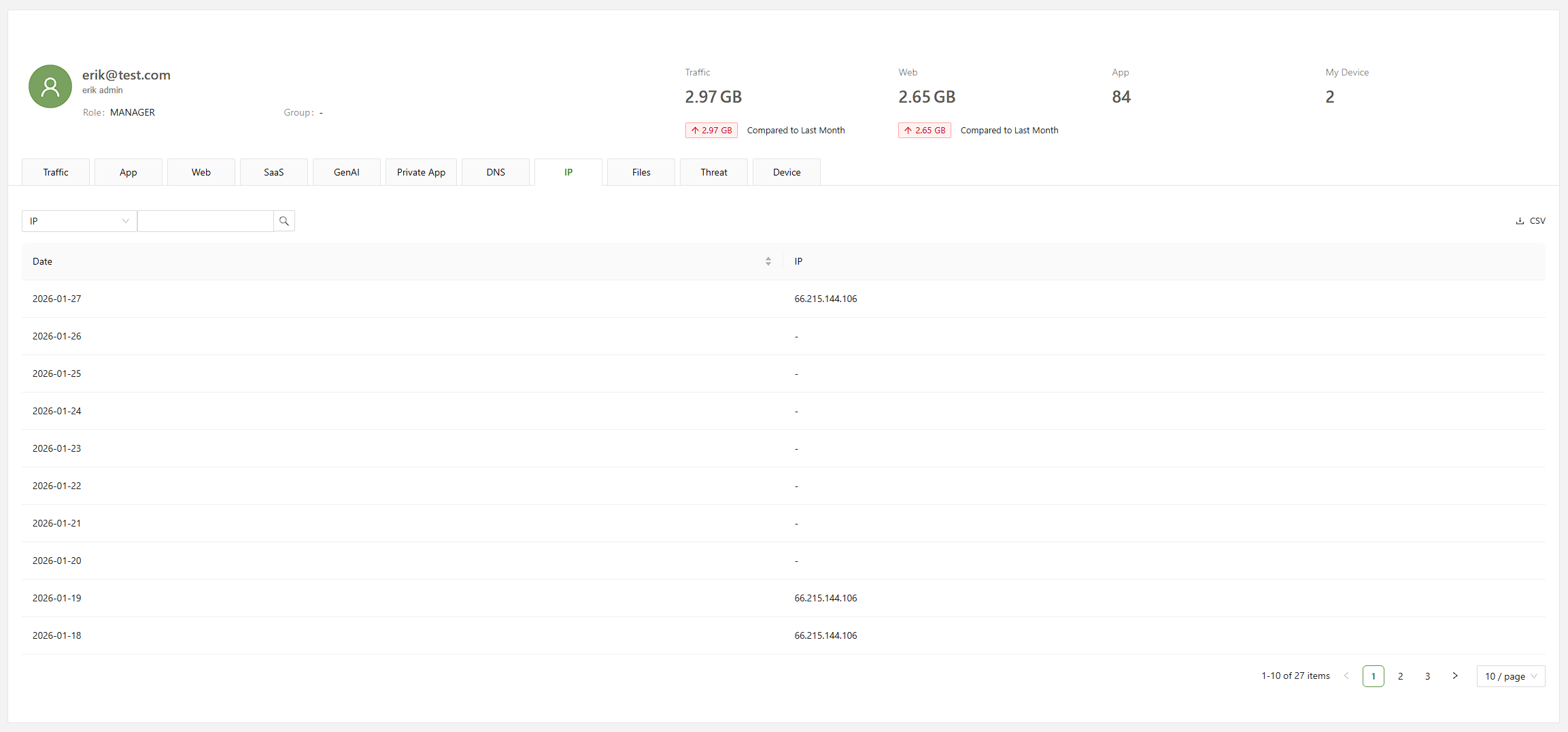
- Search: Information can be filtered using the input field through either IP addresses or specific dates.
- CSV: Information can be downloaded as a CSV by clicking the CSV button.
User Analytics > File
The File tab lists all files accessed or downloaded by the user through active downloads and web traffic. For each file, it shows the file name and hash. Clicking the file symbol copies the specified information.
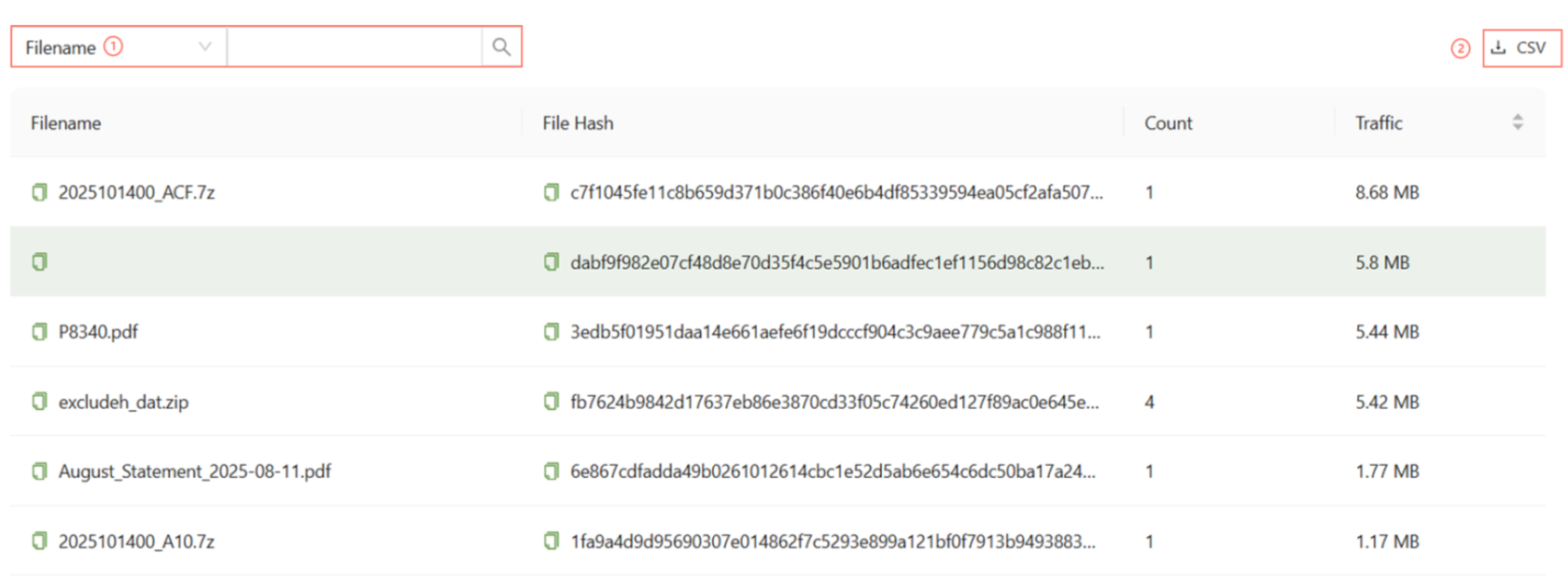
- Search: Information can be filtered using the input field through either File names or file hashes.
- CSV: Information can be downloaded as a CSV by clicking the CSV button.
User Analytics > Threat
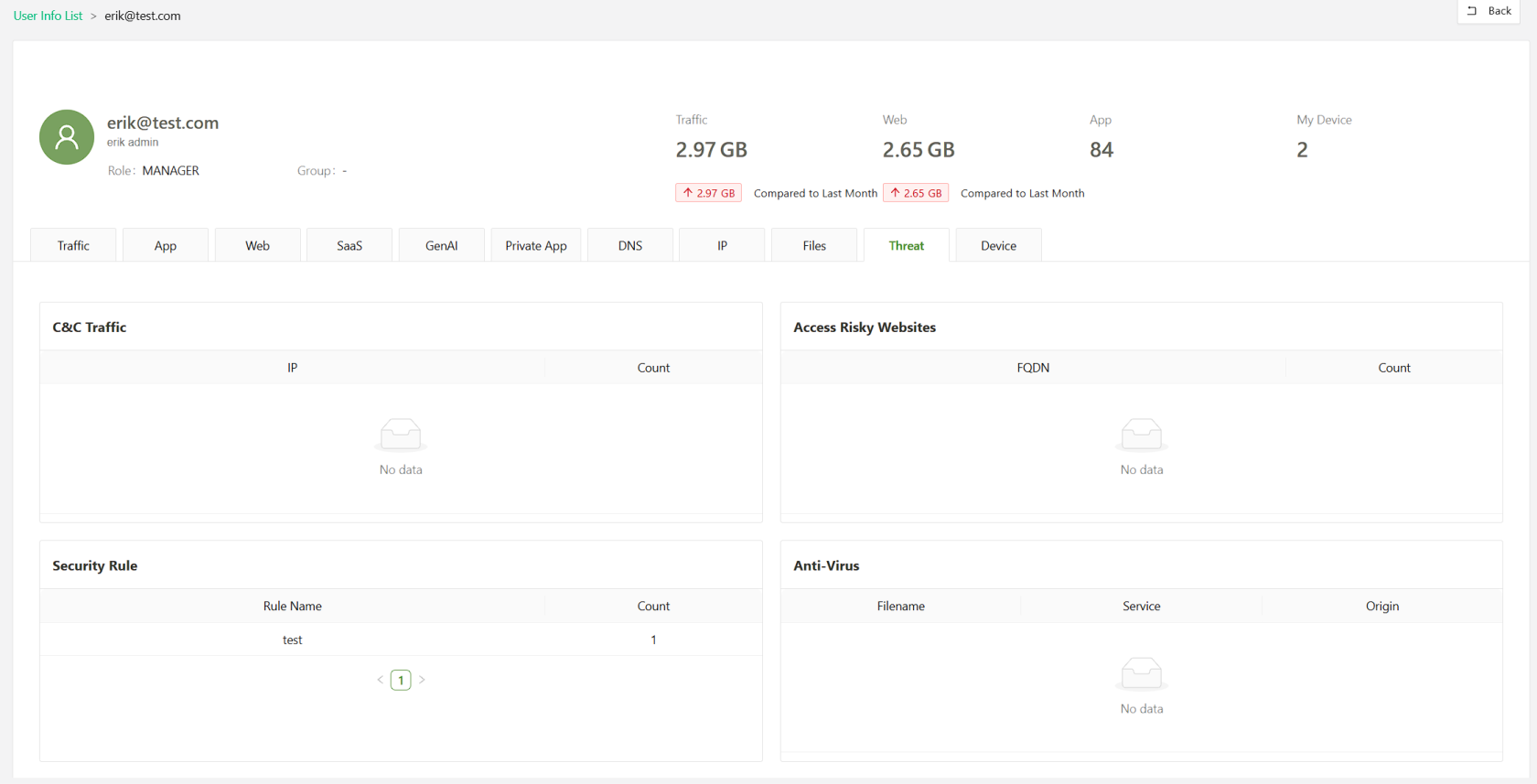
In this tab you will find any information regarding the user's web usage that has been flagged as a risk. This includes information regarding C&C Traffic, Risky Websites, Security policies in which the user has been blocked by as well as any files the anti-virus system has identified.
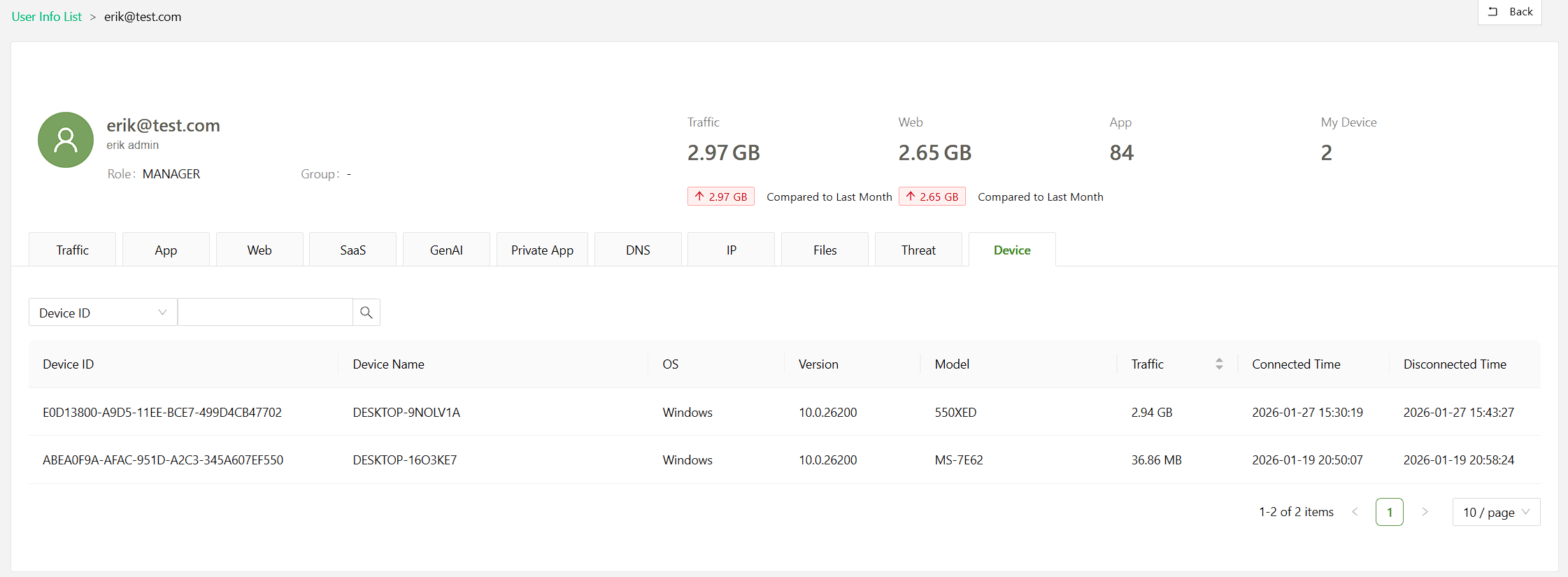
User Analytics > Device
It provides information about the devices used by the user and the amount of traffic used.