Data Loss Prevention Overview
What is DLP?
DLP, or Data Loss Prevention, is a security policy tool to prevent the leakage of sensitive information. It monitors and controls how sensitive data is used or shared over the network. It scans files, messages, and uploads for confidential information such as personal data, financial details, or internal documents. When a policy match is found, DLP can block, allow, or log the activity depending on the configured rules. This helps prevent accidental or unauthorized data exposure across web, cloud, and private applications. On the SSE, security policies will be configured in the DLP menu and then added to a SWG policy or a GenAI policy.
On the SSE, custom policies can be written in addition to the presets already provided.
DLP Menu
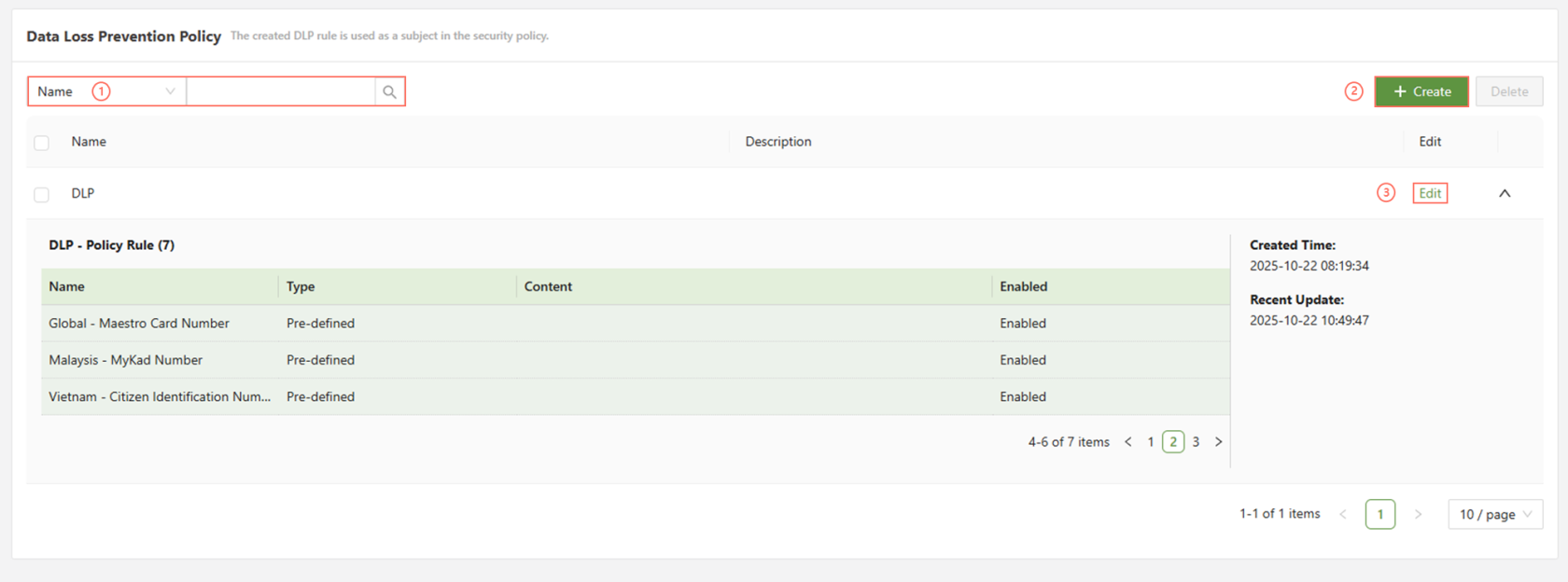
The menu for Data Loss Prevention allows for the creation of new policies and the management of existing policies. Keep in mind that policies created in this menu do not take effect unless added to a web policy in the Web menu.
Below is an overview of the interactable components of DLP:
| Search | A search bar to query existing policies |
| Create | Opens a form page to configure a new policy |
| Edit | Allows for the editing of the existing policy |
Create DLP
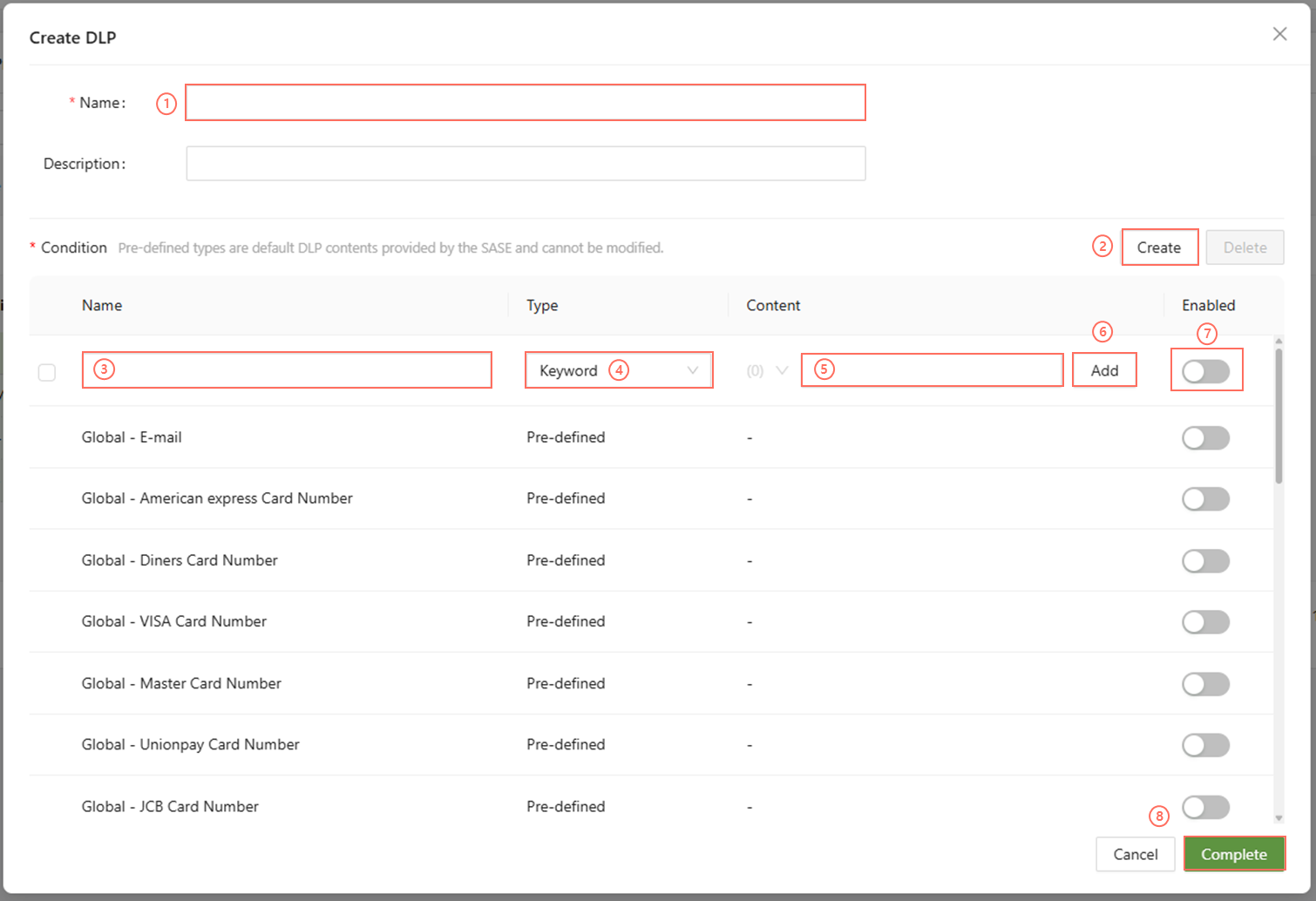
Below is a short overview of each function in this menu:
| Name | Choose the name for the policy rule. This is what will show up when selecting it in the web policy section |
| Create | Create a custom condition. Clicking this will open up the custom condition inputs for (3) to (6) |
| Name(custom) | Choose the name of the custom condition |
| Type | Choose the type of condition. The type can be chosen from Keyword or Regex |
| Content | Enter the content to trigger the condition |
| Add | Click the Add button to add the content to the condition. More than one can be added |
| Enabled | Click this to enable this condition for the overall rule. More than one condition can be enabled per DLP rule |
| Complete | Once finished creating the rule, press complete to finish configuration |
This menu provides several preset DLP contents provided by the SASE platform. These include email addresses, credit card numbers, national ID numbers for several different countries, and more. To create your own, press the [Create] button. There is no limit to the number of total conditions that may be present in a single rule.
Configuration Guide
Step 1: Navigate to the Create DLP Page
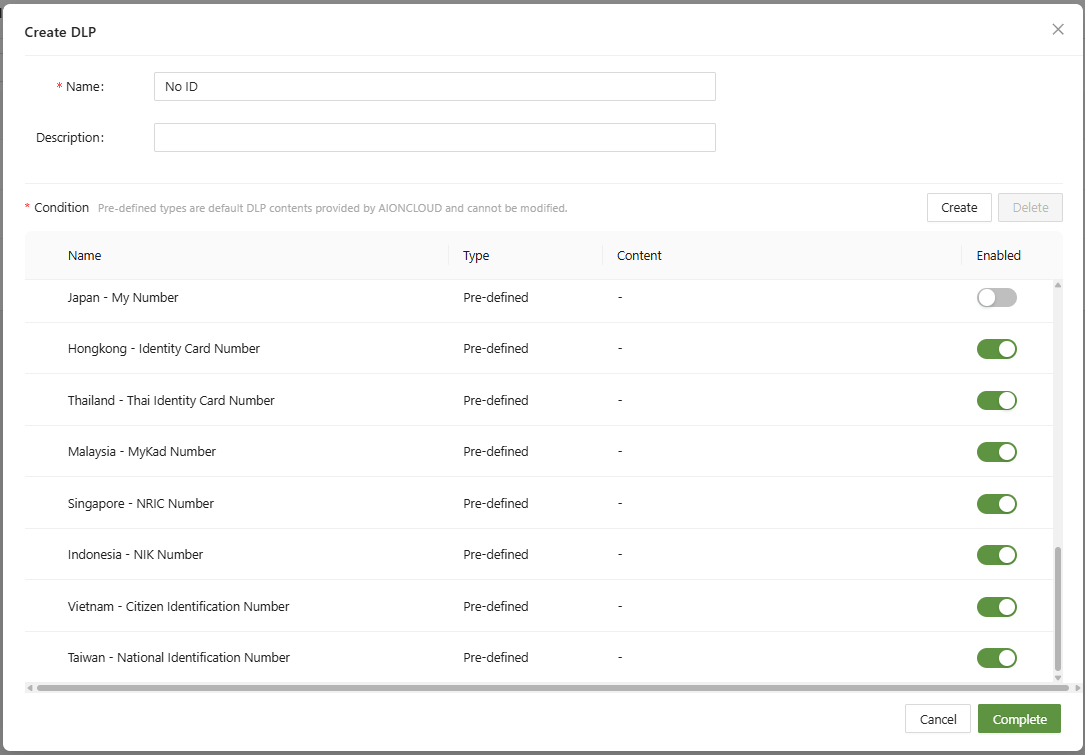
In this page, select the policy or policies you would like to enact. In this example, IDs are selected.
Afterwards, click complete.
Step 2a: Apply in a SWG policy
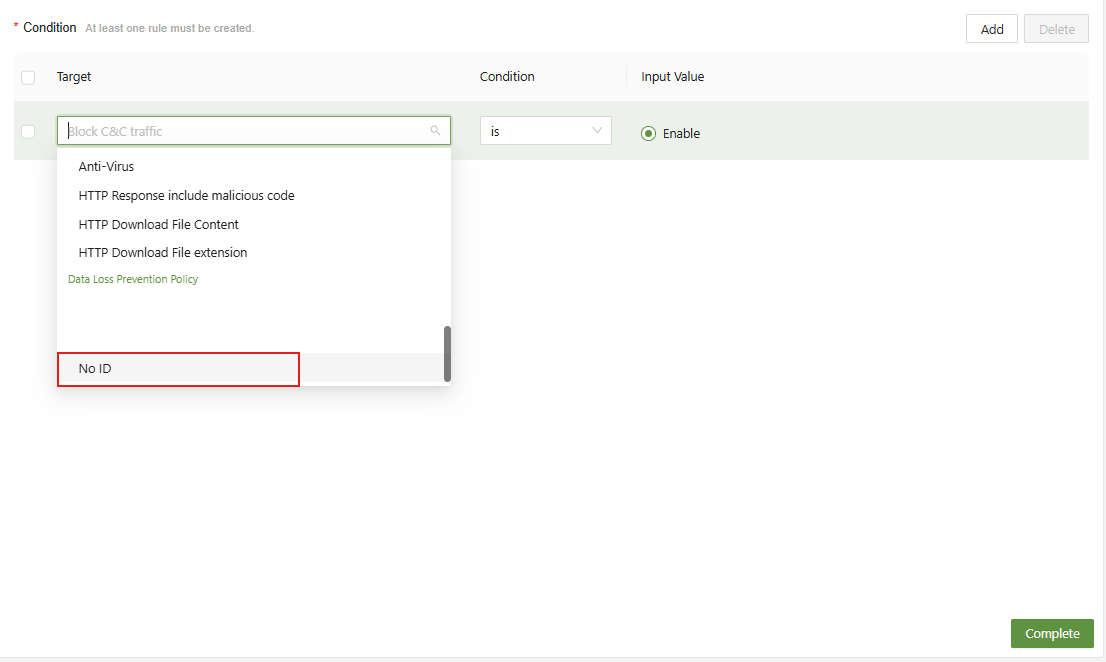
Within SWG > Policy > Create, the DLP policy created earlier can be applied as a condition for block/allow/logging.
Step 2b: Apply in a GenAI policy
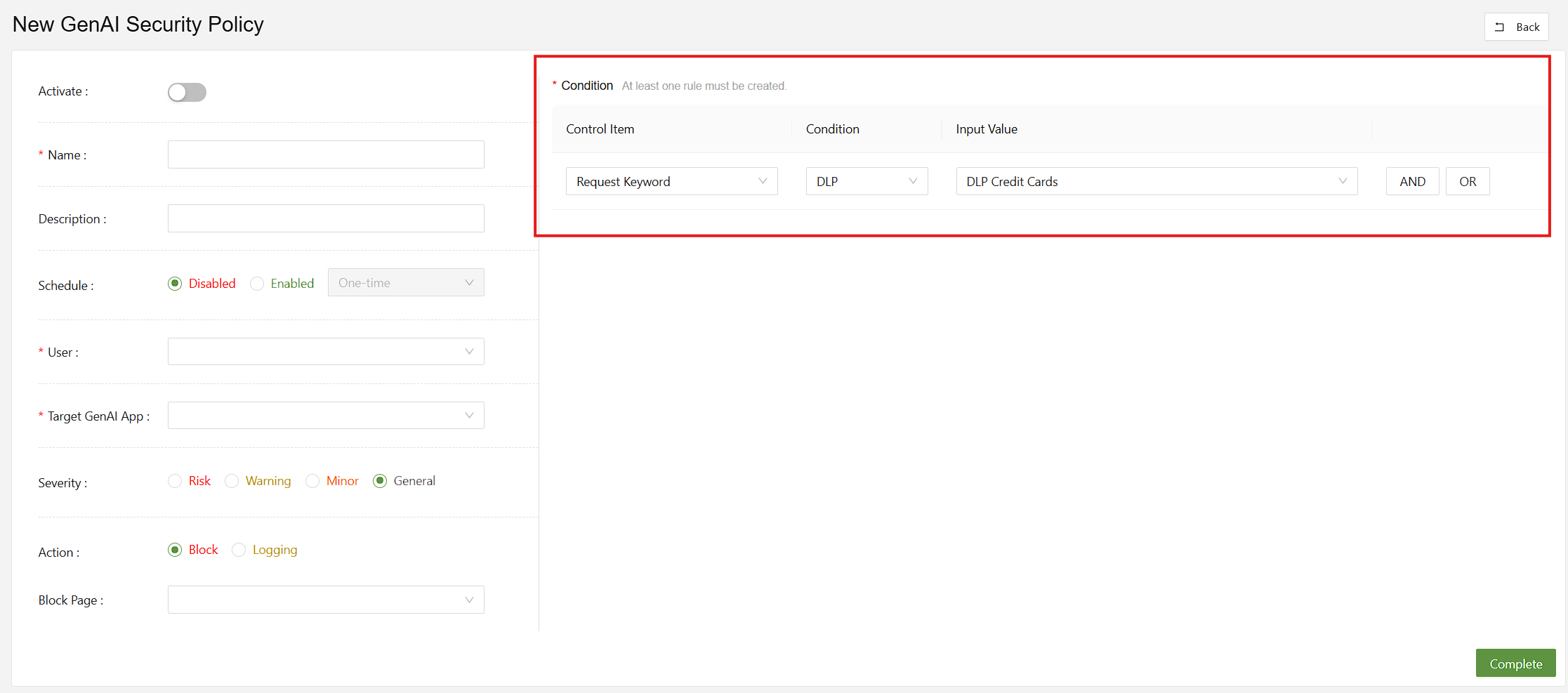
Within GenAI -> Create, a DLP policy can be added to request keyword and file upload conditions.