GenAI Configuration Guide
In this section, a simple configuration guide will be provided to demonstrate how to successfully set up a GenAI policy rule on the SASE platform.
Configuring GenAI Policy
1) Go to the GenAI menu on the side panel, and select GenAI Policy
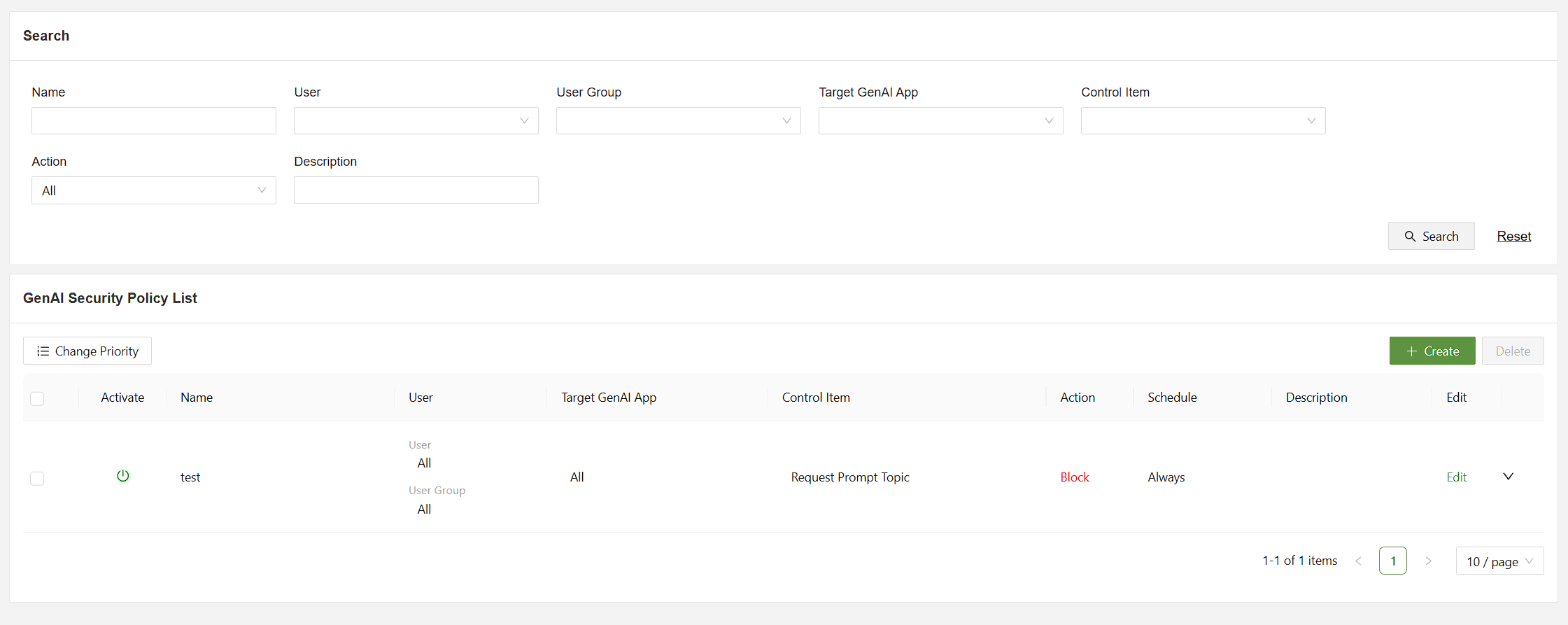
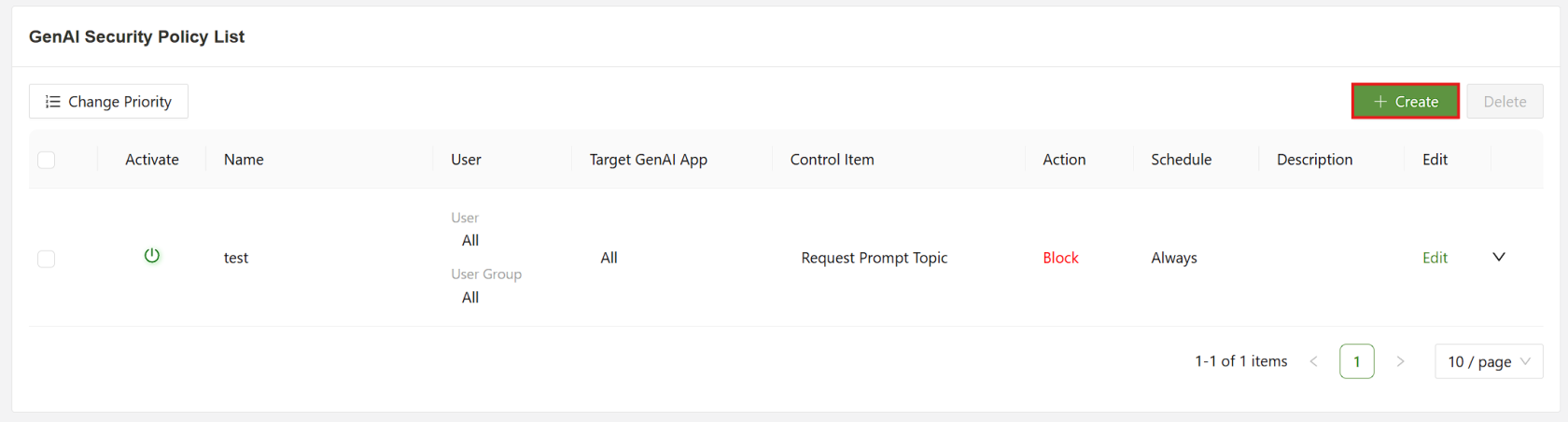
2) Click on [Create] to open the create policy menu
3) Enter a Name, User, and Target GenAI App
A strong name will help identify what the rule is used for. Selecting the user will determine which users connected to the service will have the rule taken against them. Groups can be used to select multiple users. Lastly, the target GenAI app will choose which app to take action against. Currently the SSE platform supports ChatGPT and Gemini.
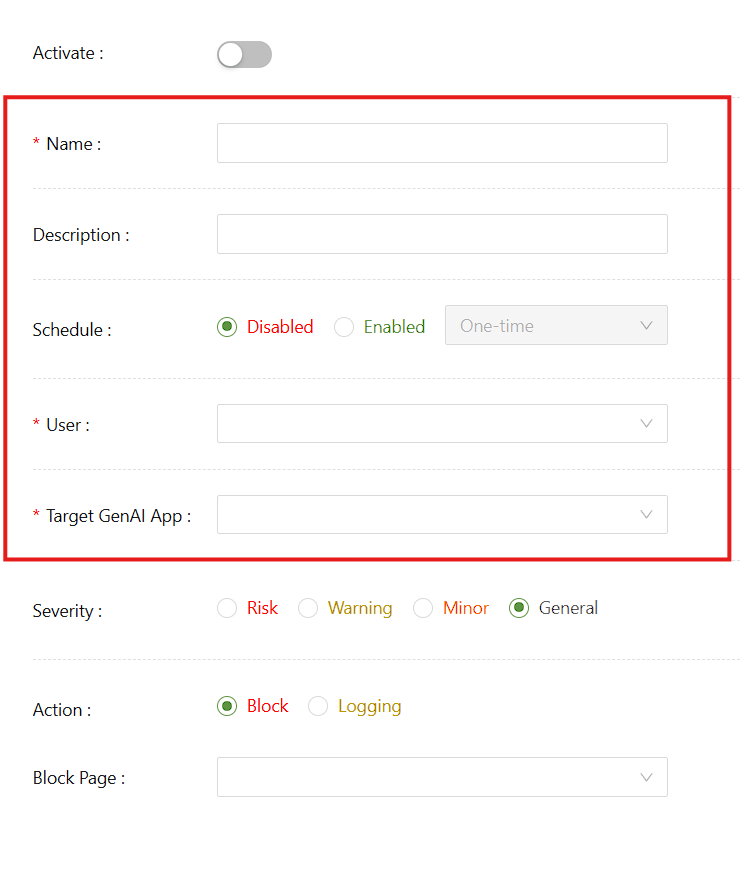
Severity will let the administrator choose how the triggered rule will show up in GenAI logs.
Make sure to set a block page. A block page must be created in Settings > Default Settings > Block page(GenAI).
4) Set the Conditions
There are 3 main categories for GenAI:
- Request Prompt Topic
- Request Keyword
- File Upload
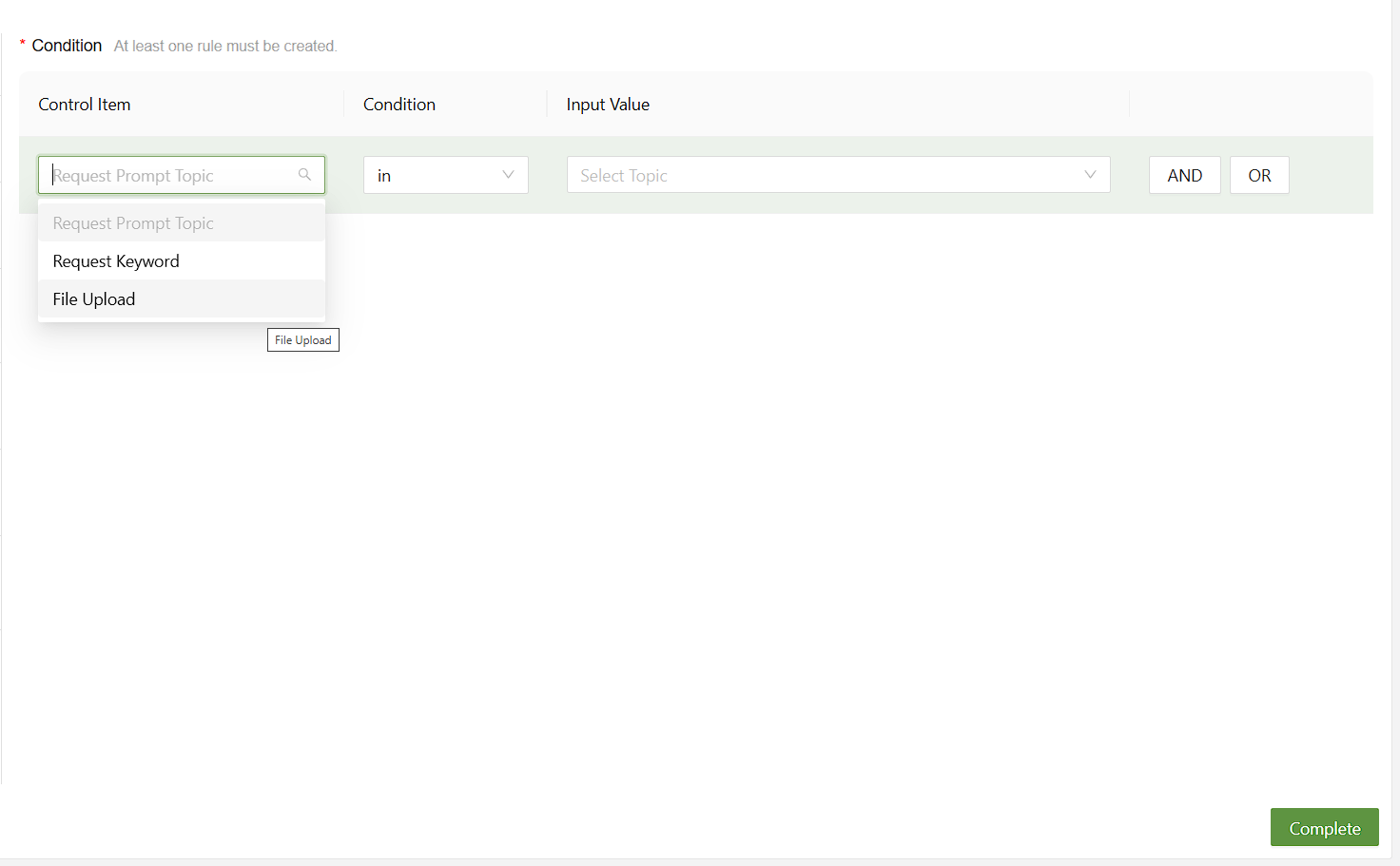
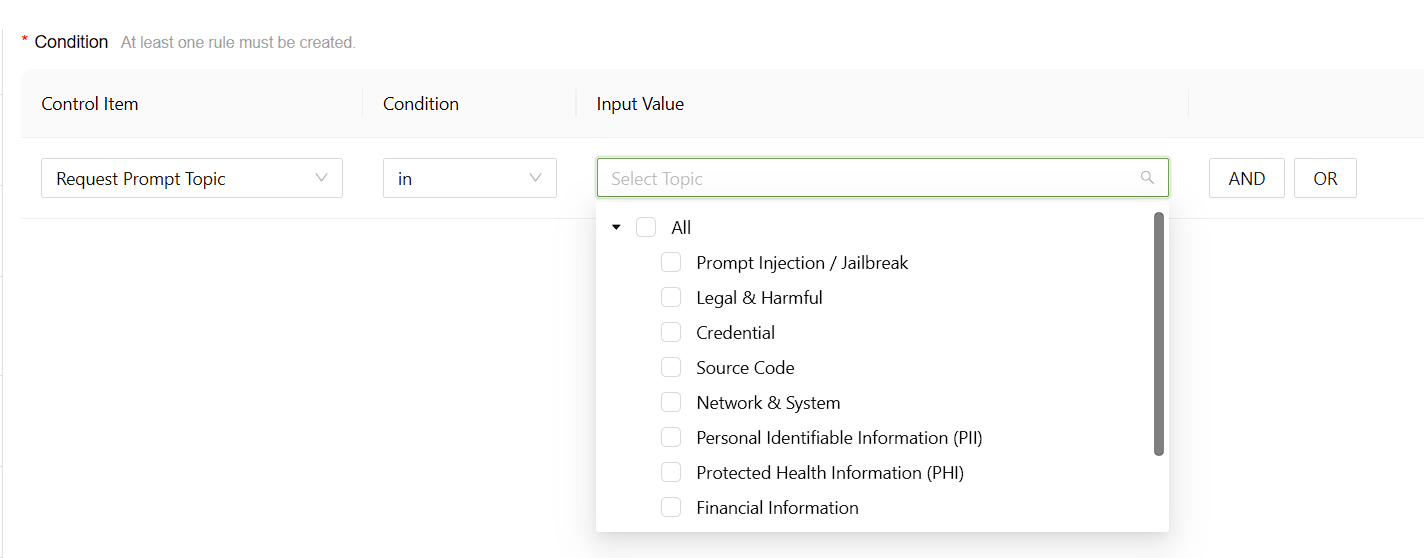
4a) Request Prompt Topic
The request prompt topic item will allow the user to select categories to block based on the chat topic. If the GenAI user requests information related to the selected topic, the block message will appear within the model. For example, if Prompt injection / jailbreak is selected, then asking chatGPT for a system password will trigger the rule.
4b) Request Keyword
The request keyword rule will check for the exact keyword typed into the GenAI model prompt.
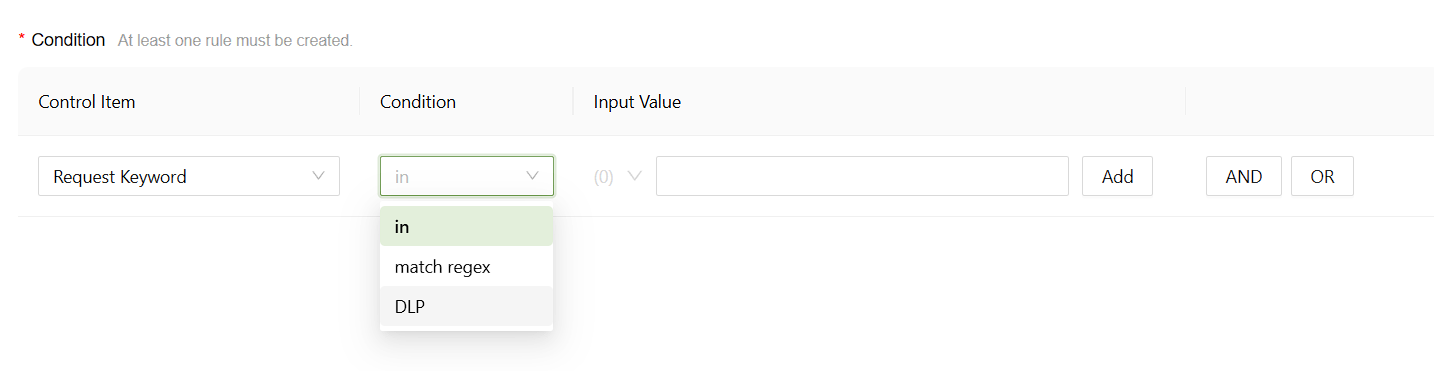
Selecting in or match regexwill have the SSE directly match the input value written in the prompt.
Selecting DLP will allow the user to choose from a DLP rule, created in the DLP menu. Please check the DLP configuration guide for further details on setting up a DLP policy.
4c) File Upload
The file upload item will scan files uploaded to the GenAI model.
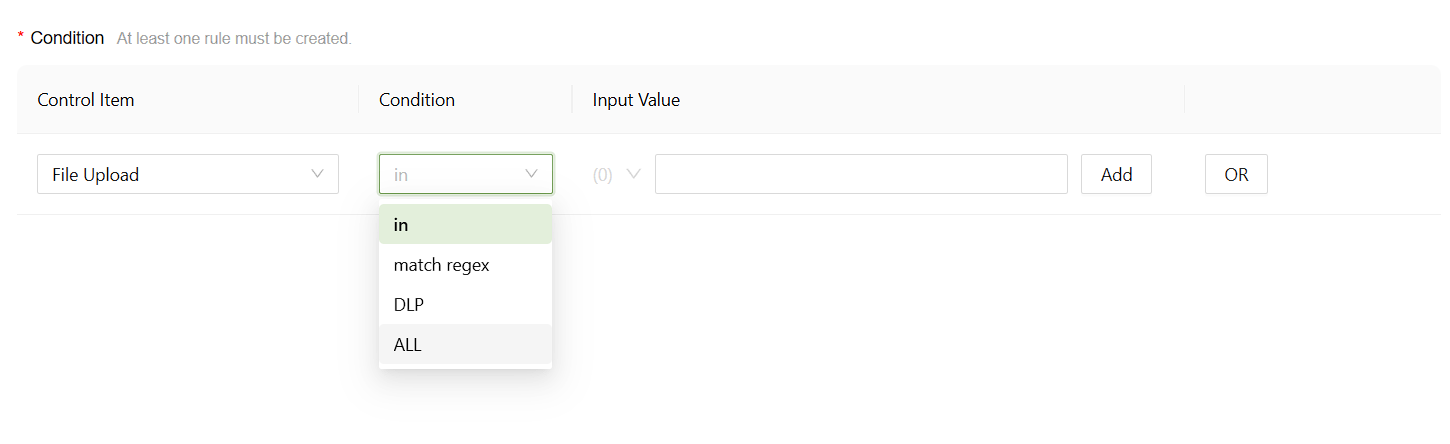
Selecting in or match regexwill have the SSE directly match the input value with file contents uploaded to the GenAI model.
Selecting DLP will allow the user to choose from a DLP rule, which will instruct the GenAI policy on which file contents to inspect for.
5) Click Complete
The rule is now configured and ready to use.