Configuring ZTNA Tunnels
Configuring a ZTNA Server Tunnel
When configuring a ZTNA tunnel, the first step is to install the Connector for server on your web server. To do so properly, please follow the Connector for Server Guide.
After following the above guide, navigate to ZTNA > Tunnel > Create.
1. Create a tunnel
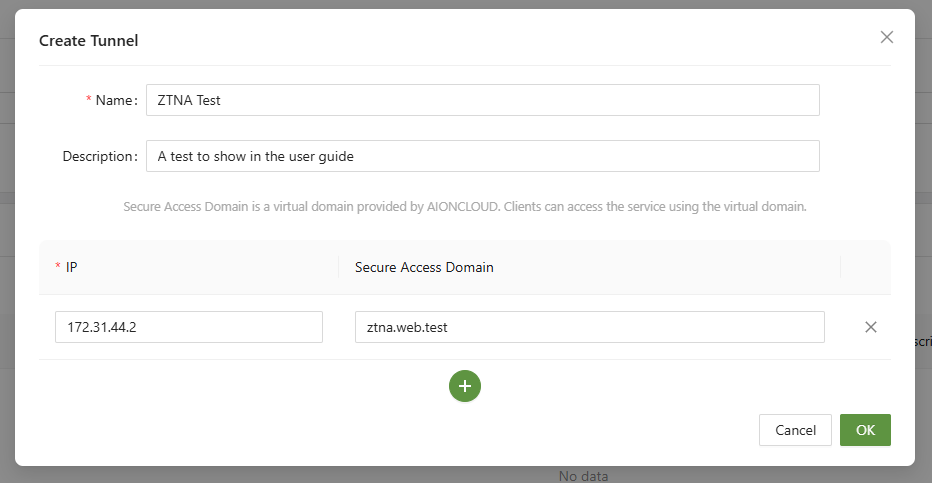
When creating a server tunnel, there are only two pieces of information needed: IP, and Secure Access Domain.
The IP address must be the private IP address of the web server where the Connector has been installed. In the above example 172.31.44.2 is the private IP address for an AWS EC2 instance.
The Secure Access Domain is the URL that the internal resource will be accessible from. This can be anything as it will only be accessible internally. In the above example, The Secure Access Domain has been set to ztna.web.test. Once activated, this Secure Access Domain will only be accessible whilst connected to the Connector and having the requisite privileges .
2. Confirm Connection
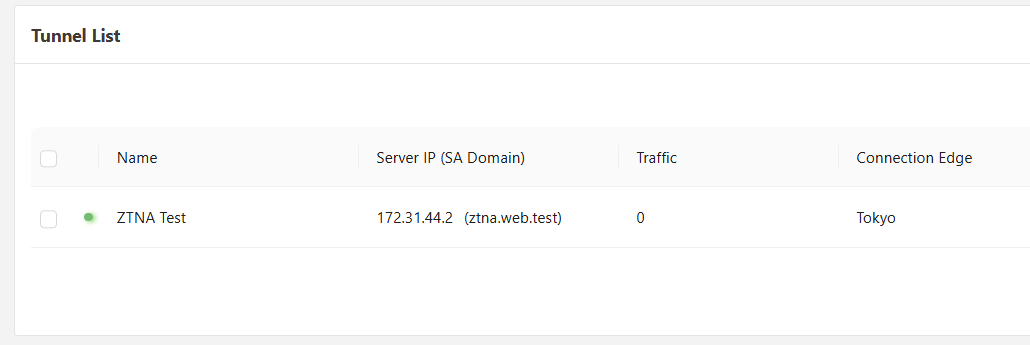
Provided that the AIConnector for Server has been installed properly, and the correct server IP has been inputted, a green indicator will appear beside the Tunnel, indicating that connection has been established.
In the event of a red indicator, connection has not been established. In this event, revisit the steps for installing the AIConnector for Server and ensure everything has been done properly.
Common issues include:
- Wrong auth.json file
- incorrect server IP entered
- Error with config.json file
- Ensure sdp_host is set to : "sdp_host":"sdp-sia.aioncloud.com",
Configuring a ZTNA Gateway Tunnel
When configuring a ZTNA gateway, the first step is to install the Connector for server on your webserver. To do so properly, please follow the Connector for Server Guide.
After following the above guide, navigate to ZTNA > Gateway > Create.
1. Create a Gateway Tunnel
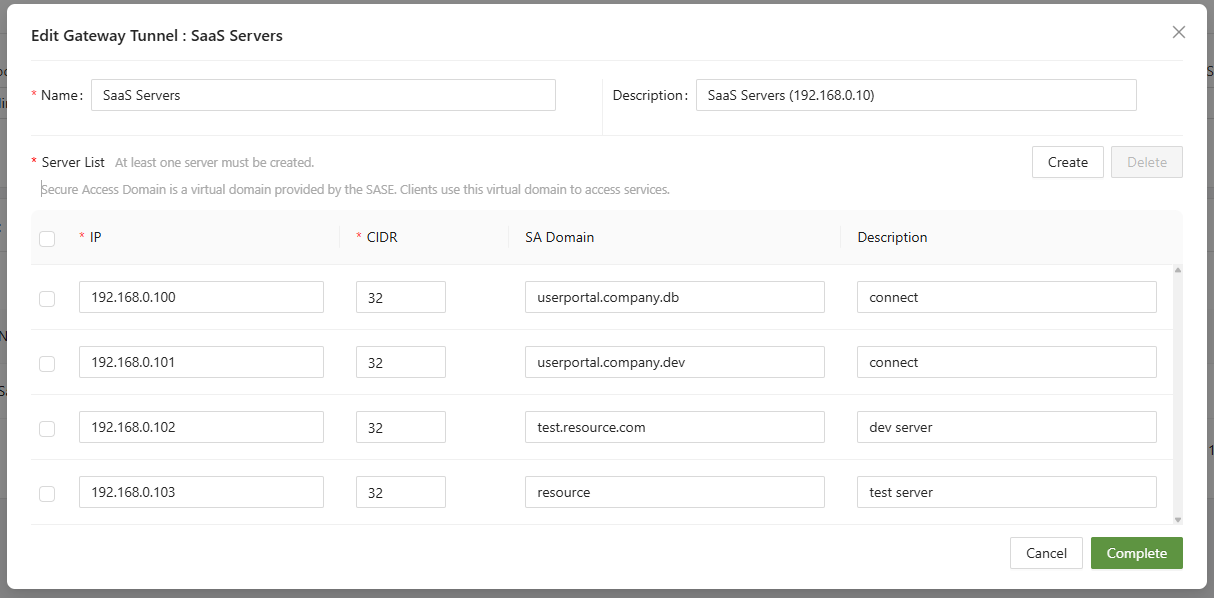
- Name (Unique): A unique name for the gateway tunnel connection
- Description: A short description of the gateway tunnel connection
- Server List: The server list for the tunnel, click create to add a new server.
- IP: The IP address created by the AIConnector Server application
- CIDR: The subnet range for the gateway to give access to
- SA Domain: Secure Access Domain is a virtual domain provided by AIONCLOUD.
- Description: A description of the server
Similar to the single tunnel, the authentication file will need to be downloaded and installed on the gateway server.
2. Confirm Connection
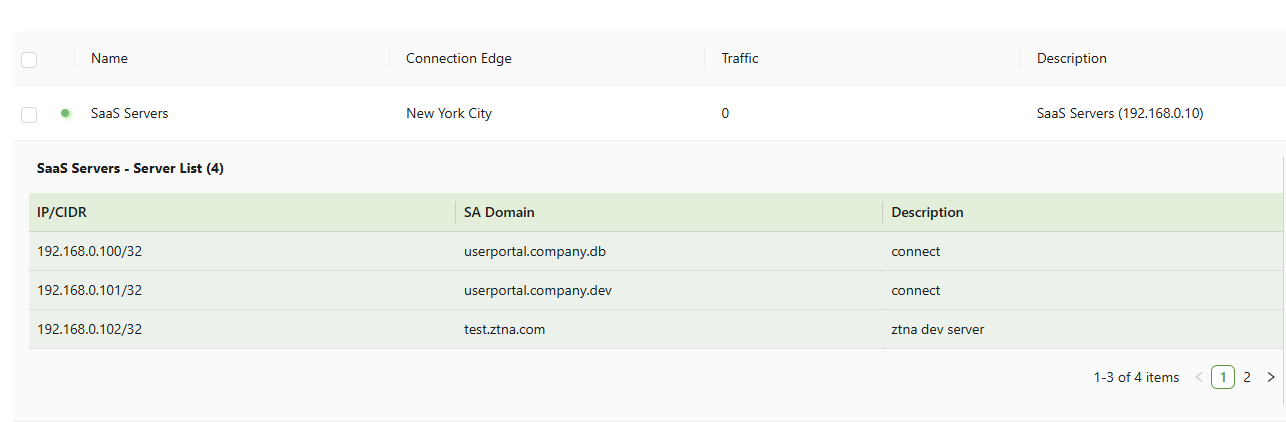
Provided that the Connector for Server has been installed properly, and the correct server IP has been inputted, a green indicator will appear beside the Gateway, indicating that connection has been established.
In the event of a red indicator, connection has not been established. In this event, revisit the steps for installing the Connector for Server and ensure everything has been done properly. It can take a few minutes to take effect.