Access Control
Access Control Overview
This section, along with Access Policy are designed to control the access of users to the ZTNA servers and gateways that are setup through the Tunnels section.
This is done by creating Access control policies that, by default BLOCK all access other than the users specified in the Access Control (if no Policy is applied), or for more advanced control, apply an Access Policy.
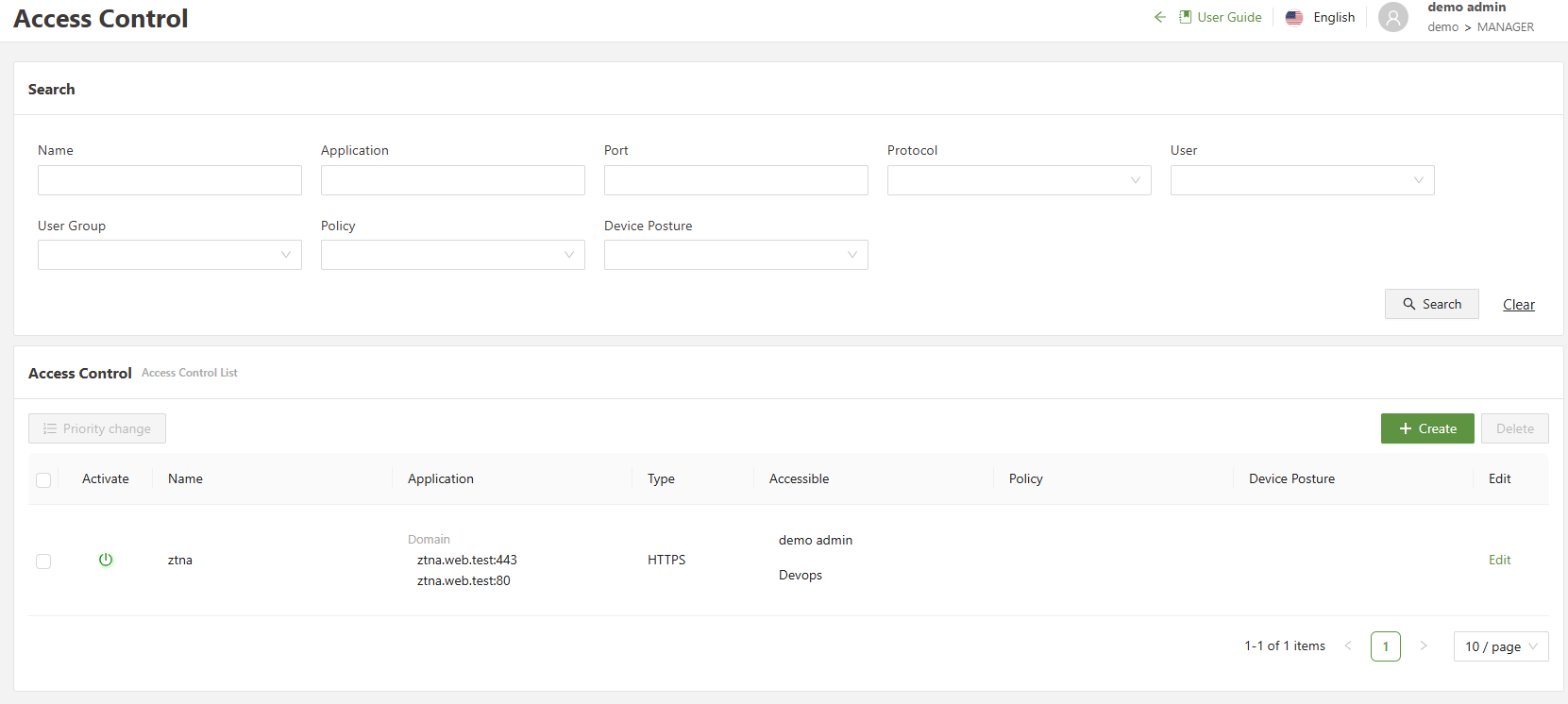
Listed below is a description of the menus:
| Search | Allows for filtering of the different Access Control rules based on a variety of different fields |
| Priority Change | Changes the priority in which control rules apply to users, with those at the top of the list having higher priorities overriding those later |
| Checkbox | Used in conjunction with the delete button in order to delete one or multiple selected rules |
| Create | Opens the create menu in order to create a new access control rule |
| Edit | Allows for the editing of the specified rule, opening up the “create” menu prefilled with the access controls current information |
Configuring Access Control
The Access Control menu allows the user to create rules that allow/restrict access to internal web applications.
Step 1: Navigate to the menu
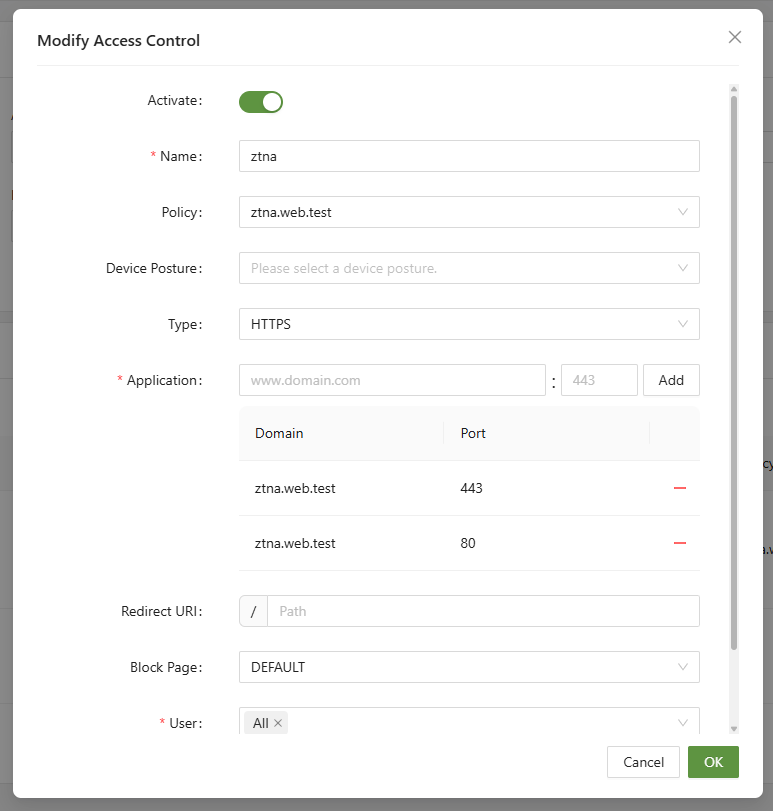
Navigate to ZTNA > Access Control and click Create. Once there, the Create Access Control menu will be visible. Listed below is a description of the menus:
| Activate | Used to enable or disable the rule |
| Name (Unique) | A unique name to define the rule |
| Policy | Apply an Access Policy to the rule, if left blank will apply “Allow” to all Users added to the User field at the bottom of the form, and “Block” all other access |
| Device Posture | This will check to ensure that the machine passes the specified Posture check, setup in the AIConnector menu. |
| Type | The type of connection for this Access Control rule including HTTPS/HTTP/TCP/UDP/ICMP |
| Application | Enter the SA domain of the server created in the Tunnel menu and the port number of the server. |
| Redirect URI | Enter the address to which you will be redirected when trying to access the specified application. This can only be entered when HTTP/HTTPS is selected for Type |
| Block Page | The “Block Page” that will be displayed to the user, setup in the Settings → Block Page menu option |
| User | The list of users that this Access Control will target. All users not specified will be blocked by default. |
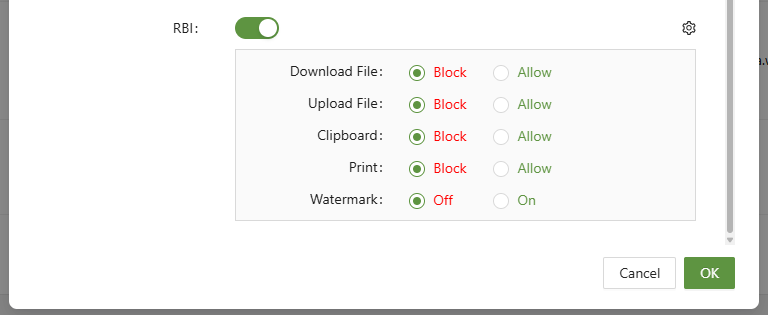
| RBI | The function allows for RBI to be added to the access control policy for the domain in the rule. The policy can be further modified with allow/block for Download, upload, clipboard, printing, and watermark |
Step 2: Enter Web Application
When entering the Secure Access Domain of the application, ensure it is the name SA Domain created in the tunnel menu.

entering the SA Domain from the server tunnel

the server tunnel for reference
If TCP/UDP/ICMP is selected for Type, the SA domain cannot be entered, and IP/CIDR/PORT information must be entered instead.

Step 3: Set Users
In ZTNA, setting the users/user groups is very important. When establishing a tunnel, it operates on the Zero-Trust principle. This means in practice that no user has access unless explicitly given access via Access Control.
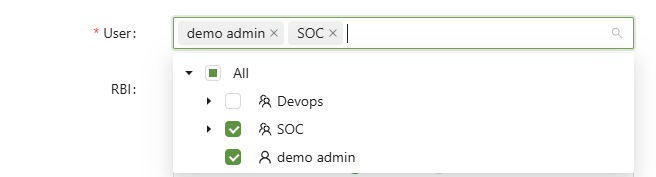
As a best-practice, by establishing user groups, it will be easier to properly give access to applications without needing to micromanage individual users. When using access policy rules, if both access control rules and access policy rules specify users, the user list defined in access control must include the users specified in the access policy rules for the access policy rules to function correctly. This is due to the logic that all users not specified in the Access Control are blocked by default.
Step 4: Apply and Test
After clicking apply, to access the web server one must first connect to the workspace via the AIConnector.
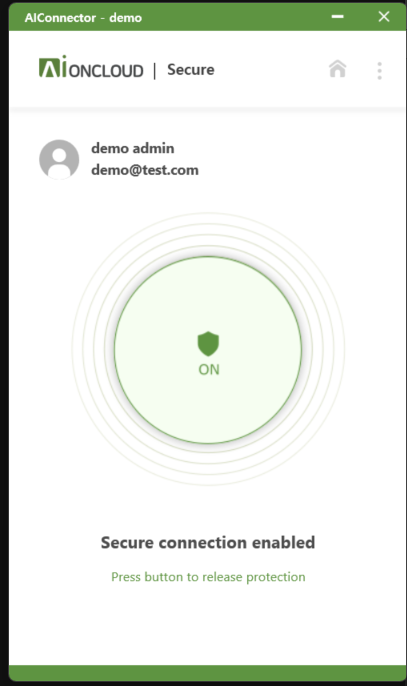
After doing so, and ensuring that the user logged in to the AIConnector has been given access to the web application, it will now be accessible.

ztna.web.test is now accessible
To show a negative test in action, simply disconnect from the AIConnector, and attempt to access the application.
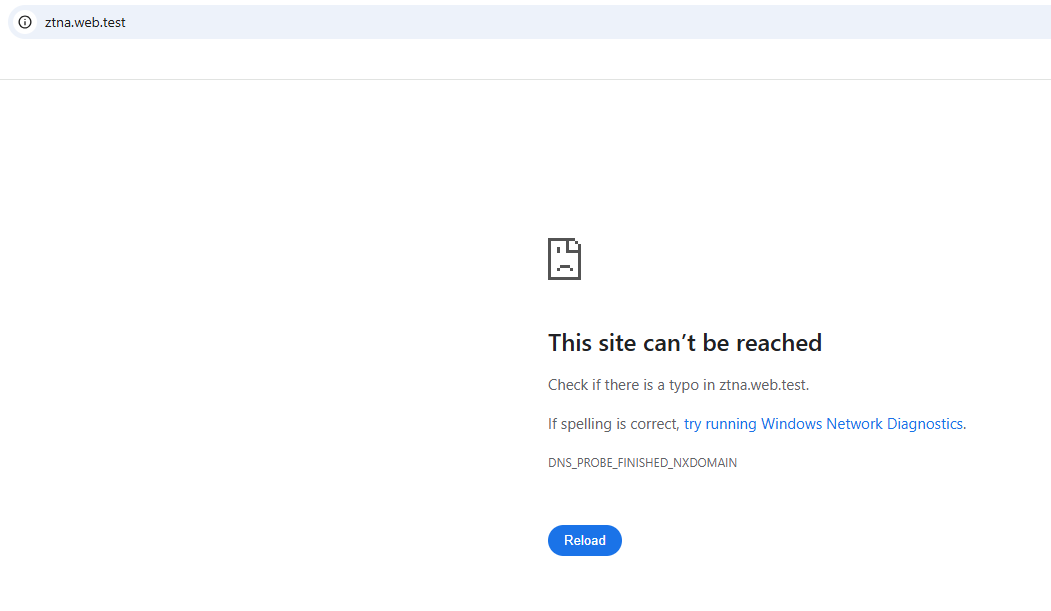
This will show if attempting to access internal resources without the use of the AIConnector.
Finally, test whether a user connected via the AIConnector without explicit access can access the application.
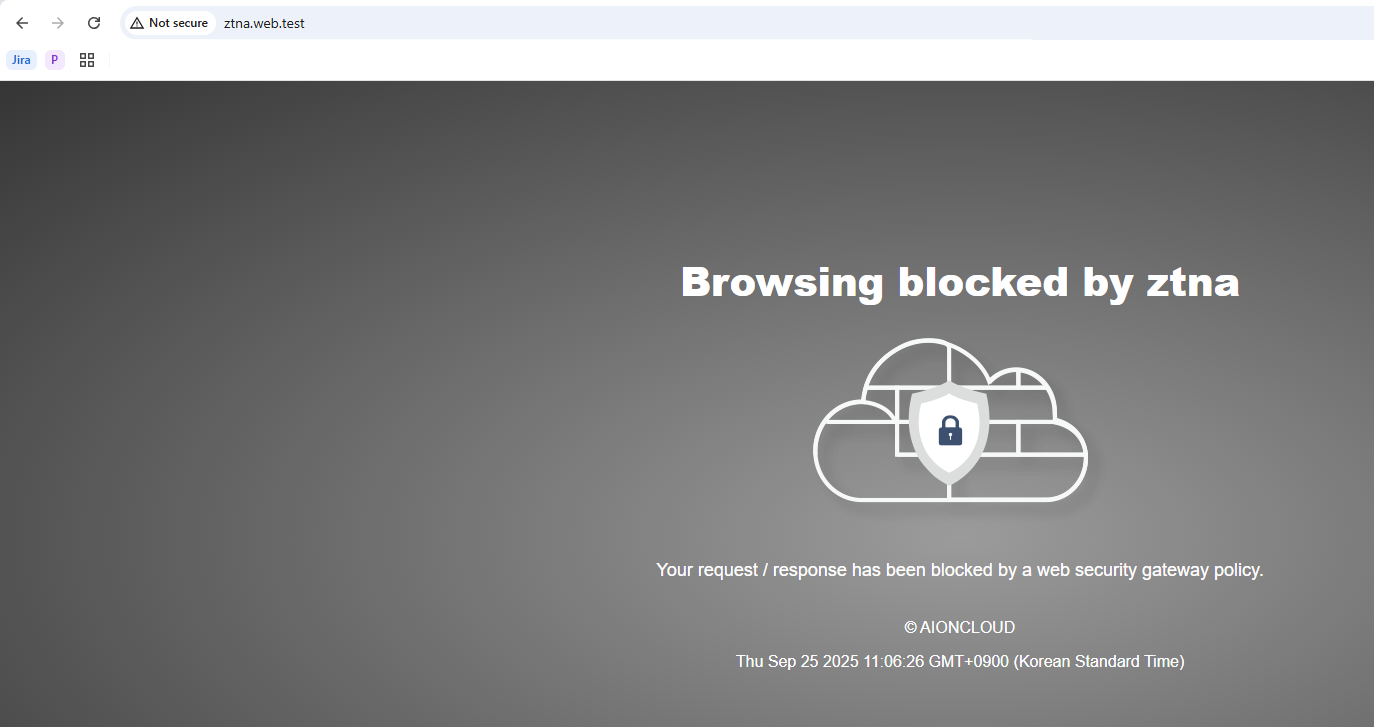
attempting to connect as a user without access