LDAP Guide
LDAP Settings
The LDAP section is used to connect an LDAP server to the AIONCLOUD environment in order to allow for users to login with the accounts provided in the LDAP. In order to do this, the LDAP connector must be installed on the LDAP server in order to access the user accounts.
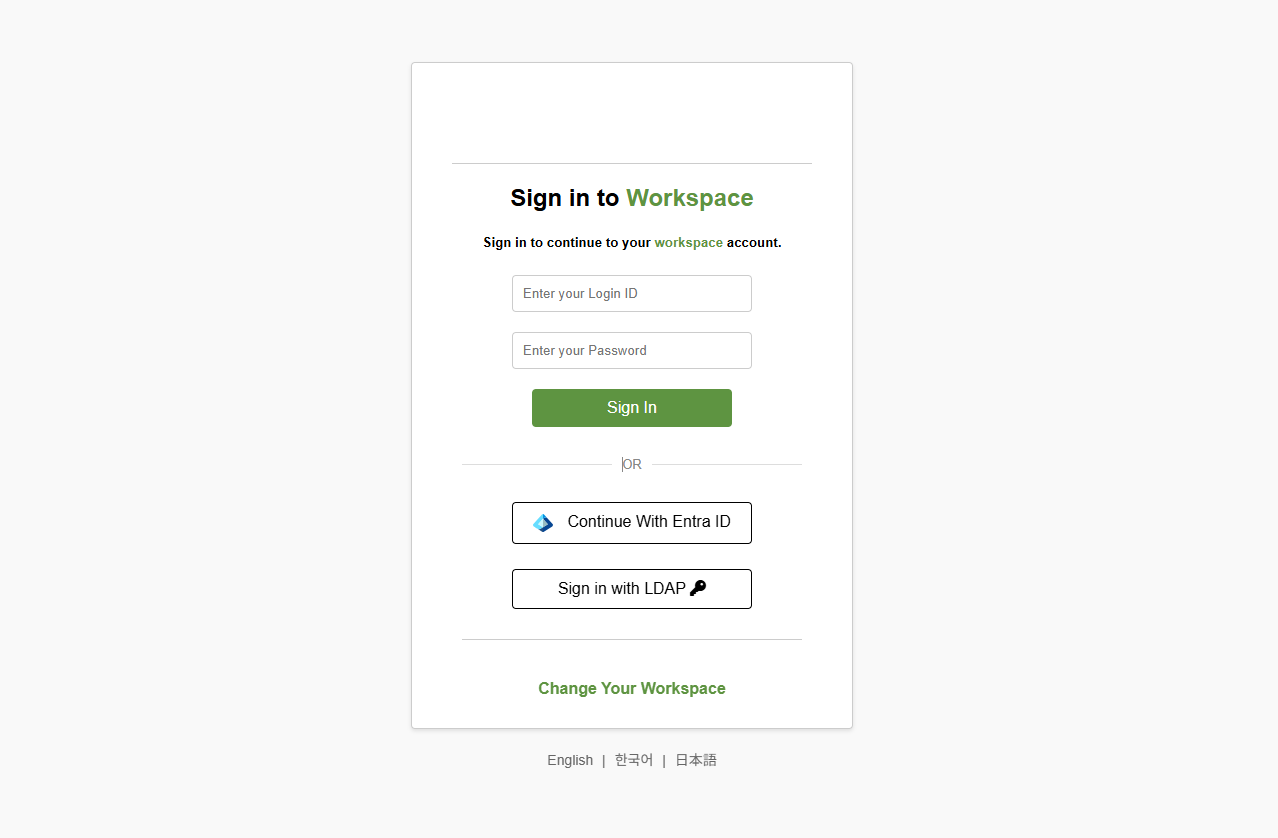
Once connection with the LDAP server has been established, users will be added to the SIA user list automatically and an option to sign in to the SIA console under LDAP will become available.
You can find the LDAP settings by navigating to:
Settings > Login Settings > LDAP
Navigating LDAP Settings
The following information is provided to give guidance on the purpose of each section
| LDAP Version | Select from a list of possible LDAP version to use as the connection type to the LDAP server |
| Server Address/Port | The external address and port for the LDAP server in order to create the connection. - Must be a valid IP and Port |
| Bind DN | The container address of the administration account used to access the LDAP server, including the cn and DC information. |
| Bind Password | The password of the administrator account on the LDAP server |
| Bind DN | This is the location with the LDAP query will initiate from within the LDAP server. • It is best to specify the DC components of the distinguished name without additional organizational units. |
| Search Filter | The information that will be searched on the LDAP server |
| Search Interval | Determines the frequency in which the LDAP server will be queried by the SASE server in order to find and propagate account changes |
| Access ID | Displays the Access ID for the SASE workspace that must be copied into the LDAP server configuration file to create the connection. |
| Apply | Applies the specified rules of the LDAP server configuration used to establish the connection between the AIONCLOUD service and the LDAP server. • Note: Must be pressed to save the "Bind" configuration. |
| Download | Used to directly download the LDAP installer for the LDAP server |
LDAP Menu
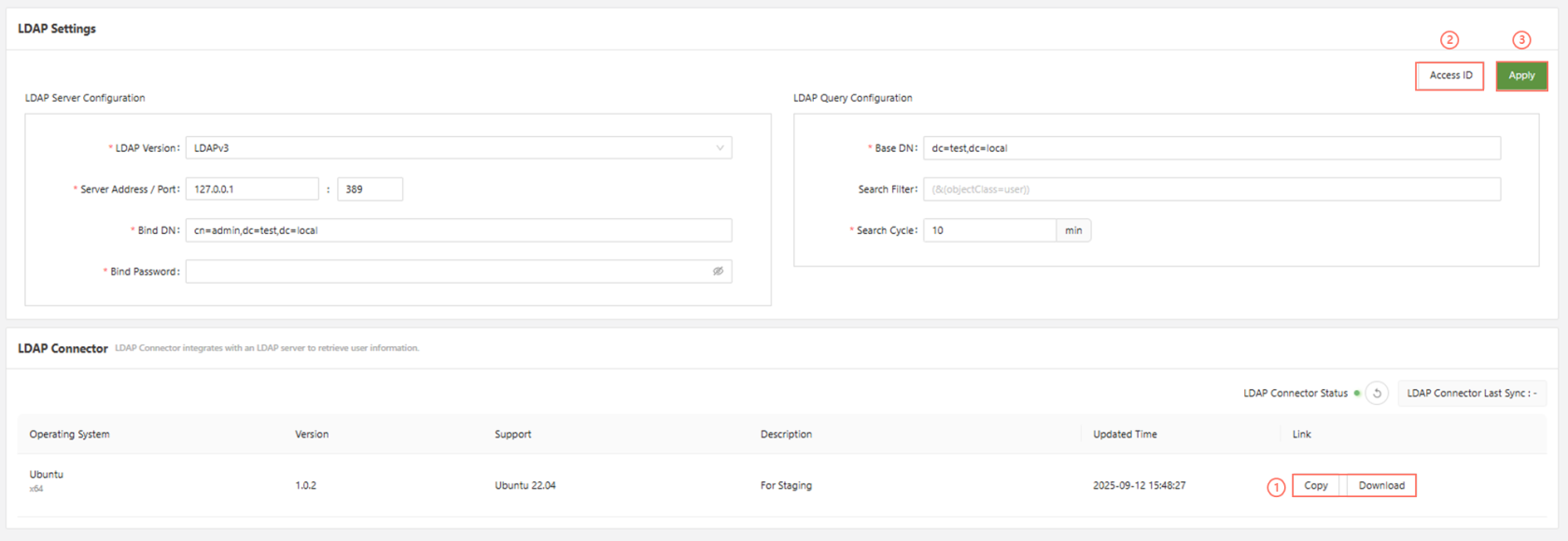
- Copy/Download: Used to get a link, or directly download the LDAP installer for the LDAP server. Only for Linux
- Access ID: Displays the Access ID for the SSE workspace that must be copied into the LDAP server configuration file to create the connection.
- Apply: Applies the specified rules of the LDAP server configuration used to establish the connection between the SASE service and the LDAP server.
- Note: Must be pressed to save the "Bind" configuration
Configuring the LDAP Settings
This page will provide a guide on how to configure the LDAP settings page to connect with your LDAP server using the Linux connector.
Step 1: Confirm the information of your LDAP server
The first step that you will need to do is to find out the key information of your LDAP server.
We will need to know:
| LDAP Version |
| Server Address / Port |
| Bind DN |
| Bind Password |
| Base DN |
| Search Cycle |
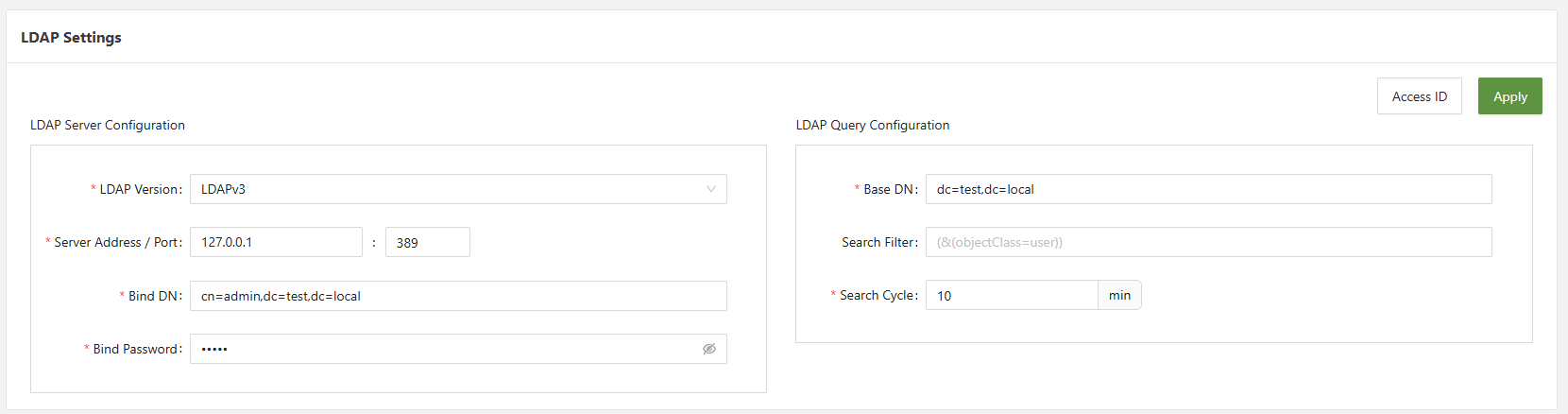
After this is completed, enter the information into the LDAP Settings fields and click apply.
Step 2: Download the Connector
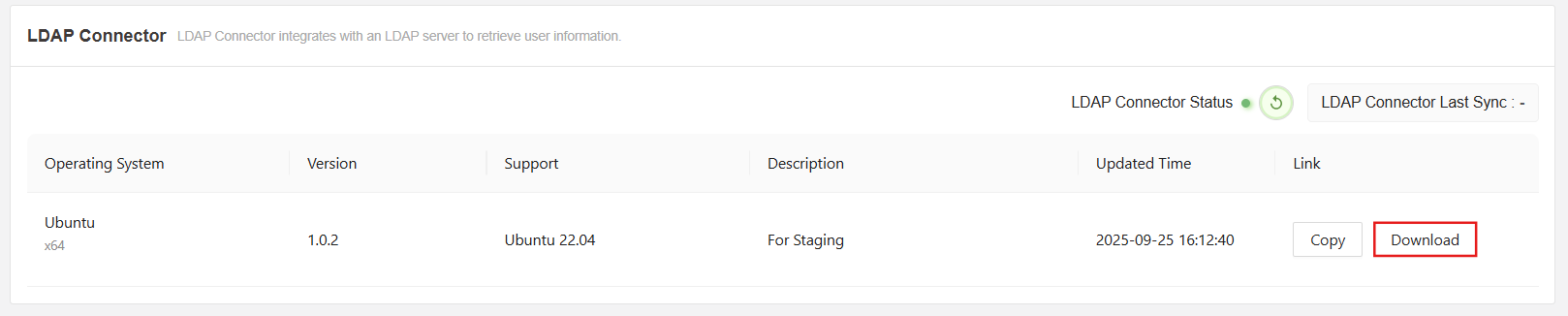
Start by clicking the download button to get the connector file.
Step 3: Upload and Extract the file
Upload the file to your linux server where the LDAP server is hosted, and then extract the tar file.
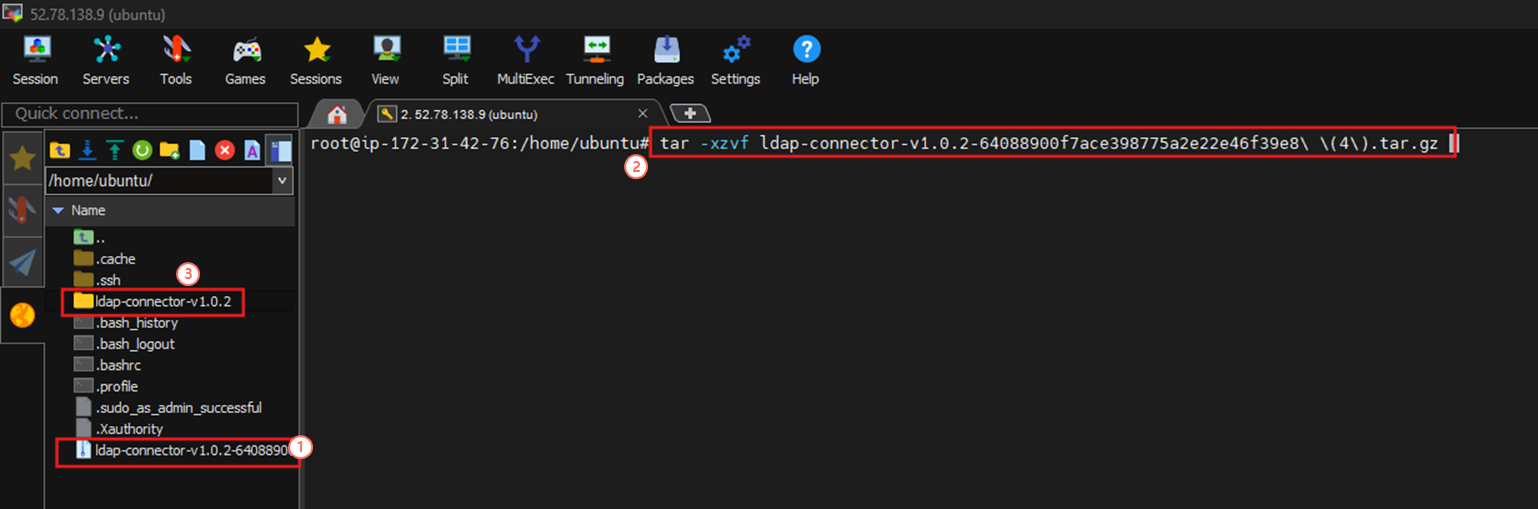
- Upload the tar file to the server.
- Run tar -xzvf (file name).
- A folder should appear for the LDAP connector.
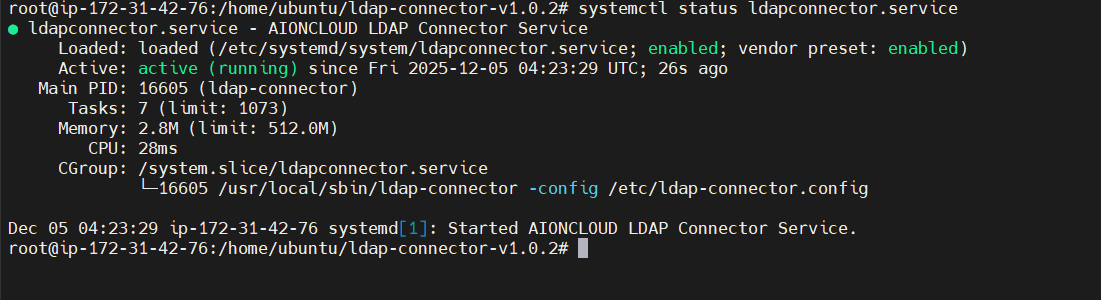
Step 4: Install the Connector
To start, run ./install to install the connector.

Run systemctl status ldapconnector.service to confirm install.
Step 5: Link with the LDAP Setting
On the LDAP menu, locate the button labeled "Access ID."
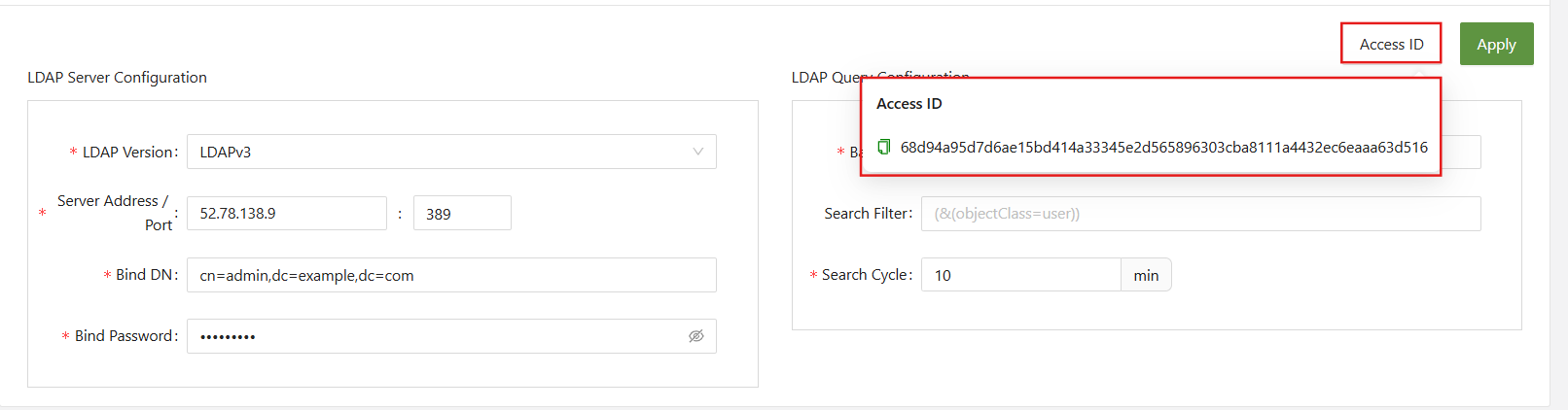
Copy the Access ID, and go back to the connector and run vi config.json.
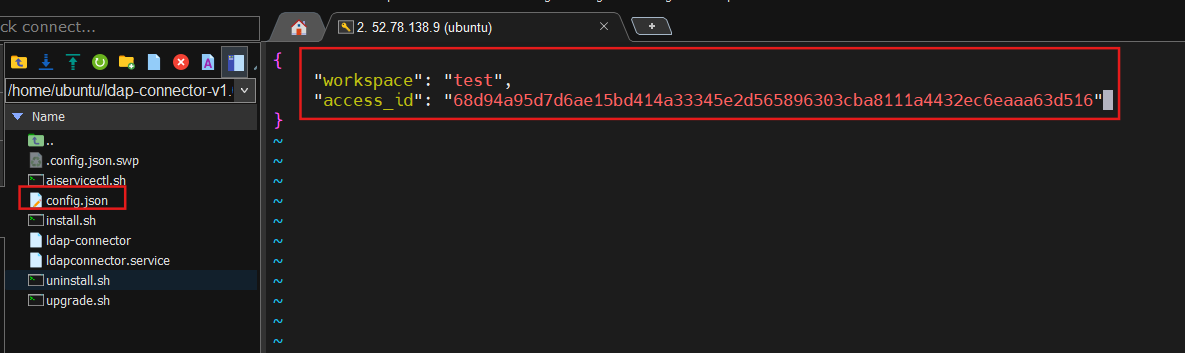
Inside this file, copy the access ID and write the name of the SSE workspace being used.
After this step, attempt to connect the LDAP connector via the SSE LDAP console menu and it is good to go.
After logging in, the LDAP option will be available: