Split Tunnel Overview
What is Split Tunnel?
This feature allows for the creation of a network band that will allow direct access to IP addresses within the network band, so that traffic to IP addresses within the band will route directly from the user's machine, to the IP address specified, bypassing the SSE. The purpose for this is to allow access to internal or external network devices such as network printers.
Note: The default tunnels are reserved for the SASE systems, and cannot be edited or deleted.
Split Tunnel Menu
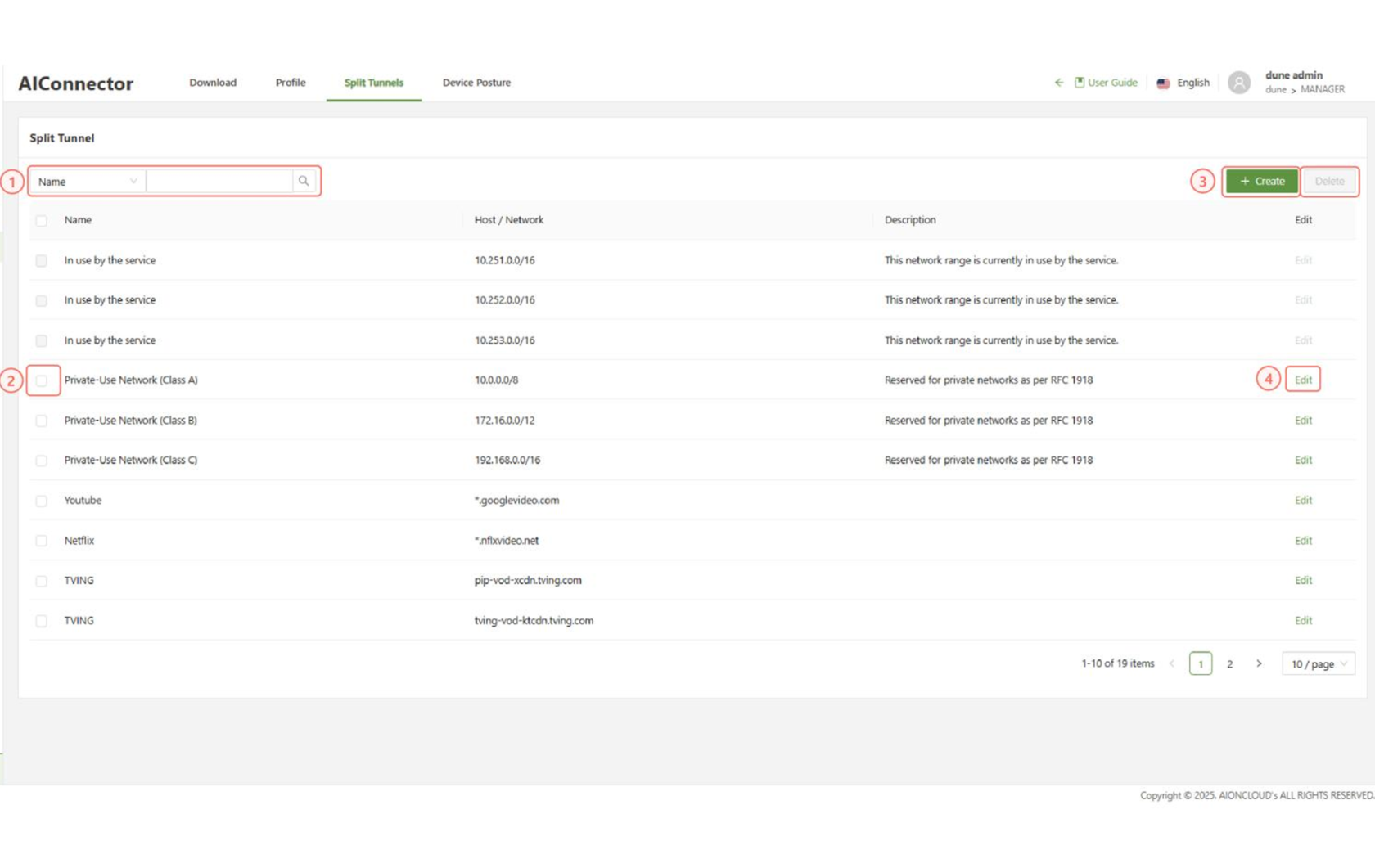
Below is an overview of the functions on the Split Tunnel page:
| Search | Used to filter tunnels using the available input fields |
| Checkbox | Used in conjunction with the delete button in order to delete one or multiple split tunnels |
| Create | Used to access the “Create Host / Network” form |
| Edit | Used to access the “Edit Host / Network” form |
When creating/editing/deleting a split tunnel, existing users are disconnected from the AIConnector and reconnected
Create Host /Network
In the “Create Host / Network” form, there will be two main options for setting up a split tunnel: IP/Netmask and Domain.
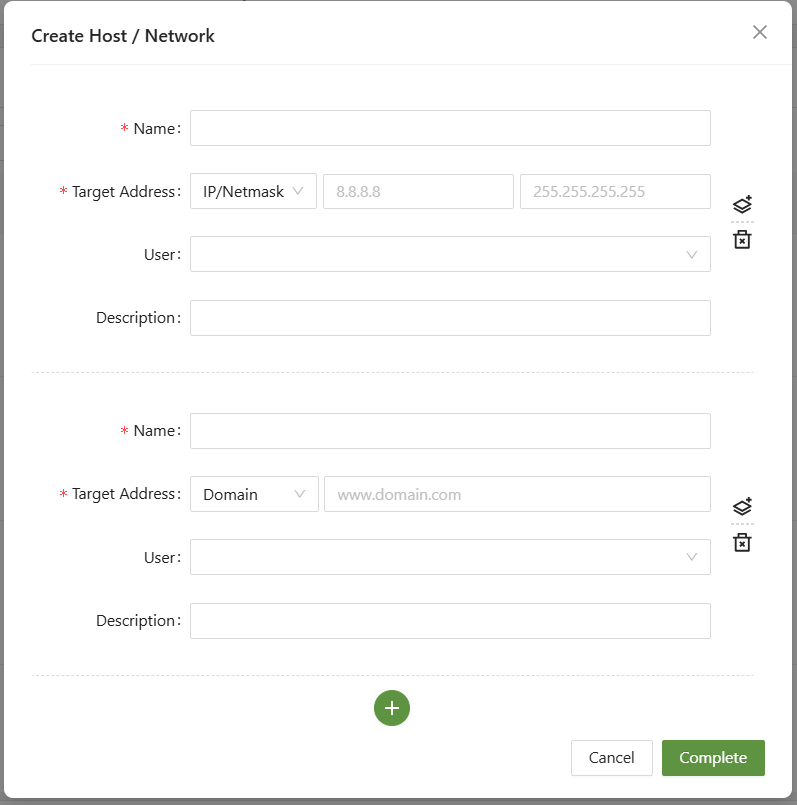
Below is an overview of each part of the form:
| Name | A name identifying the split tunnel |
| Target Address | Select either Domain or IP/Netmask: Domain: The FQDN that will be bypassed, it is possible to use wildcards * FQDN Split Tunnel is only effective on Windows endpoints. It does not apply to mobile devices. IP: The IP block in which the subnet mask will be applied. ex 10.0.1.248 Netmask: The netmask for IPs to be used for the tunnel. ex. 255.255.255.248 |
| User | The user or user group who the split tunnel will apply to |
| Description | A short description of the split tunnel |
| Plus | Used to create more than one split tunnel simultaneously |
Once set up, the Host / Network set up will bypass the SSE completely.