Profile Overview
This section allows for the creation and editing of different profiles that control the operation of the Connector. Profiles are used to enact specific rules on users connected to the Connector agent on their device. In simple terms, the Profile will tell the connector on the user's device how to behave.
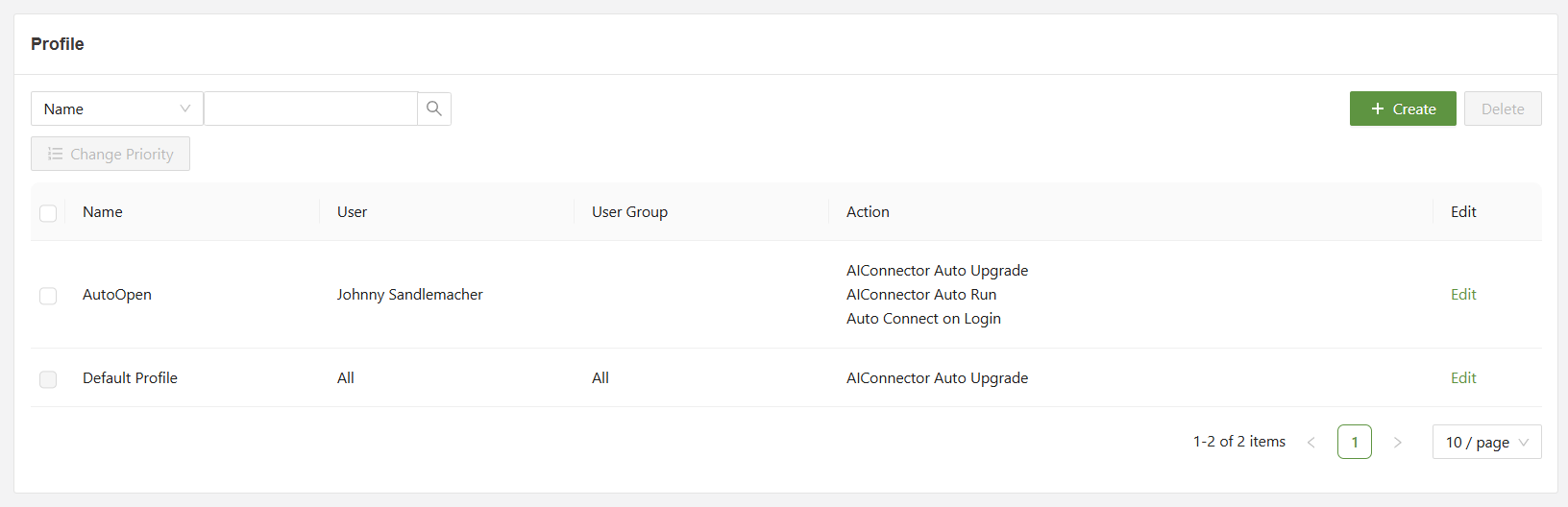
Every workspace will begin with a default profile, which can be edited. It is however set to apply to all users by default and this cannot be changed.
To create a new profile, click the create button on the top right of the console, which will open a menu.
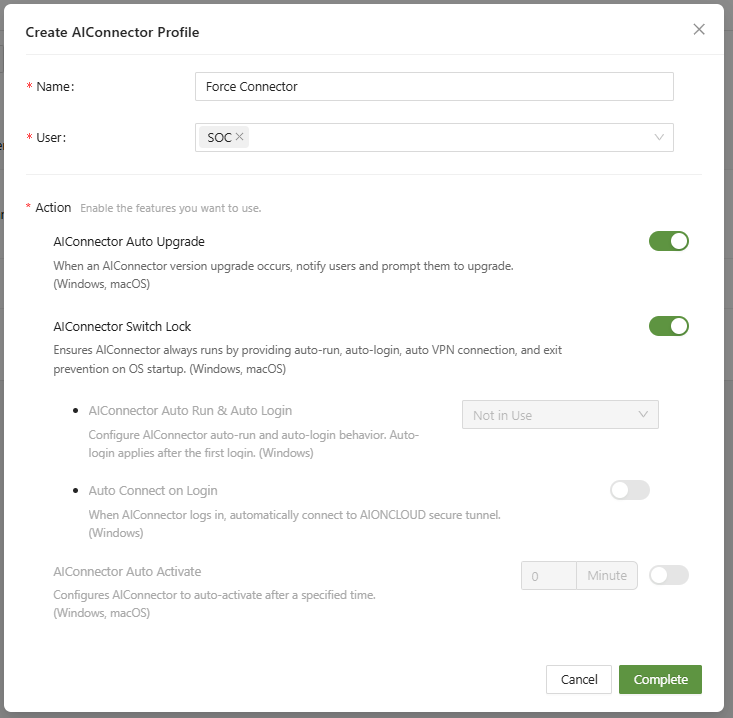
Below is an overview of each part of the Profile creation page.
-
Connector Auto Upgrade - Use this to force the connector to update each version release.
-
Connector Switch Lock- Use this to force the connector to start, login, and then lock on OS startup. For users where the connector cannot be turned off for any reason.
This feature can be turned off, and more granular elements of the switch lock can be configured below.- Connector Auto Run & Auto Login
- Auto Run- The Connector will start process upon OS startup.
- Auto Run & Auto Login - The connector will automatically log in after startup. Required an initial log in the first time.
- Auto Connect on Login - After logging in, the Connector will automatically connect to the workspace.
- Connector Auto Run & Auto Login
-
Connector Auto Activate - Set a timer for the Connector to activate. For example, setting to 10 minutes for automatically connect the agent to the workspace after 10 minutes.
Profiles can be set to both users and user groups. Any users not included in a custom-made profile will be subject to the rules of the default profile. Lastly, if users or user groups are included in multiple profiles, the profile with higher priority will be utilized.