In-App Control Configuration
There are many ways to configure In-App Control.
Step 1: Navigate to the menu
To start, head to CASB > In-App Control > Create to start creating a rule.
Within, you will find the In-App Control menu.
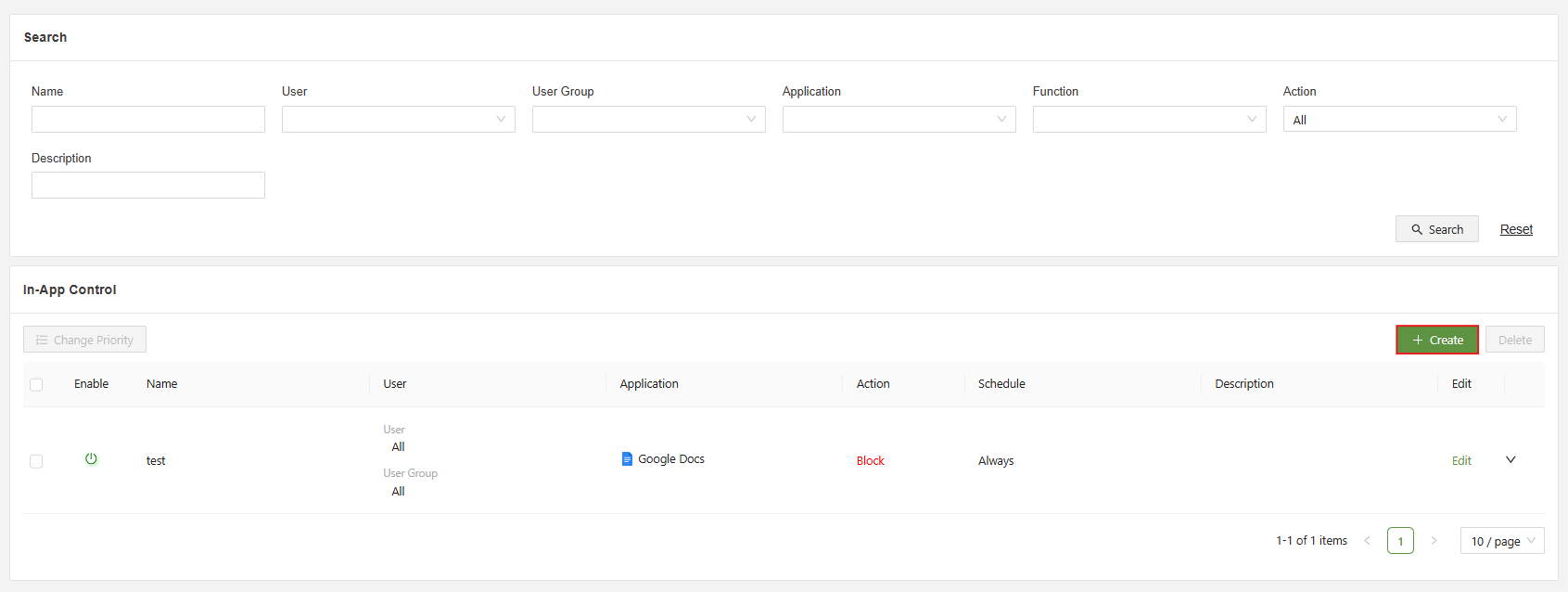
Click on the Create button.
Step 2: Select an Application
Within the menu, the most important part is the application menu.
There are many different applications including Microsoft 365, Jira, Google Drive(+), dropbox, and much more.
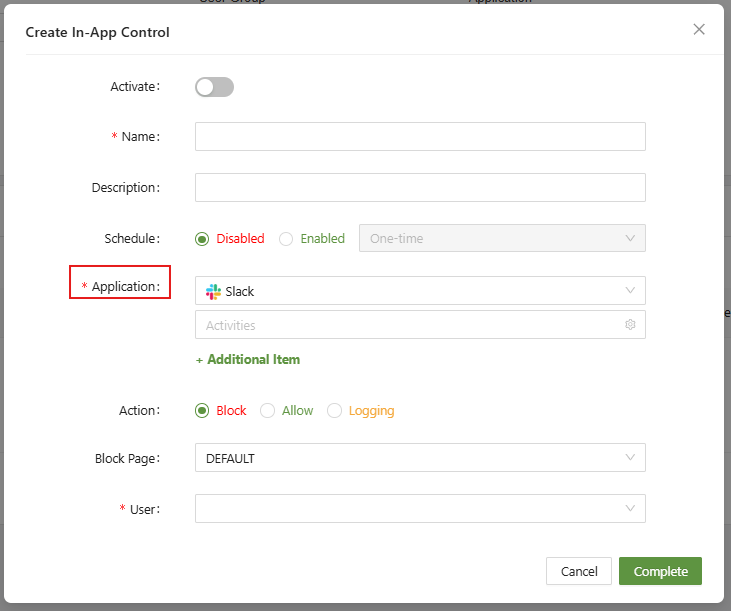
Slack has been selected in this example:
Step 3: Click on Activities to further configure
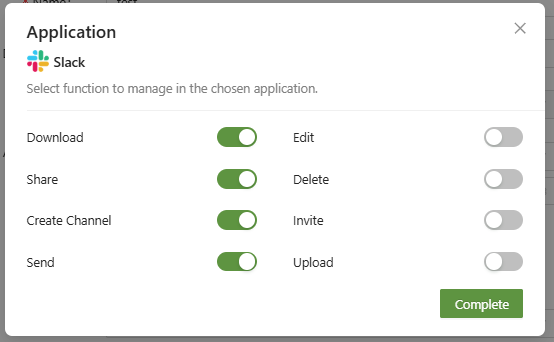
The buttons that have been selected are functions that will have action taken upon them.
For example: Download is turned on, and the overall rule is set to BLOCK -> This means downloading will be blocked.
Multiple applications can be configured within a single In-App control policy.
When finished configuring the application, set the user/user group to be subject the policy and click yes.