Application QoS Configuration Guide
In this section, a simple configuration guide will be provided to demonstrate how to successfully set up Application QoS on the SASE platform.
Configuring QoS
1) Go to the FWaaS menu on the side panel, and select Application QoS.
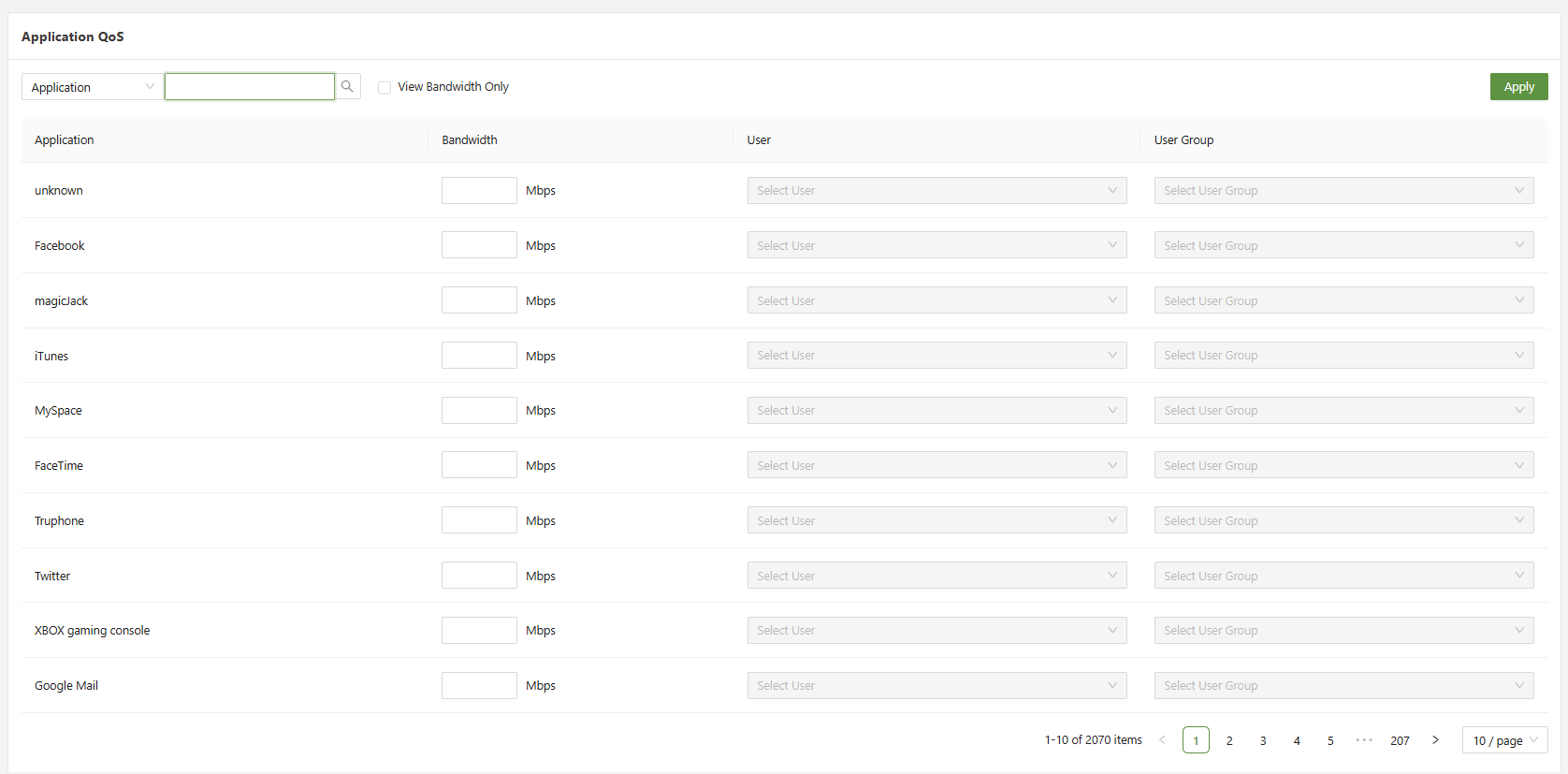
2) Enter the name of the application to apply the QoS rule to in the search bar.

3) Apply the desired amount of bandwidth to allow the application to use. Leaving the field blank will impose no limit on the amount of bandwidth that the application is permitted to use on the network.
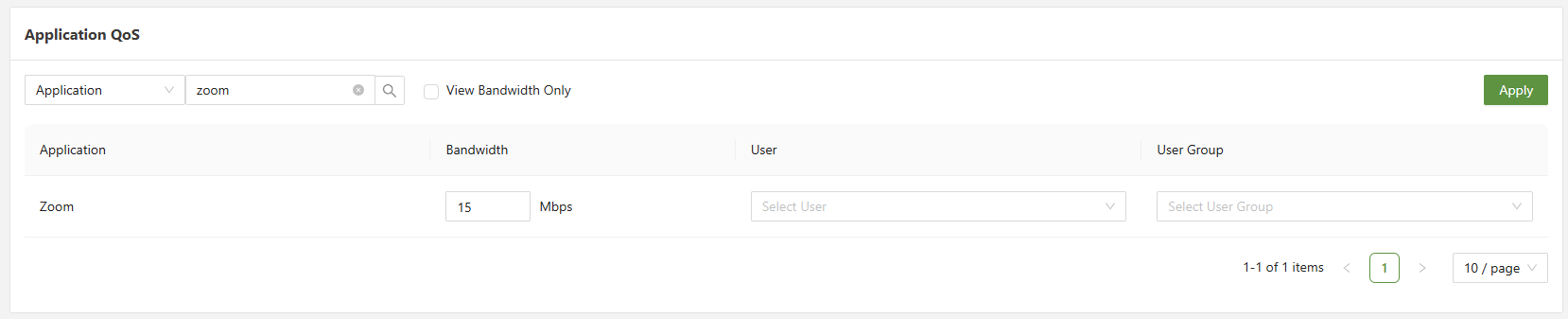
4) Set the desired users for whom to apply the bandwidth cap to. To apply the rule to all users, simply select "all."
If there are no users present, please navigate to the Users tab and begin creating.
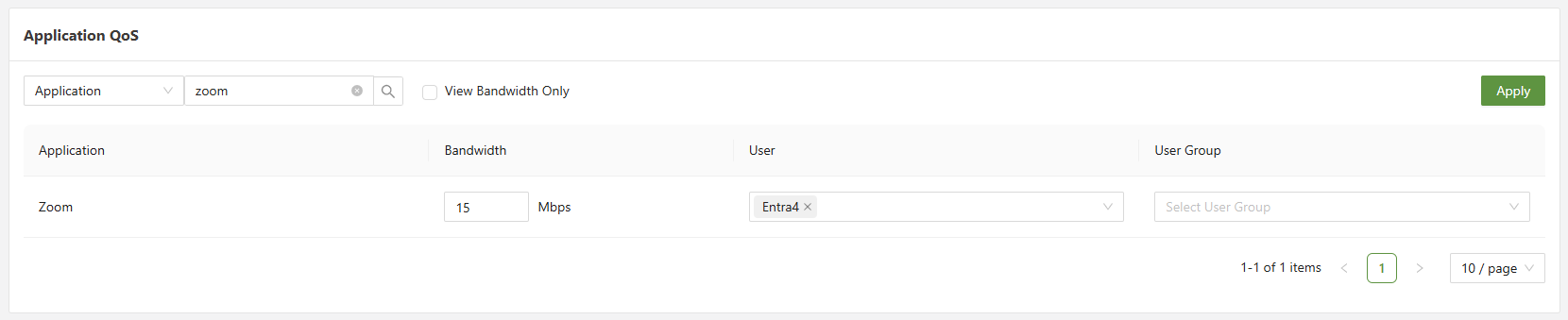
5) If desired, add a user group either instead of or in conjunction with a list of users. If user groups will be used, best practice is to set a user group first, and then set users who are outside of that group afterwards. If a user is added and is also part of a user group which has been added, there will be no conflict.
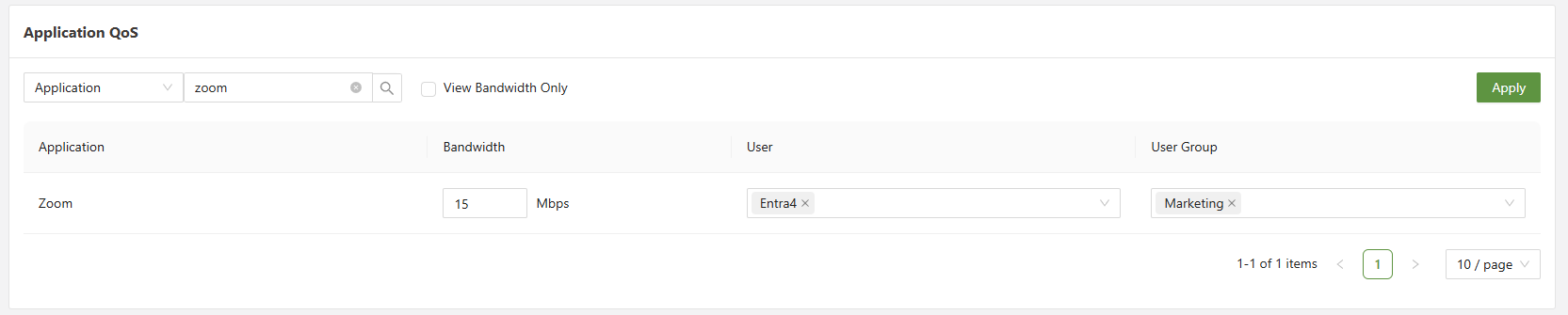
6) Click Apply on the top right and the rule will be enforced immediately.