Application Firewall Configuration Guide
In this section, a simple configuration guide will be provided to demonstrate how to successfully set up Application Firewall on the SASE platform.
Configuring Application Firewall
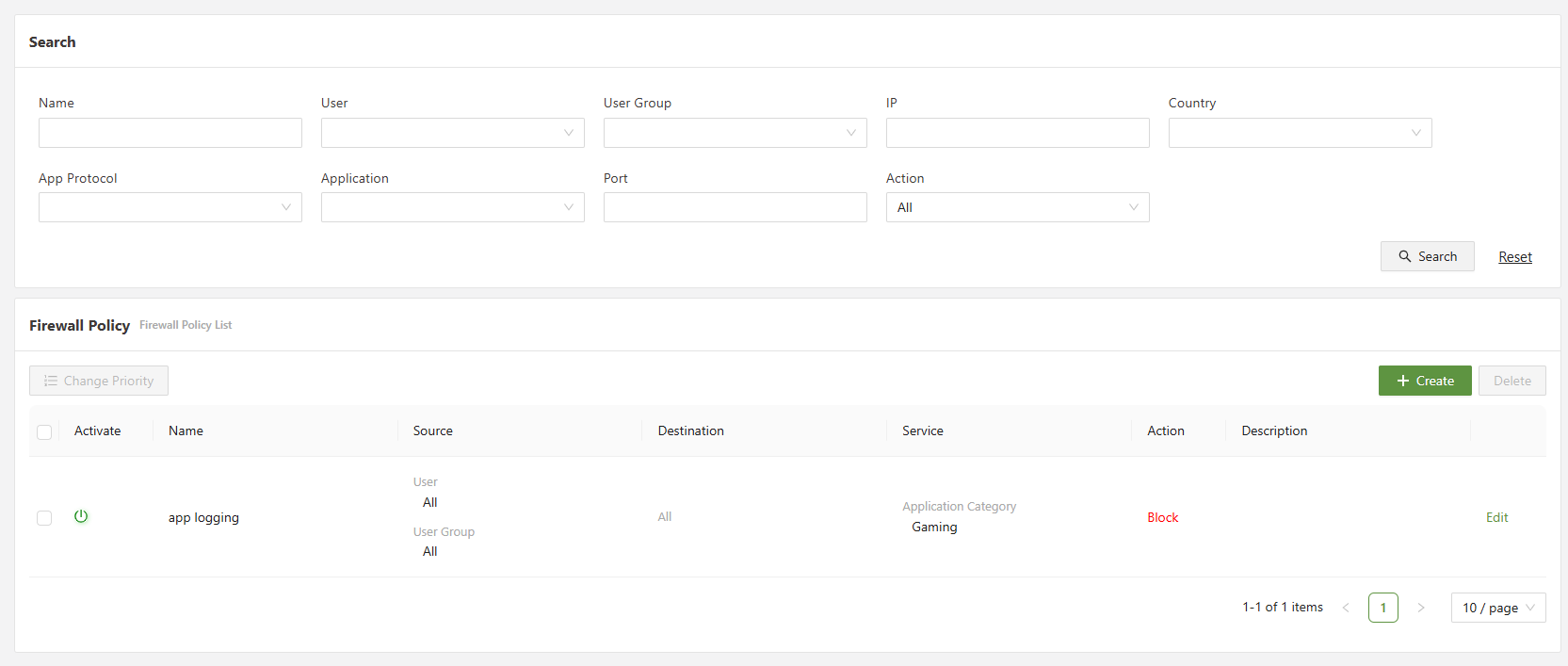
1) Go to the FWaaS menu on the side panel, and select Application Firewall
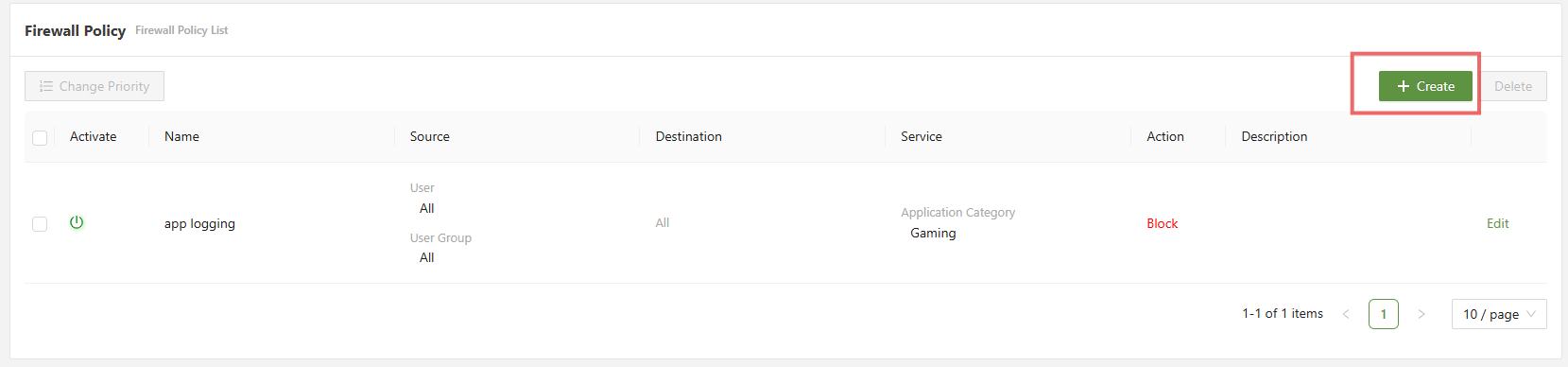
2) Click on [Create] to open the create policy menu
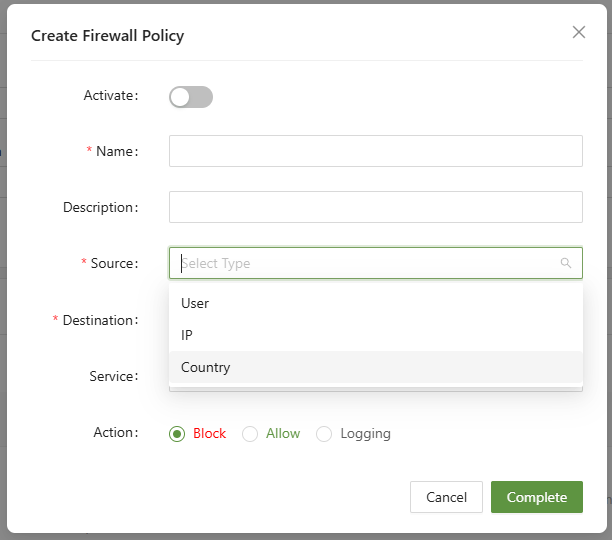
3) Select the Source & Destination
This is what will trigger the rule to take affect. Choosing IP will make all IP's connected to the connector agent trigger this firewall policy. Likewise, picking a user or user group will apply the policy to those users. Destination follows the same principle, but instead applies for where traffic from the connected user is going to.
4) Set the target service
There are 4 main categories for service: Application protocol, Application, TCP, and UDP.
4a) App Protocol
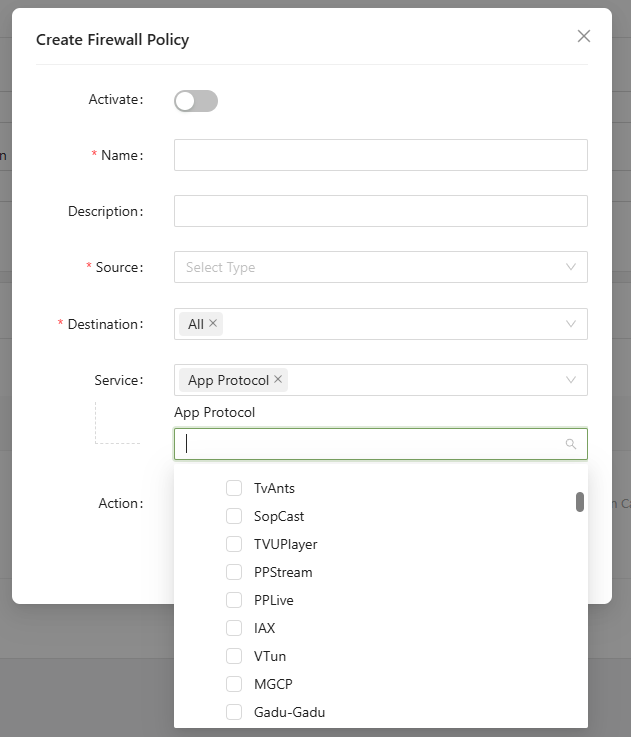
Selecting Application Protocol will use DPI to check each packet's protocol and check if it matches the one chosen. More than one app protocol can be selection in creation of a rule.
4b) Application
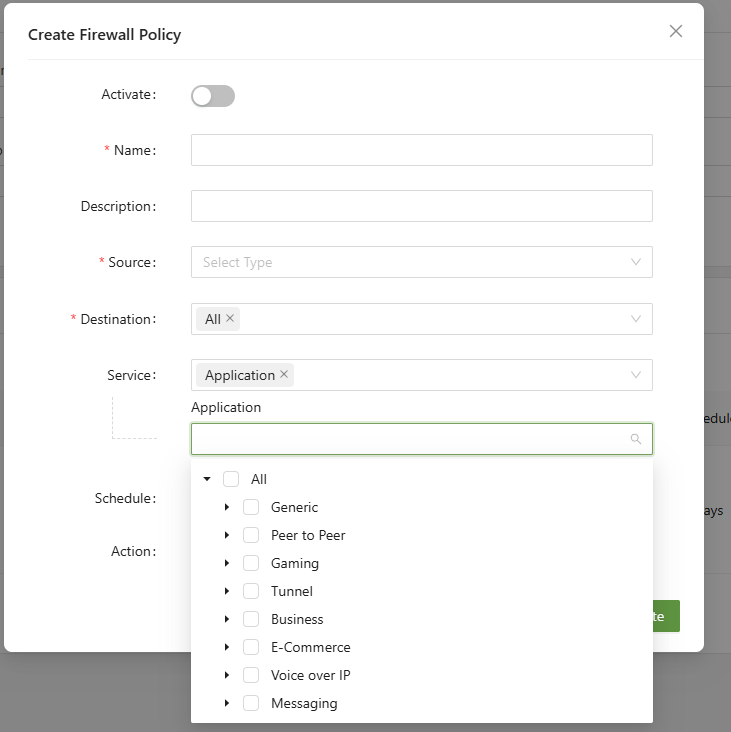
Application will take action against the specific software you choose, rather than the protocol. They are sorted into categories so either the entire category or the individual applications can be chosen.
4c) TCP
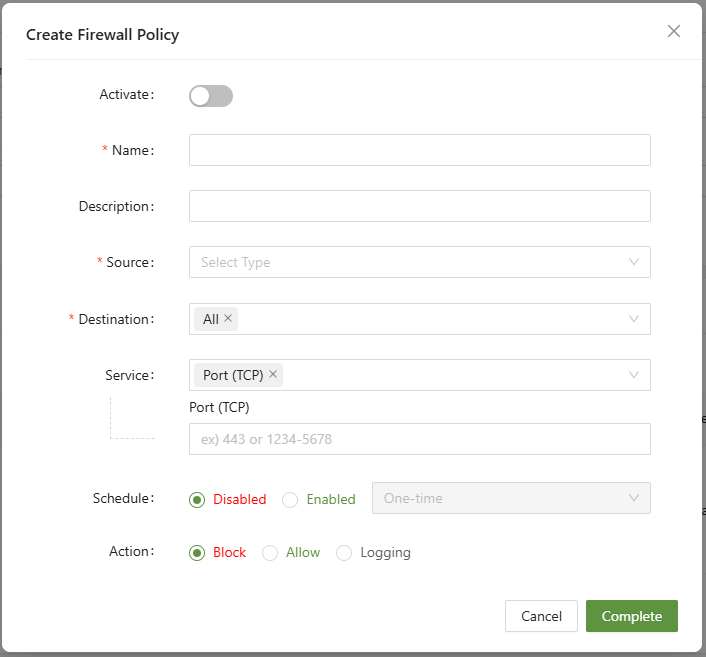
For TCP, there are many common ports that can be configured. Here are some examples:
| 80 | HTTP | Web traffic(insecure) |
| 443 | HTTPS | Web traffic(secure) |
| 21 | FTP | File transfer protocol |
| 22 | SSH | Secure remote access |
| 23 | Telnet | Remote access |
| 25 | SMTP | Outgoing email |
| 110 | POP3 | Incoming email |
| 143 | IMAP | Incoming email |
| 3389 | RDP | Remote desktop protocol |
| 3306 | MySQL | Database access |
4b) UDP
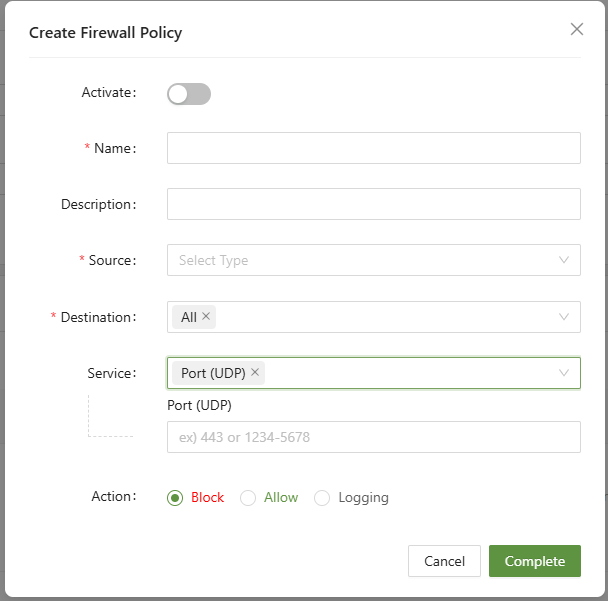
For UDP, there are many common ports that can be configured. Here are some examples:
| 53 | DNS | Domain name resolution |
| 123 | NTP | Network time sync |
| 161 | SNMP | Network monitoring |
| 500 | IKE | VPN(IPsec key exchange) |
| 67/68 | DHCP | IP address management |
| 69 | TFTP | Trivial file transfer |
5) Set the action
- Block - Block all traffic that matches the parameters set.
- Allow - Explicitly allows traffic that triggers the rule
- Logging - Creates a log in the log menu
6) Click Complete
The rule is now configured and ready to use.