Messenger Configuration Guide
The Messenger menu is the location to configure the delivery of audit log data to 3rd party messengers.
The current messenger types available are:
- Telegram
- Slack
- Discord
All messenger configurations can be customized according to what types of audit logs the administrator would like to transmit. The language of the logs can also be configured between English, Korean, and Japanese.
Messenger Menu
The console menu for Messenger has functions for creating, deleting, and managing messenger policies.

- Create: Used to configure the settings for a messenger
- Delete: Used to delete an already configured Messenger
- Edit: Used to edit a current Messenger
Create Messenger
Clicking on the create button will open a menu.
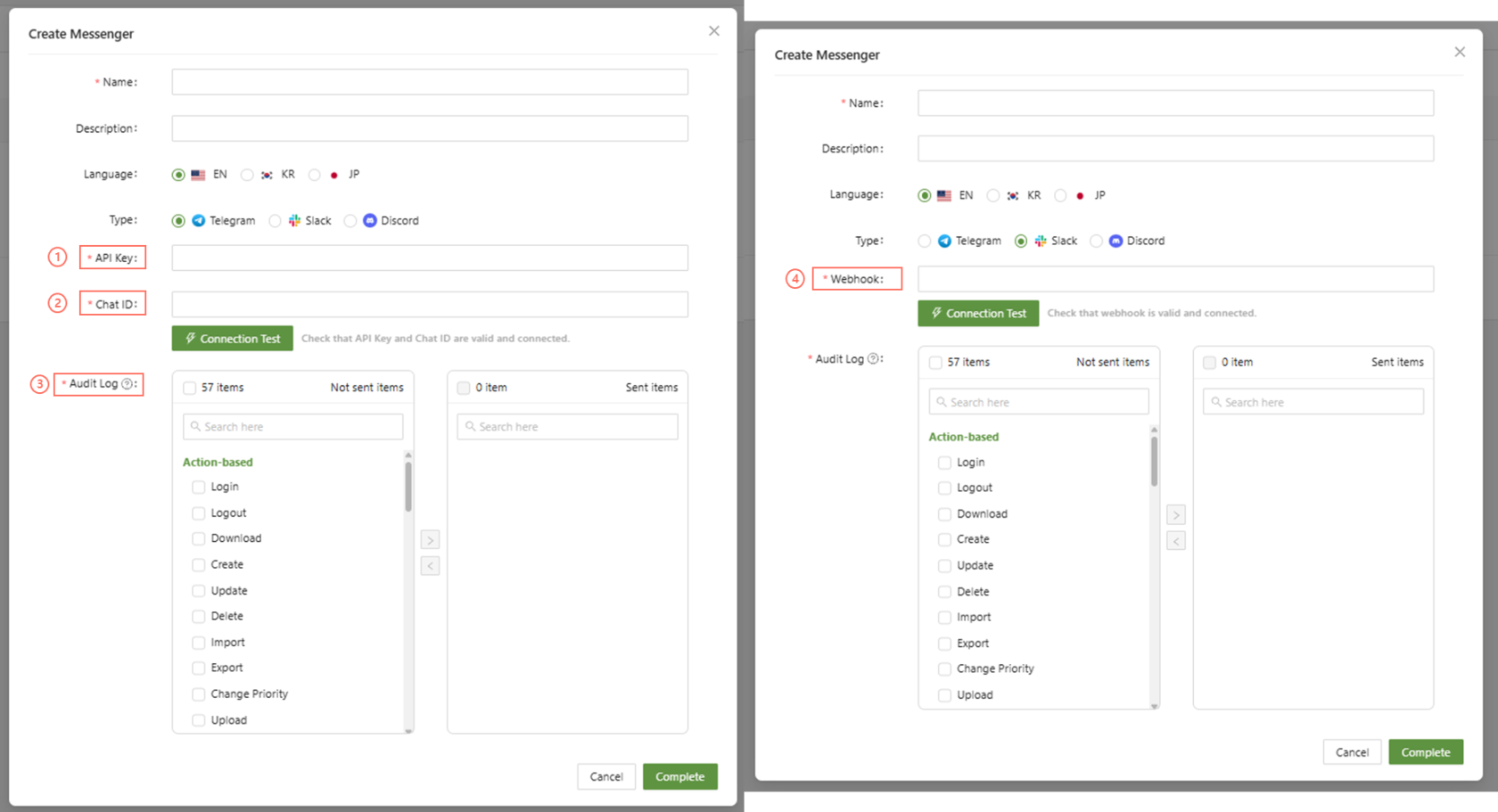
- API Key: When configuring the settings for Telegram, input the API key for your telegram account.
- Chat ID: Enter your personal chat ID for telegram.
- Audit Log: Select the audit logs you wish to have sent to the messenger.
- [Slack/Discord] Webhook: Enter the unique webhook URL of the messenger.
Webhook Guide
To link the messenger with the application, the application in question needs to generate a webhook. Below are the locations of the webhook on each app.
Telegram
- Create a bot using BotFather
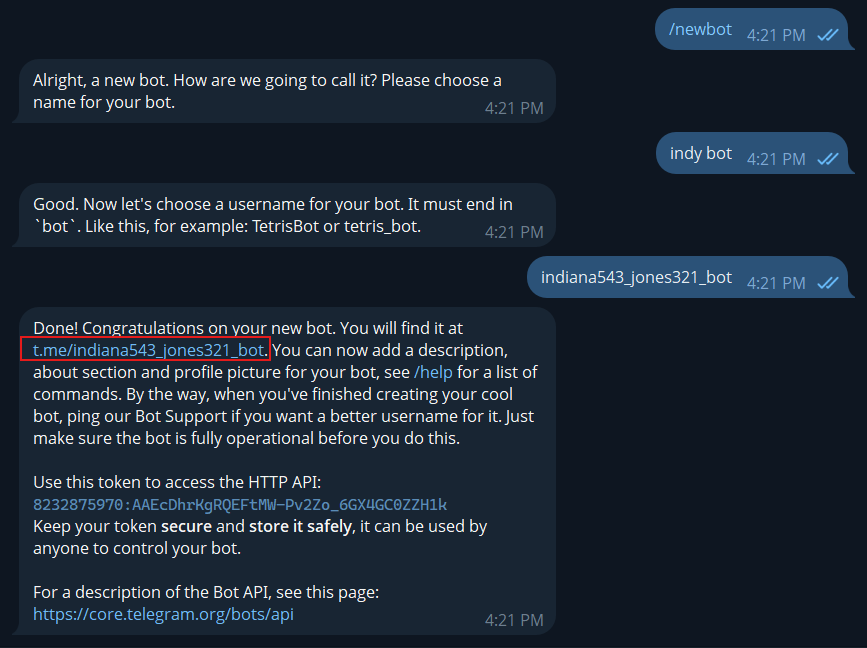
Click on the t.me link that it provides to open up the bot. Then, click start.
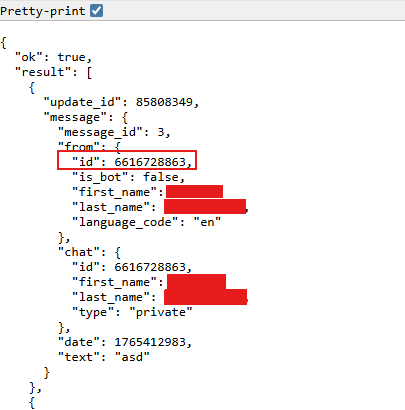
2. Get the Chat ID
In the larger message, there will be a token to access the HTTP API.
You can find the chat room ID you chatted with the bot in \1
For ${telegramBotToken}, enter the token you obtained earlier.
3. Put the API Key and Chat ID in the Messenger menu
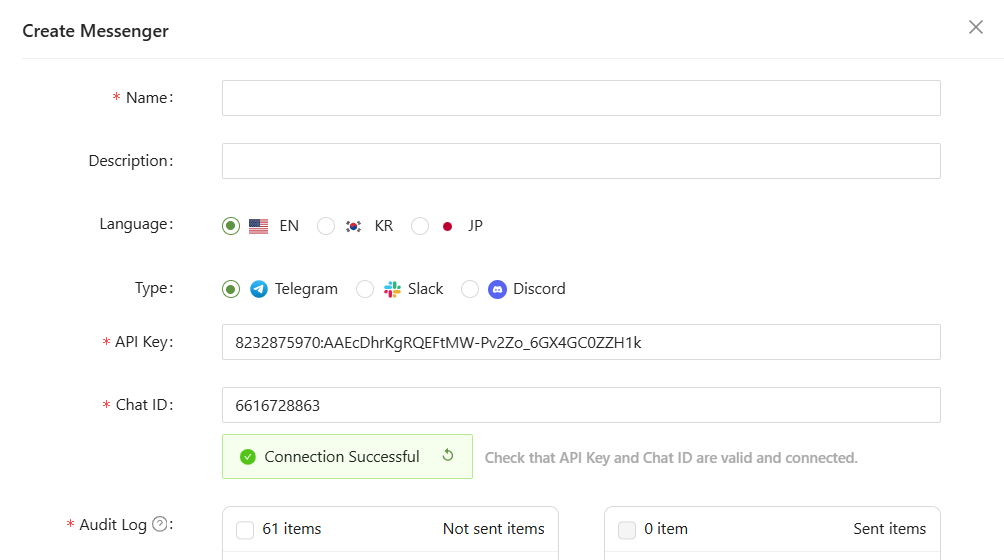
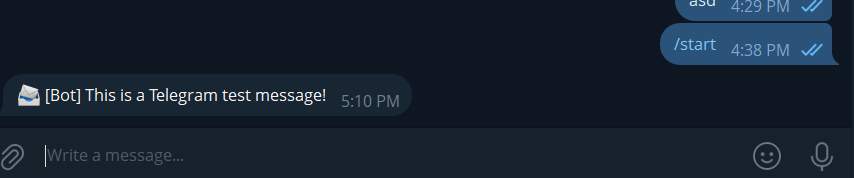
Immediately after testing a successful connection, a test message should arrive:
Slack
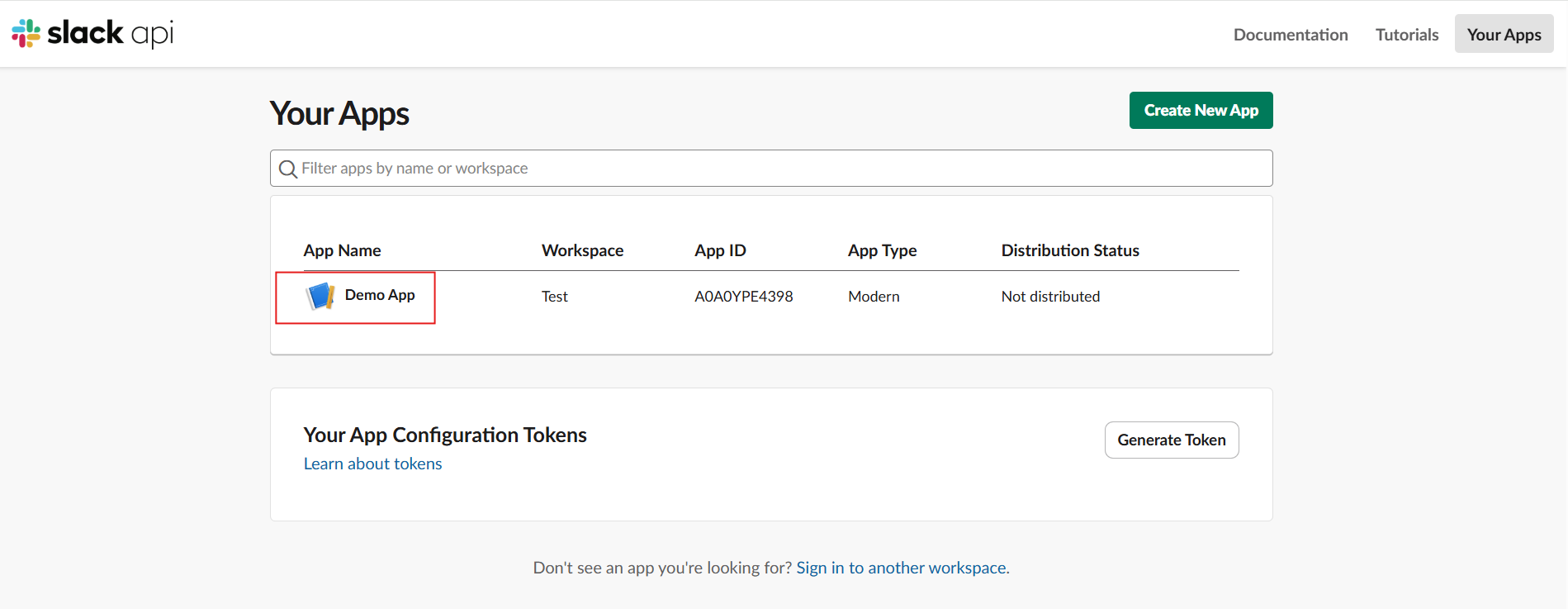
- Select the App from
https://api.slack.com/apps
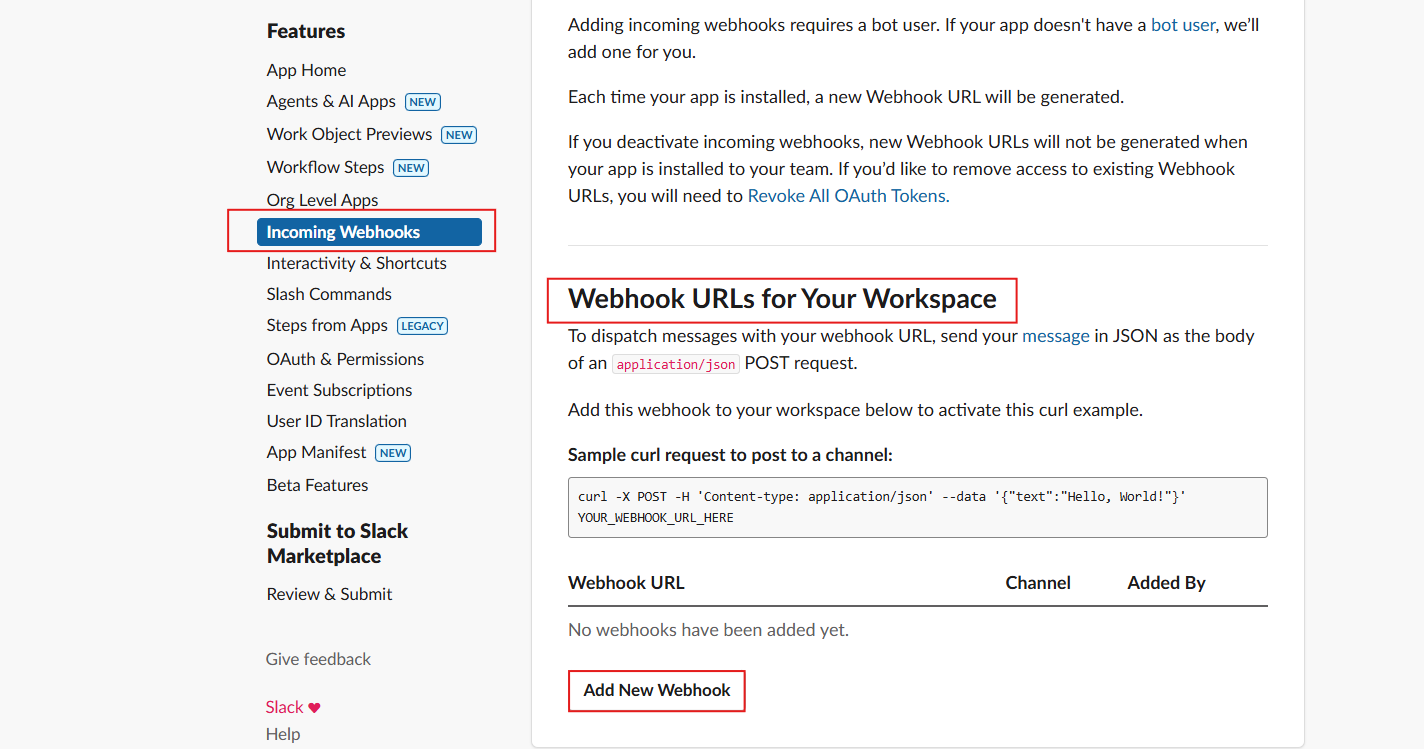
2. Add a new webhook from the Incoming Webhooks menu
3. Select the channel where you want the audit logs to be sent
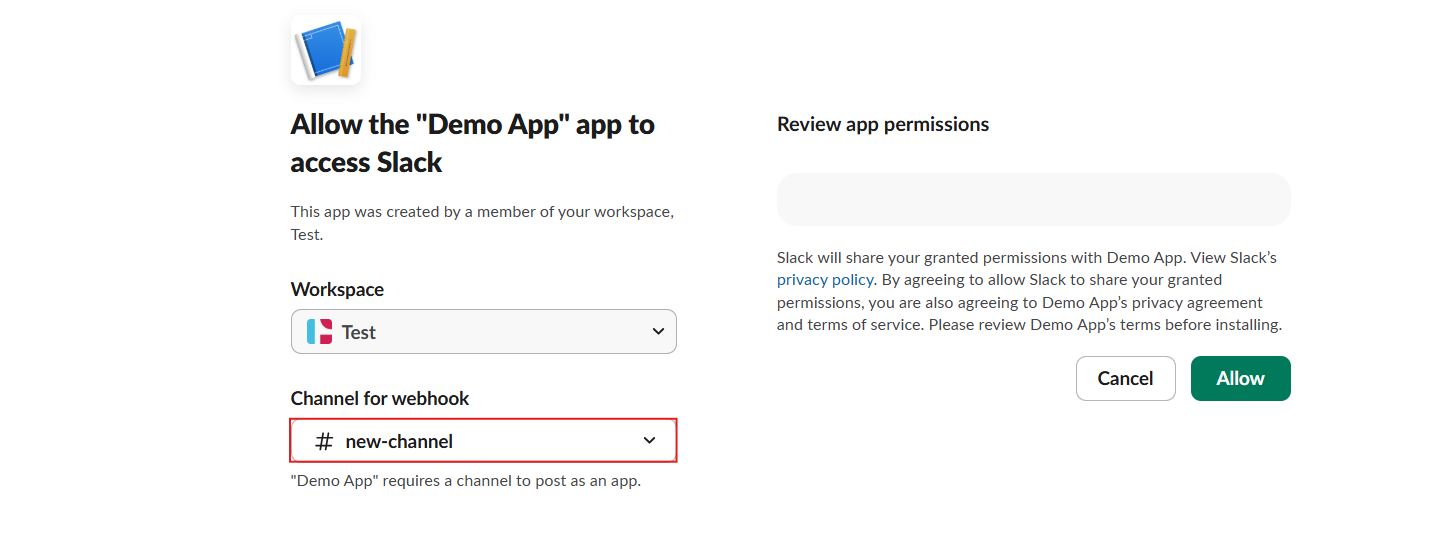
4. Head back to the page where the webhook was created, and find the webhook URL
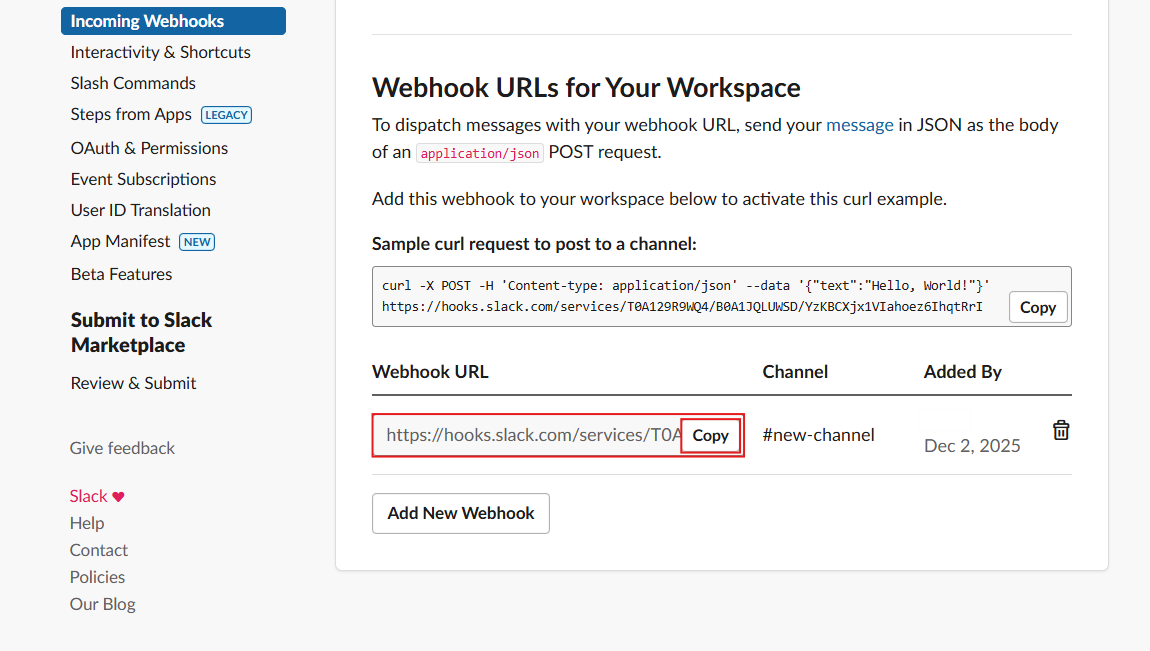
Click "Copy" to copy the webhook URL.
5. Paste the webhook URL into the SSE webhook menu
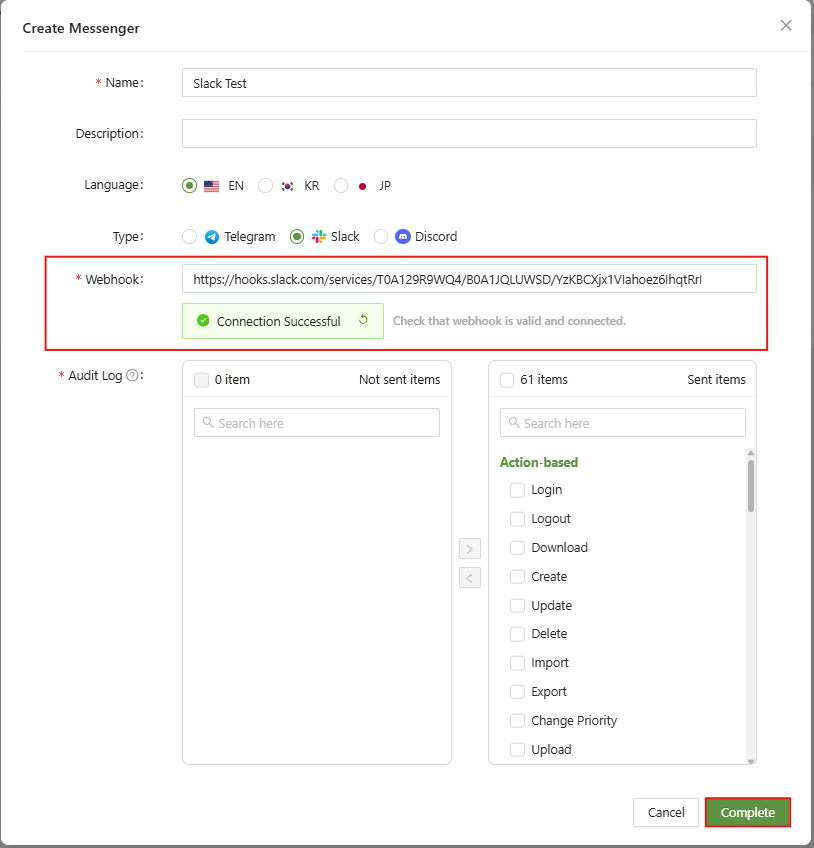
Run the connection test to confirm, then click Complete after setting the preferred items for the Audit Log.
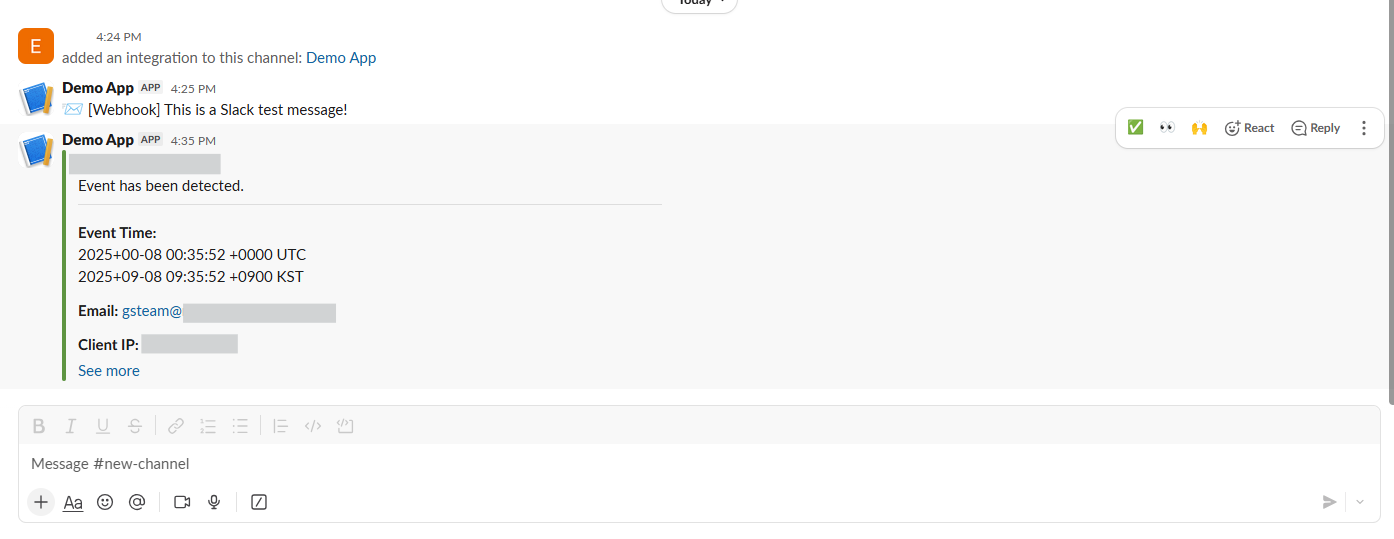
Logs should start to show up in the Slack Channel.
Discord
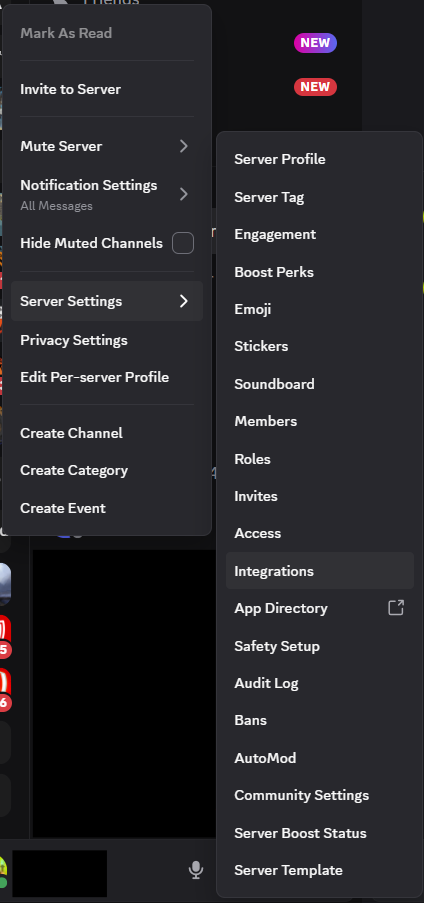
1. On discord, navigate to a server you have admin privileges in. Then Right click on server > Server Settings > Integration
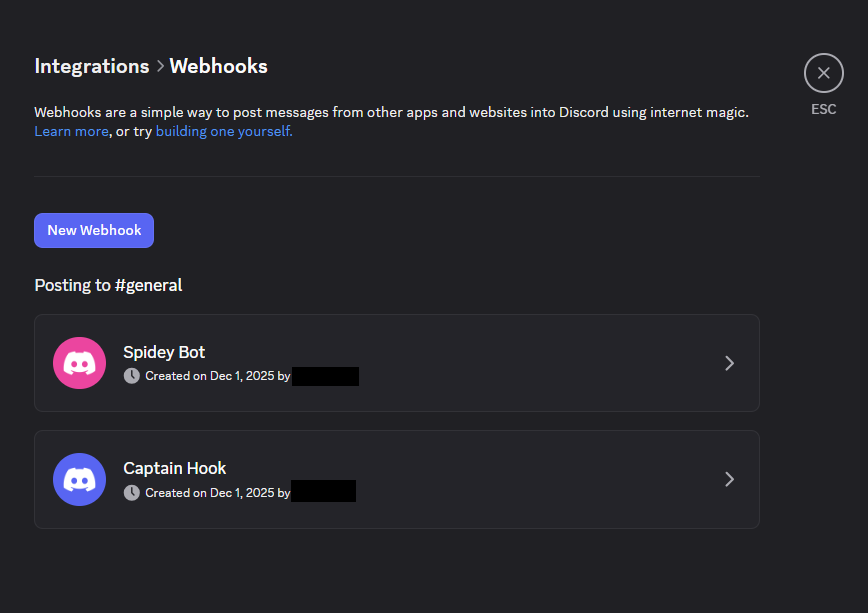
2. After clicking on integrations, click on create webhook to start generating
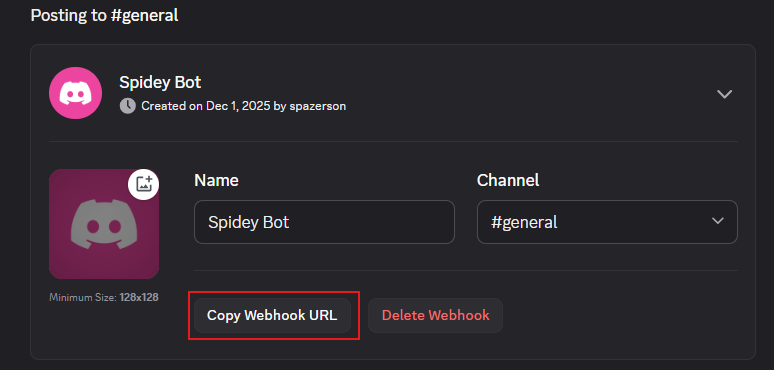
3. After creating the webhook, copy the Webhook URL
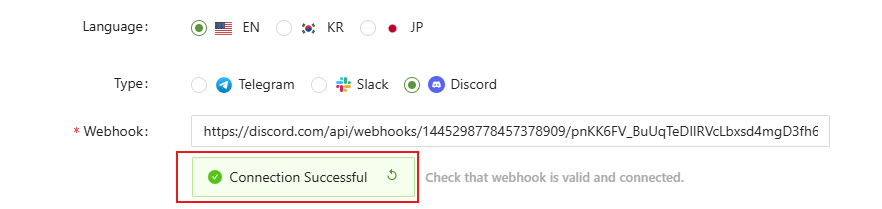
4. Afterwards, post the webhook URL in the box and test connection