Block Page Configuration
What is the Block Page?
In the Global Security menu, there are two block pages that can be configured.
- Block Page(Web) - This page is used to create the different block pages that will be displayed to users when they are blocked by a rule. Some parts of this feature require knowledge of HTML/CSS in order to create a valid block page.
- Block Page(DNS) - This is a function that allows the user to set the block page in the event that the DNS is blocked by firewall rule.
- Block Page(GenAI)- This is a function that allows the user to set the block page in the event that the GenAI is blocked by GenAI rule.
Block Page(Web)
This tab is used to create the different block pages that will be displayed to users when they are blocked by a rule. Some parts of this feature require knowledge of HTML/CSS in order to create a valid block page.
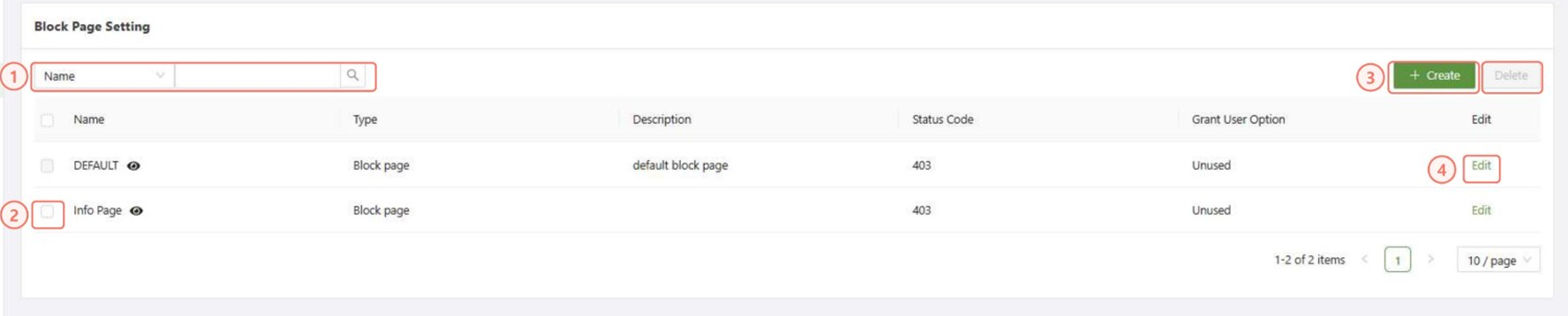
- Search: Used to filter the Block page list based on the available options in the dropdown box
- Check box: Used in conjunction with the Delete button in order to remove one or multiple block pages from the list.
- Create: Used to open the “Create Block page” form in order to create new block pages
- Edit: Used to edit the specified group, opening the “Edit Block page” form
Create Block Page form
This form will change based on the selected type:
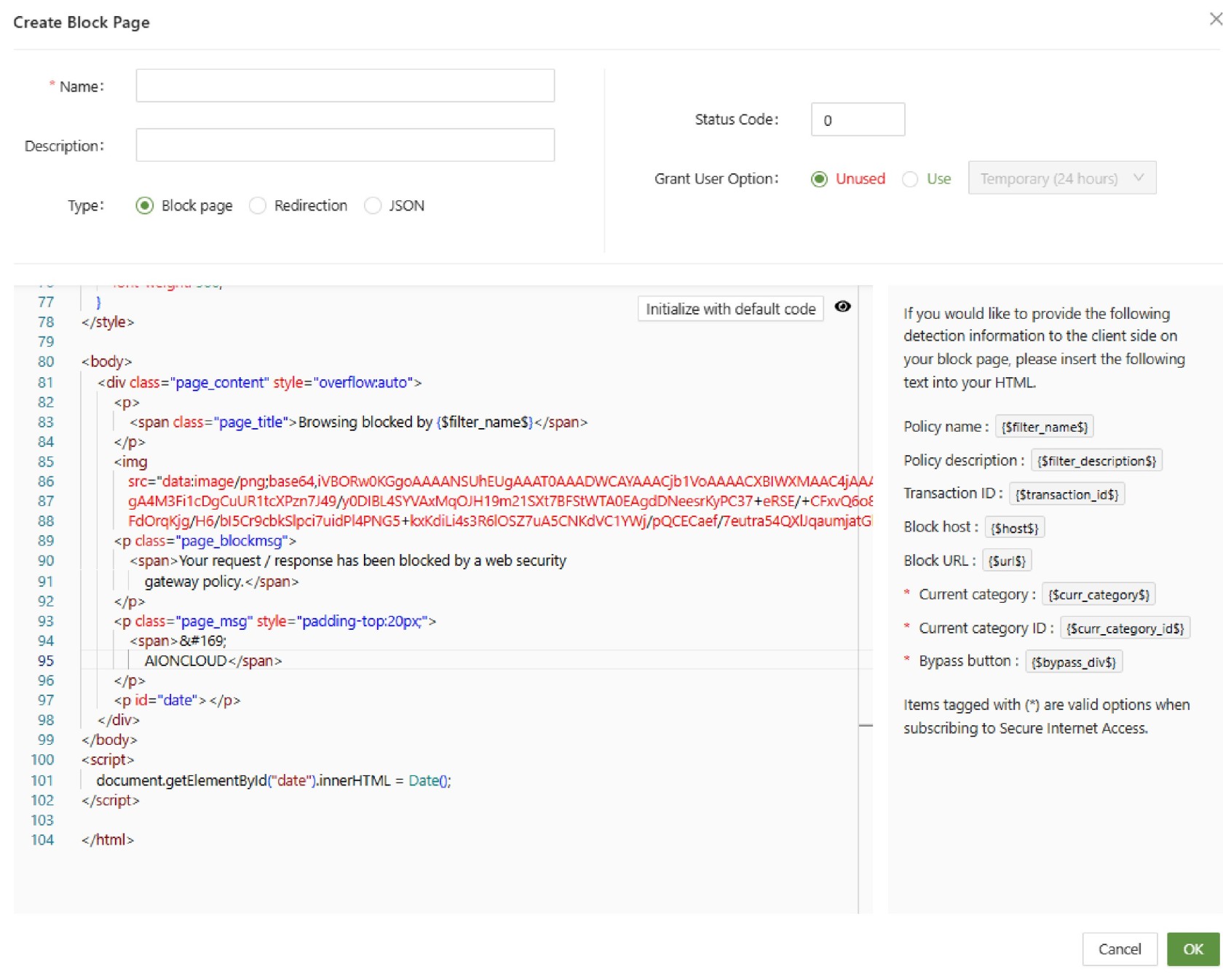
- Name(Unique): A unique name used to identify the block page
- Description: A short description of the block page and its purpose
- Type: Determines the type of response given to the user when blocked
The following options may change based on Type selection: - Status Code: The code that will be displayed and sent through the header to the user
- User Options: This will allow a user to temporarily unblock the website based on a timeframe or their current session. Only usable with Block Page
- Input Section: This section used to input the data that will be displayed to the user, when using block page, this will include a HTML page including CSS.
- Initialize with default code: Will create the default block page
- View: Will allow you to view a preview of the page
- Variable Inputs: Click these options to create simple inputs that will display details regarding the policy that blocked the web page.
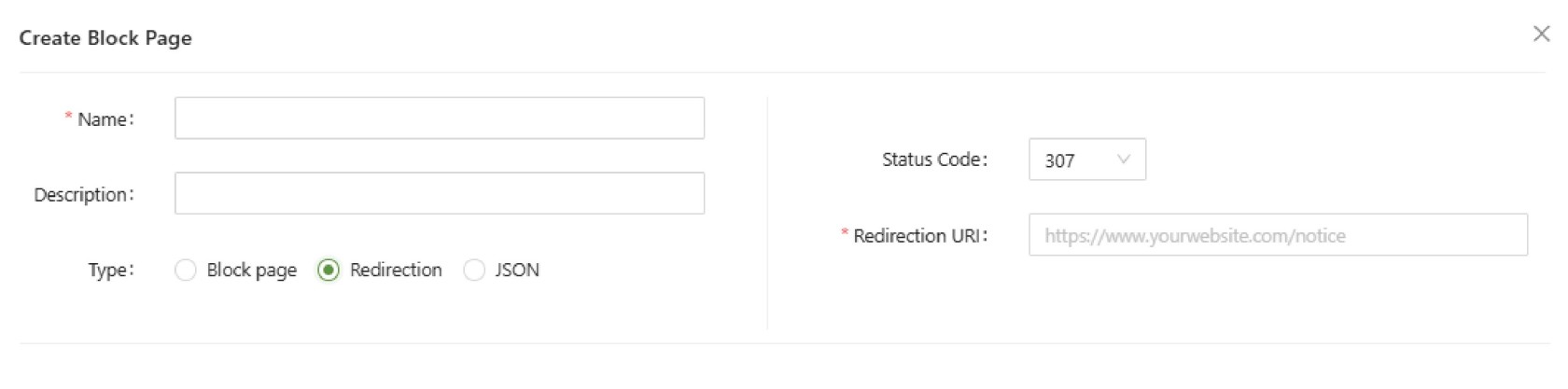
- Redirection URI: When the block page is triggered, will redirect the user to the specified URI.
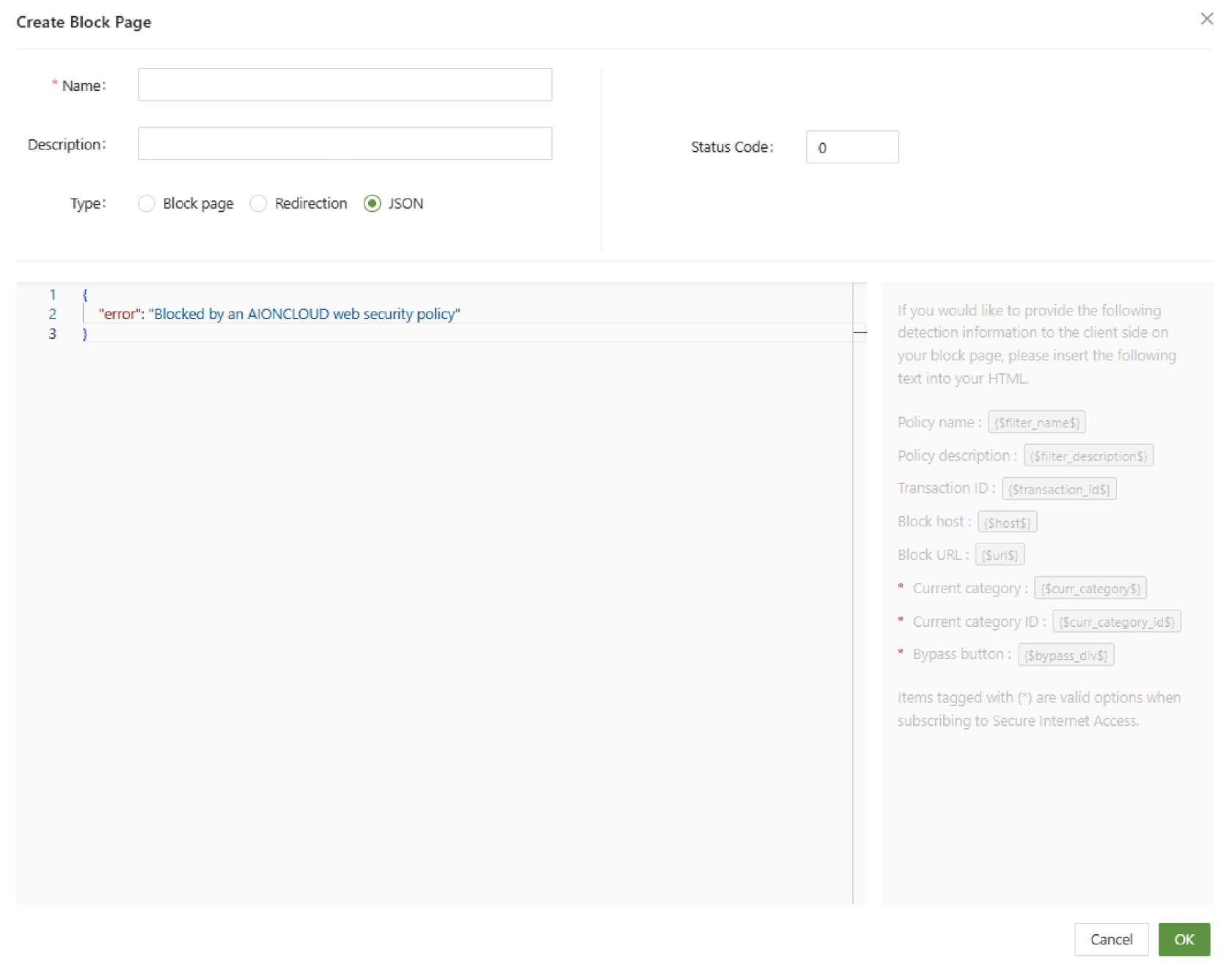
- Input Section: Modified to accept and respond with a JSON, which is displayed to the user as a JSON file through the browser.
Block Page(DNS)
This is a function that allows the user to set the block page in the event that the DNS is blocked by firewall rule. There are 3 main options to choose from:
- NXDOMAIN Page
- Block Page(DNS)
- Redirection
NXDOMAIN Page
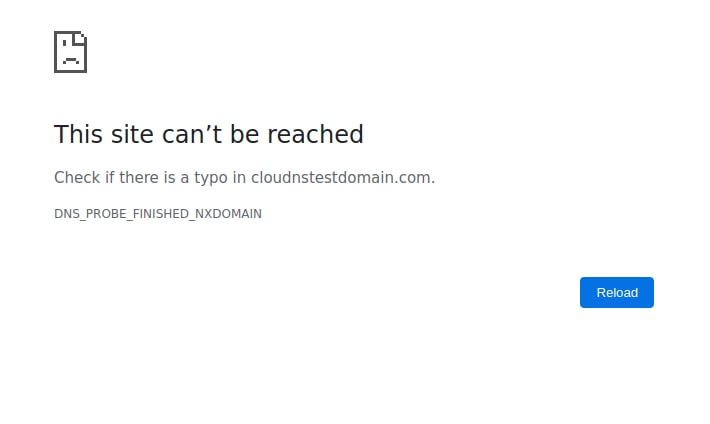
The NXDomain:

Here is an example of the NXDOMAIN page:
Block Page(DNS)
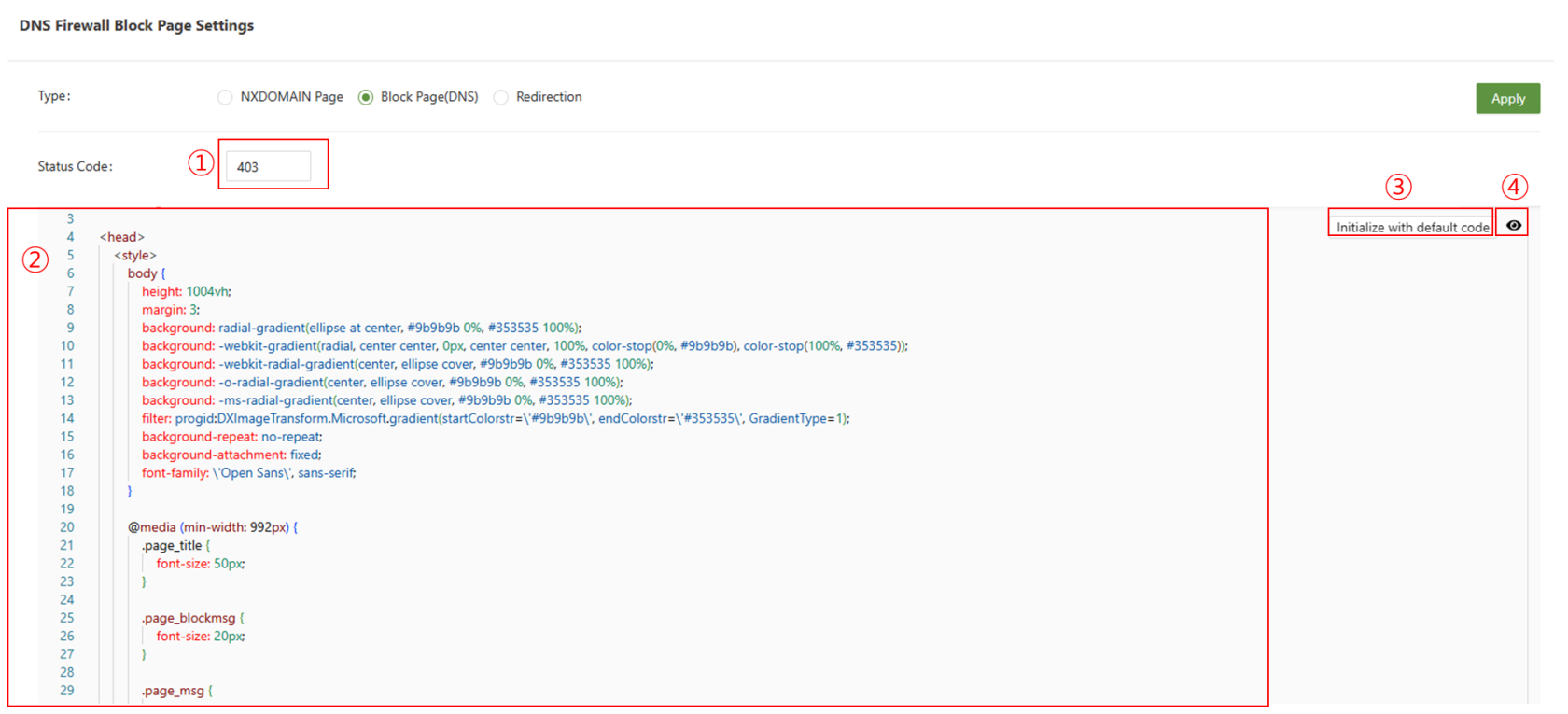
- Status Code: Enter the desired status code for your block page. This is the code that will be displayed and sent through the header to the user.
- HTML: The HTML/CSS code here can be edited to the user's satisfaction. Some knowledge of HTML/CSS is recommended.
- Initialize with default code: This button will reset the HTML doc back to the default setting.
- Preview: Click to preview the block page.
Redirection
This function is used to create a URI redirect to a path of your choosing. Enter the status code and enter the URI you wish to redirect to, and then click apply:

Block Page(GenAI)
This tab is used to create the different block pages that will be displayed to users when they are blocked by a GenAI rule.
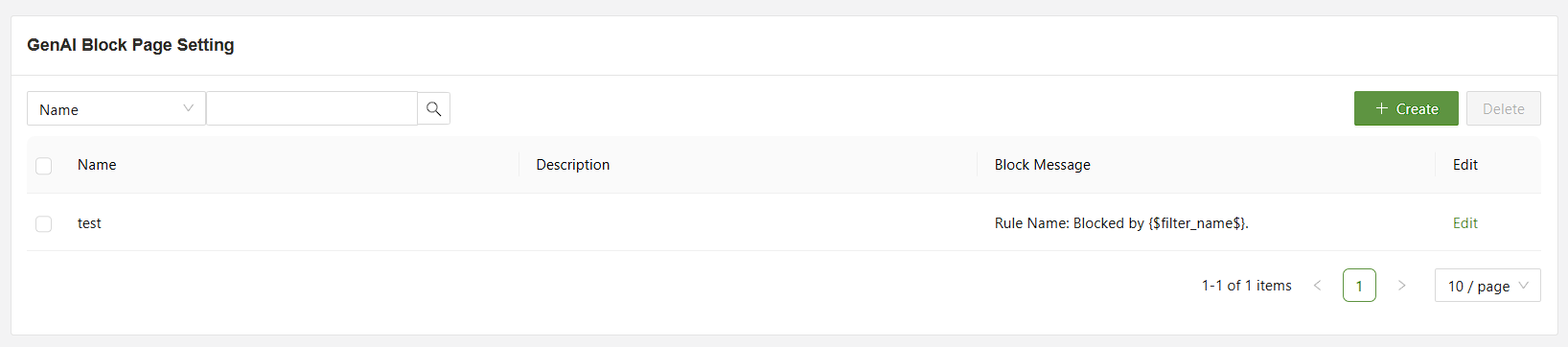
- Search: Used to filter the Block page list based on the available options in the dropdown box
- Check box: Used in conjunction with the Delete button in order to remove one or multiple block pages from the list.
- Create: Used to open the “Create Block page” form in order to create new block pages
- Edit: Used to edit the specified group, opening the “Edit Block page” form
Create Block Page
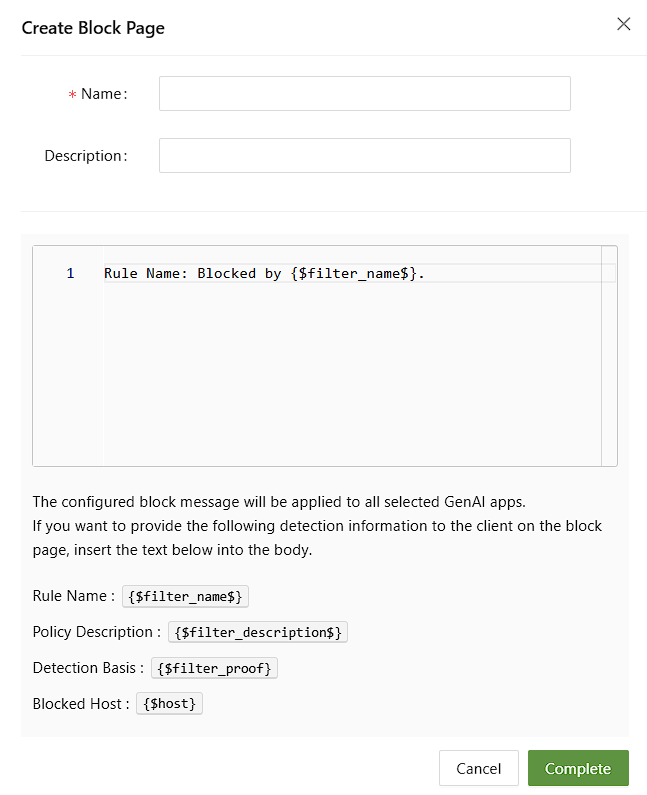
The block page will be displays by the GenAI client when a rule is triggered. For example on ChatGPT, it will appear as an error within ChatGPT.