Report
This section allows for the creation of reports regarding the analytics section and has two corresponding features. First is the ability to filter and download previously created reports, while the second is for generating reports.
Search Bar
 The search bar allows the manager to filter reports based on several variables:
| Period | The period of time that the report will show data for. Searching for a period here will only show reports with that exact period |
| Report Name | The name of the report as inputted by the report creator |
| Report Item | The item to be included in the report |
| Creator | The user who created the report |
| Created Date | The day the report was created |
Report List
This is the main part of the report page, and is for viewing a list of all previously created reports:
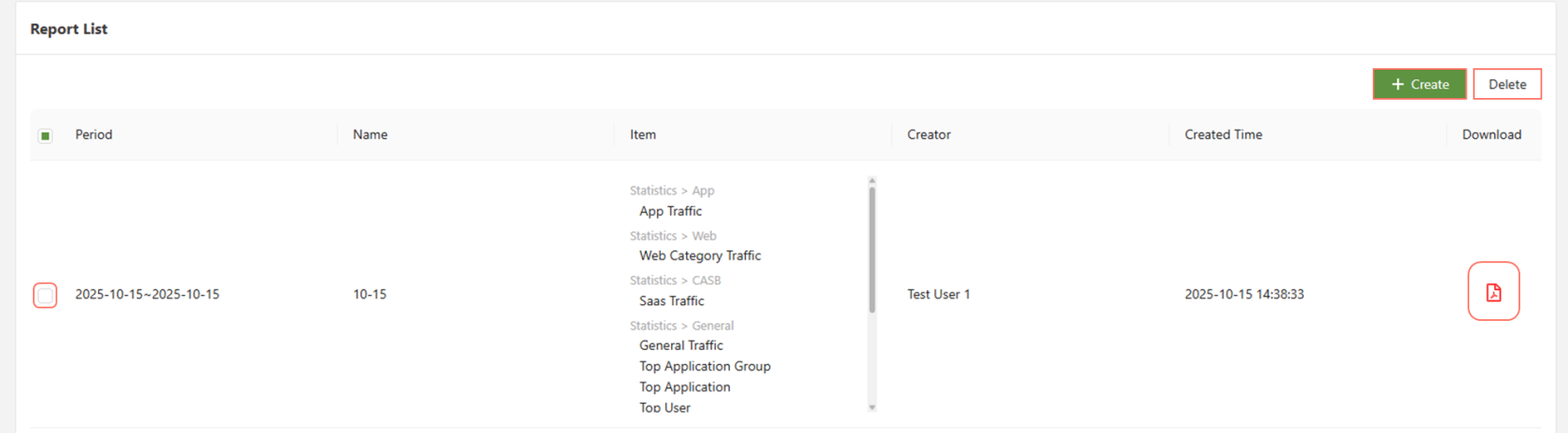
There are 4 actionable items in the report list:
| Create | Allows for the creation of a new report |
| Delete | Deletes a selected report |
| Select | The button to the left of a report, allows the selection and deletion of reports |
| Download PDF | Allows the user to download the report as a pdf file |
Create Report
This menu allows for the creation of a report and has 3 main fields.
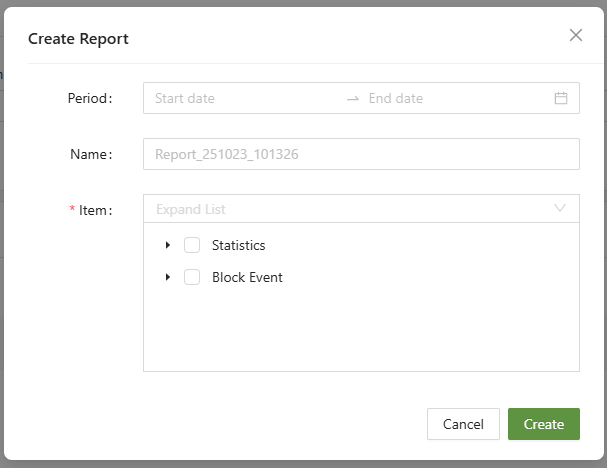
- Period: Select the period for which you want to generate a report.
- If left blank, it will generate the report for the current day.
- Name: Select the name of the report
- If you leave it blank, it will be created with a default name using the format Report_date_time
- Items: These are the items that will be displayed in the report, select at least one
- Click the Create Button in order to generate the report.
Once generated, select the “Download” PDF icon to download the report.