RBI Configuration Guide
To configure an RBI rule, navigate to RBI > Browser Isolation.
Step 1: Open Create Remote Browser Policy
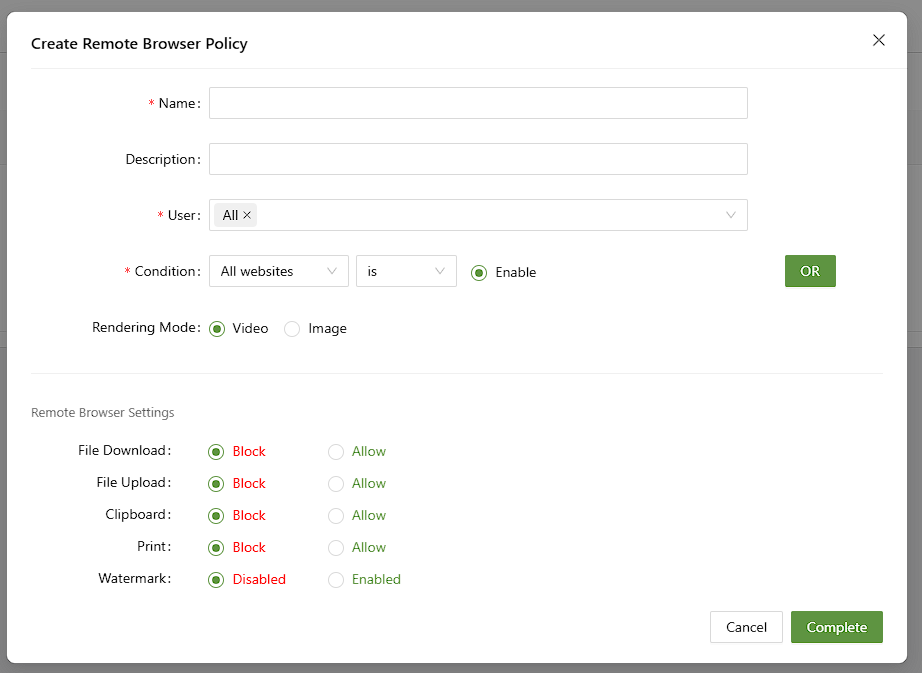
When creating an RBI policy, there are several things to consider:
- Which websites to block
- Which restrictions to impose
These will be configured with Condition and Remote Browser Settings, respectively.
Step 2: Choose the Condition
Choosing the condition means choosing which websites the RBI will apply to. There are five main options:
- All websites - This is every website.
- Unsafe website - Unsafe websites are websites from the "Risky websites" signature management group, as well as a group of preset unsafe websites.
- HTTP Category - This allows the user to choose from any of the preset or custom HTTP categories from the HTTP category management menu.
- SaaS category - Choose from a preset list of SaaS applications.
- Specific website - Enter a single website.
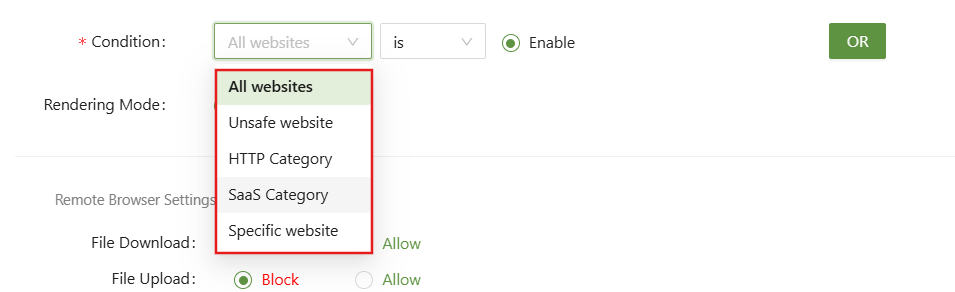
Per RBI rule, only one condition can be set.
Under the Conditions, you can find "Rendering Mode."
Rendering mode directs the RBI to render the webpage as a video or as an image. Video will result in higher performance but will consume more data. Sound will not be played when using Image rendering mode.
Step 3: Remote Browser Settings
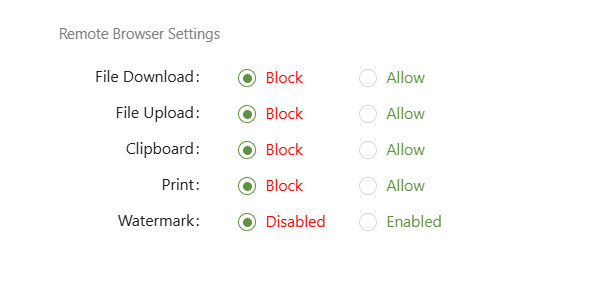
The final step of configuring the RBI rule is to set the restrictions imposed upon the remote browser. There are five main settings:
- File Download - Block or Allow downloading files within the RBI
- File Upload - Block or Allow uploading files within the RBI
- Clipboard - Block or Allow copying to clipboard within the RBI
- Print - Block or Allow printing within the RBI
- Watermark - Adds a watermark to the RBI. The watermark will be the email address of the logged in user